Contents
- Part 1 — The client portal
- Signing in
- Home
- Requesting a new estimate
- The project page
- Waiting on you
- Estimates
- Deliverables
- The CAD viewer
- The 3D viewer
- Transmittals and reviews
- Questions (RFIs)
- Sending files to GIP
- Site visits
- Project models and point clouds
- Schedule and history
- Search
- Notifications, emails and Settings
- Help and reporting a problem
- On a phone
- Part 2 — GIP Staff Portal
- Signing in and roles
- Getting around: Projects Home
- The GIP Project Board
- Starting a project
- Customers and the client view
- A project in the Staff Portal
- Client contacts and the GIP team
- Schedules
- Releasing drawings and estimates
- Estimates
- Questions (RFIs)
- Site visits
- Project models and point clouds
- Reminders, nudges and the Monday email
- 3D models and GIP's model server
- Staff, roles, issues and project folders
- My GIP
- Troubleshooting
- Part 3 — Reference
- Every email the portal sends
- Where the data lives
- File naming and file types
- Part 4 — Project folders (a separate document for GIP staff)
Part 1 — The client portal
The client portal is where a customer sees every document GIP has issued on their projects and does the few things GIP needs from them: accept an estimate, acknowledge or review a transmittal, answer a question. It lives at www.gilesip.com/portal/. There is nothing to install and no password to remember.
1. Signing in
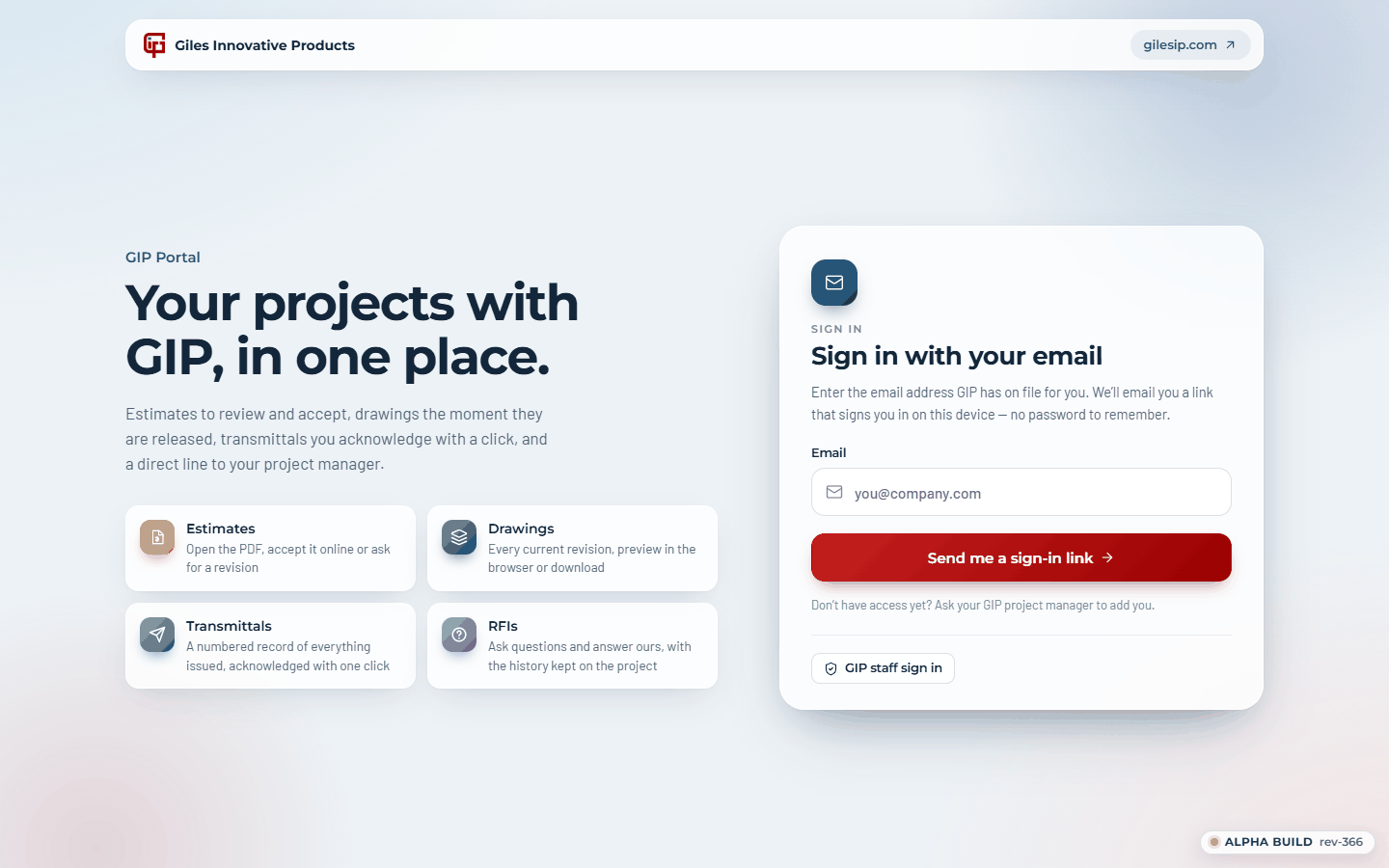
Enter the email address GIP has on file for you and press Send me a sign-in link. An email arrives within a minute with a button; open it on the device you want to use and you are signed in for 30 days on that device. The link works once and expires after 20 minutes. If it has expired, just ask for another.
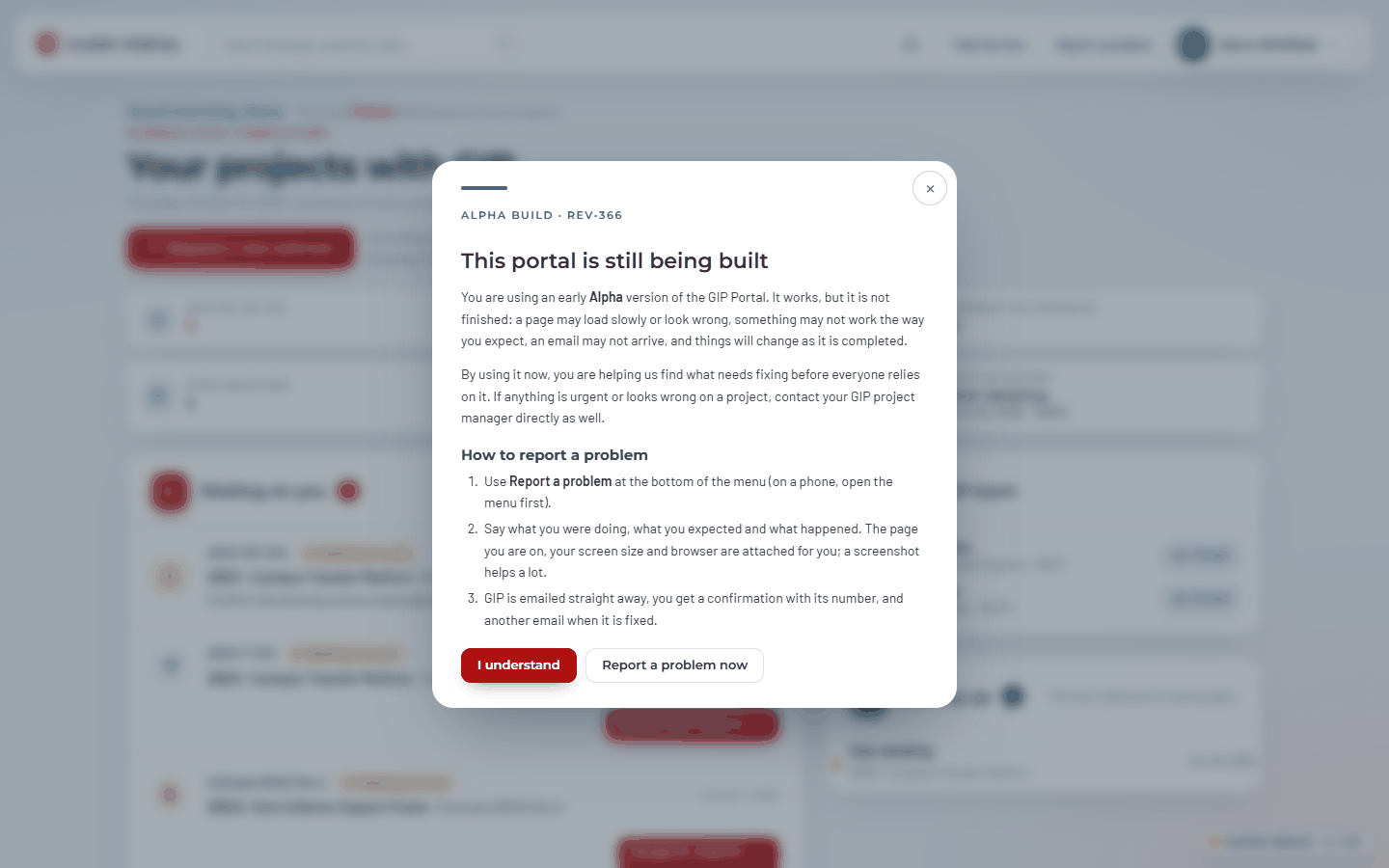
The portal is an Alpha build while it is being finished. A small badge in the bottom-right corner says so, and the first time you sign in on a browser a notice explains what that means and how to report a problem. Press I understand to carry on; click the badge to read it again. For anything urgent, contact your project manager the usual way.
The first time you open each screen, a short guided tour points out what is where. Take the tour in the menu runs it again at any time.
2. Home
After signing in you land on Home: one page that says where everything stands across all your projects with GIP.
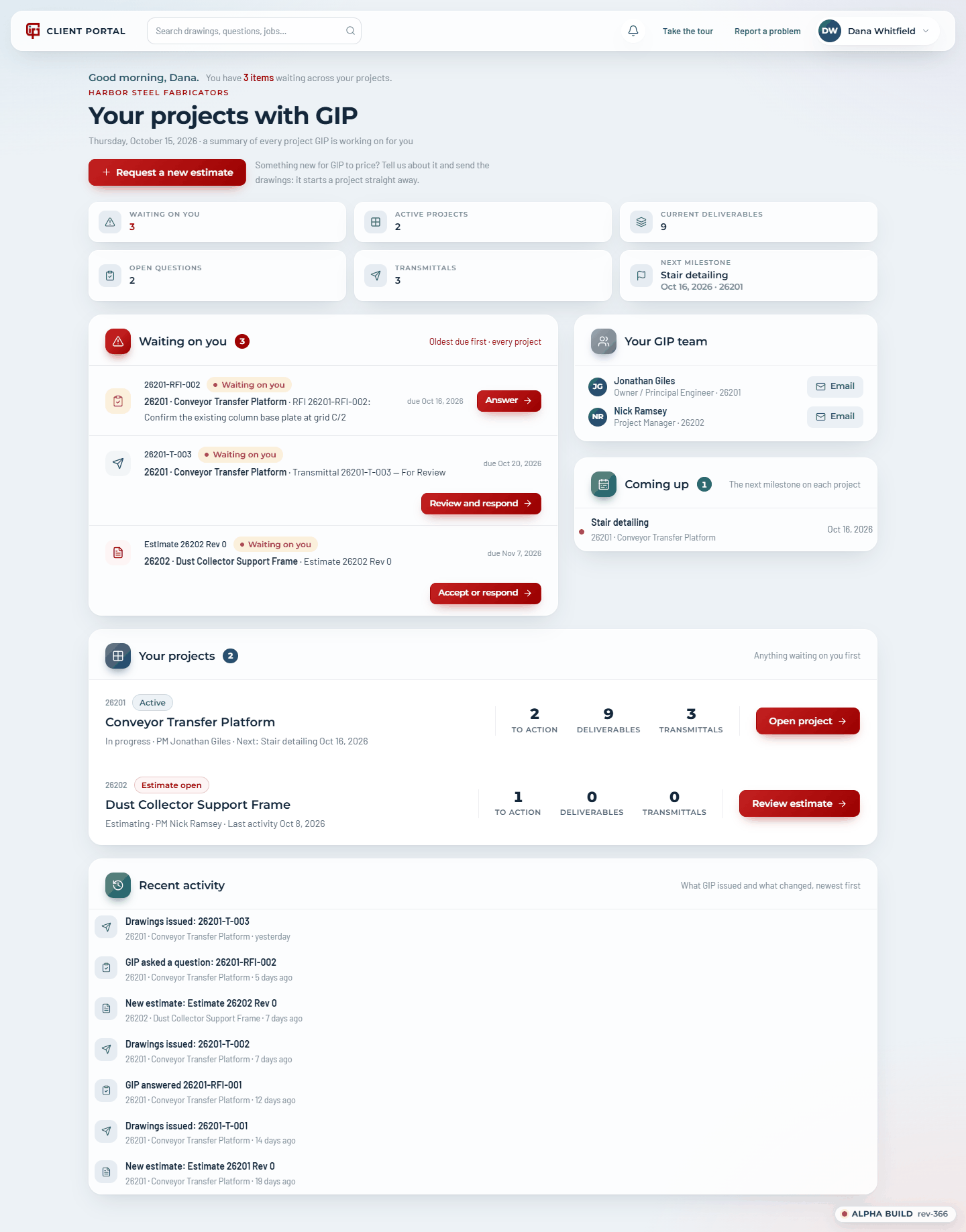
- Tiles: things waiting on you, active projects, current deliverables, open questions, transmittals, and the next milestone.
- Waiting on you: every item GIP needs from you on any project, oldest due first, each with its own button (Answer, Review and respond, Accept or respond).
- Your GIP team: the people you work with at GIP, the jobs they run, and an Email button for each.
- Coming up: the next milestone on each project.
- Your projects: one row per project with what is waiting, the deliverables and transmittals, and Open project. A project with an estimate waiting shows Review estimate.
- Recent activity: what GIP issued or answered, newest first.
3. Requesting a new estimate
Request a new estimate on Home starts a new project with GIP. Give it a name, say what you need estimated, add a date if you need it by one, and attach any reference material: drawings, specs, photos or a model, up to 10 files of up to 2 GB each.
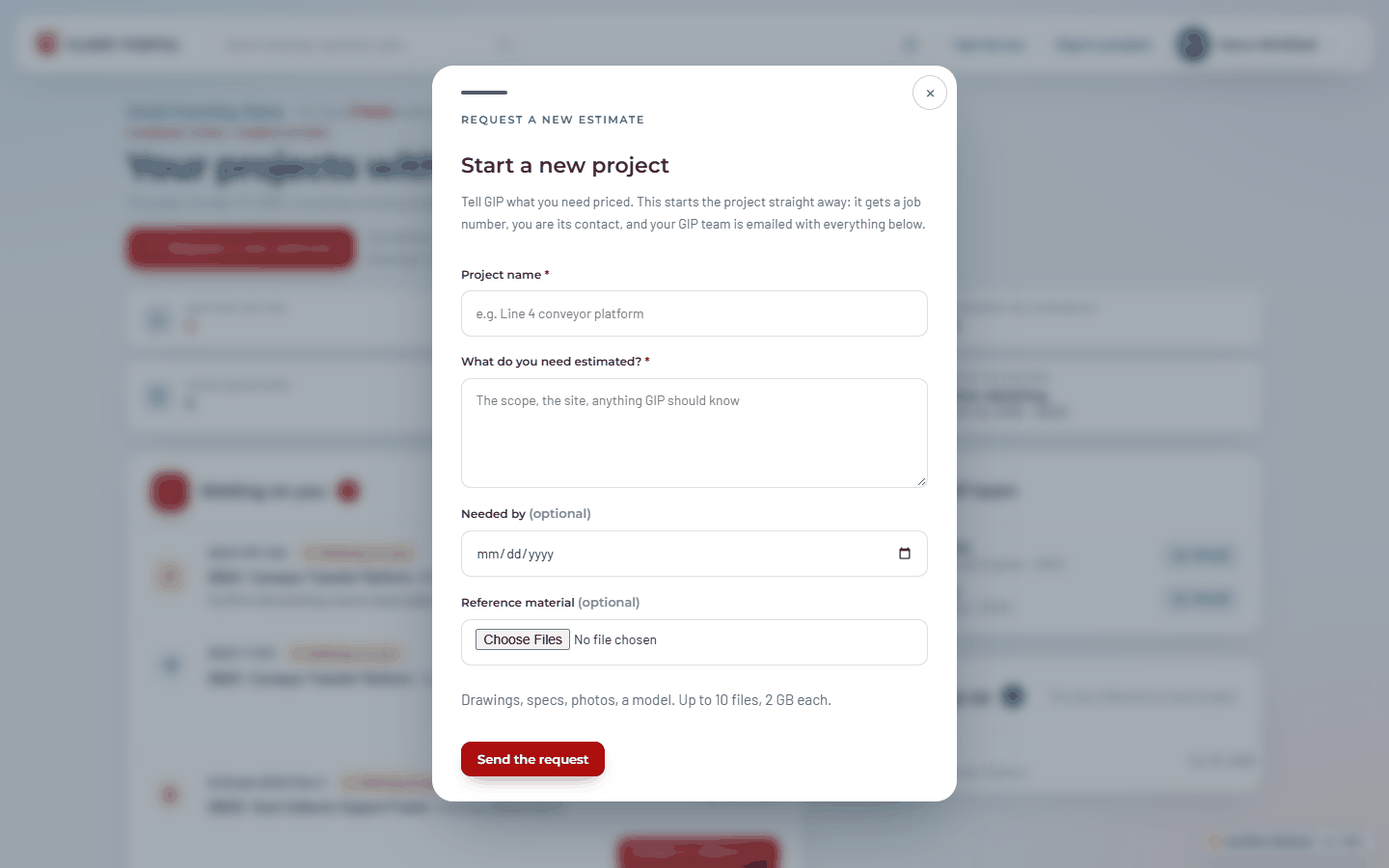
When you press Send the request the portal creates the project, files your reference material with it, and emails GIP. You get a confirmation and land on the new project's page. If a file doesn't go through, the page says so; send it again with Share files with GIP on the project. You can start up to three new requests a day.
4. The project page
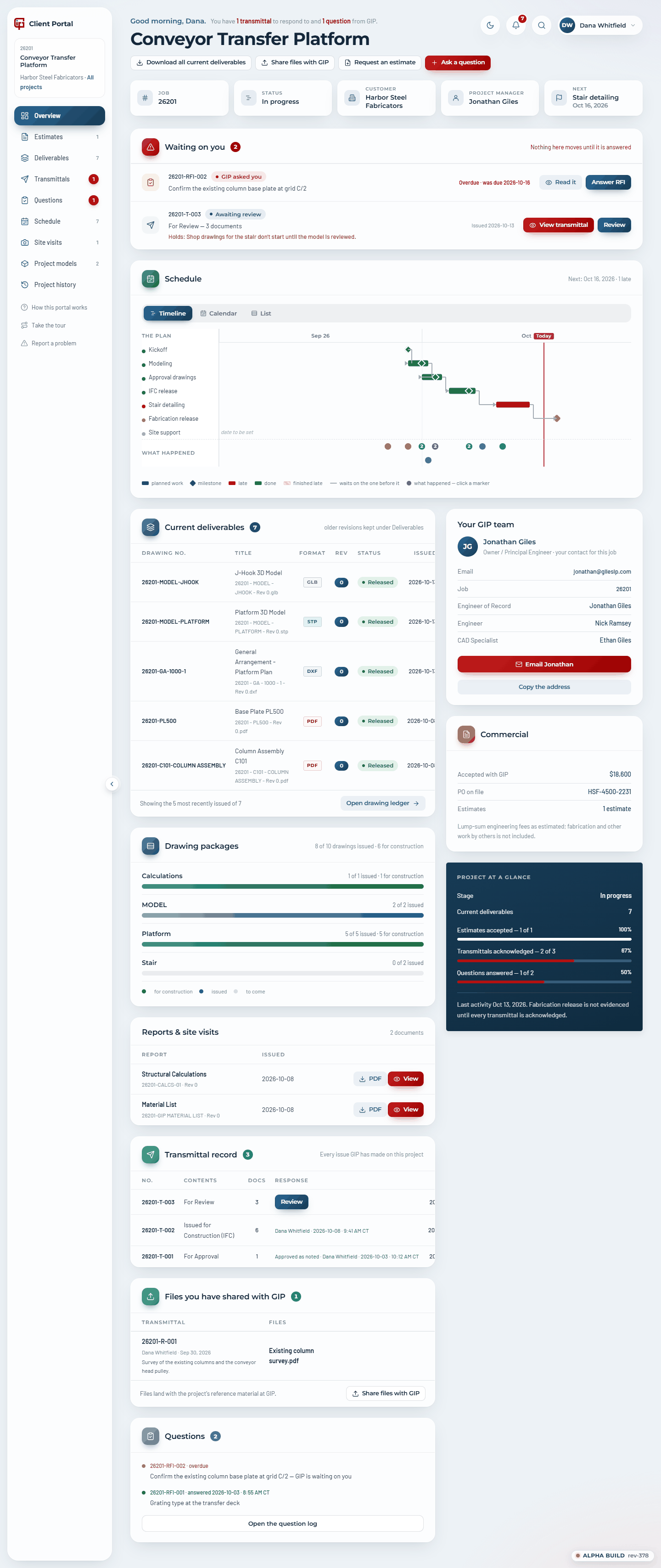
Every project has the same layout. The sidebar switches between Overview, Estimates, Deliverables, Transmittals, Questions, Schedule and Project history; red numbers are things waiting on you. Under the project's name in the sidebar, All projects takes you back to Home.
The header greets you and says what is waiting, then carries the buttons: Download all current deliverables, Share files with GIP, Request an estimate and Ask a question. Under them, tiles give the job number, its status, the customer, your project manager and the next milestone.
Reading it top to bottom:
- Waiting on you: the only things GIP needs from you on this job (see the next section). When it says nothing needs you, you are done.
- Schedule: the milestones GIP has set, as a Timeline, a Calendar or a List (section 15).
- Current deliverables: the most recently issued current documents. Open drawing ledger shows everything.
- Drawing packages: one progress bar per package, showing how many of its planned drawings have been issued and how many are issued for construction.
- Your GIP team: your project manager with an Email button (and Copy the address), and the other GIP people on the job.
- Commercial: what you have accepted with GIP, what is awaiting acceptance, and the PO on file. It appears once an estimate has a value.
- Project at a glance: progress bars for estimates accepted, transmittals acknowledged and questions answered.
Every action in the portal is recorded with its date and time (for example 2026-10-08 · 8:43 AM CT), and the same record goes to GIP.
5. Waiting on you
This card is the point of the portal. Each row is one thing GIP is waiting on: what it is, its status, when a response is due, and the buttons to deal with it right there. A Holds: line says what GIP cannot start until the item is dealt with.
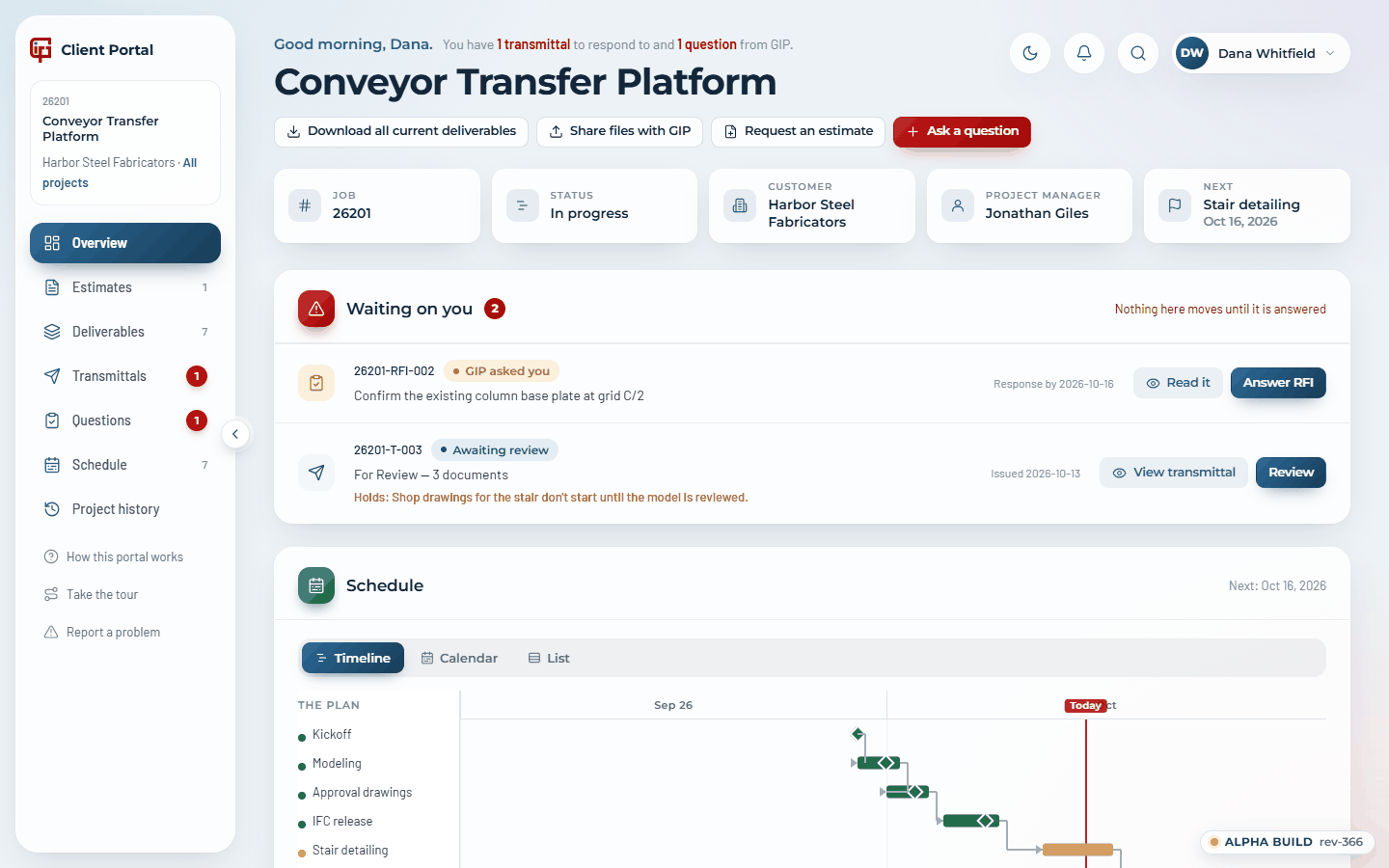
| Row | What GIP needs | Buttons |
|---|---|---|
| Awaiting acceptance estimate | Read the PDF, then accept it, ask for changes or decline | Review |
| GIP asked you question | An answer GIP needs before it can carry on | Read it · Answer RFI |
| Awaiting review transmittal | A set issued For Review or For Approval: your decision, with comments or markups | View transmittal · Review |
| Unacknowledged transmittal | Confirmation that you received a set issued for information or for construction | View transmittal · Acknowledge receipt |
| Expired estimate | It passed its validity date. Ask for a fresh one if you still want to go ahead | Request a new estimate |
| Accepted with PO to follow | The purchase order number, when you have it | Add PO number |
Only the person GIP has set as the job's contact sees these buttons. Colleagues with view access see the same information, with a note saying who handles the responses.
6. Estimates
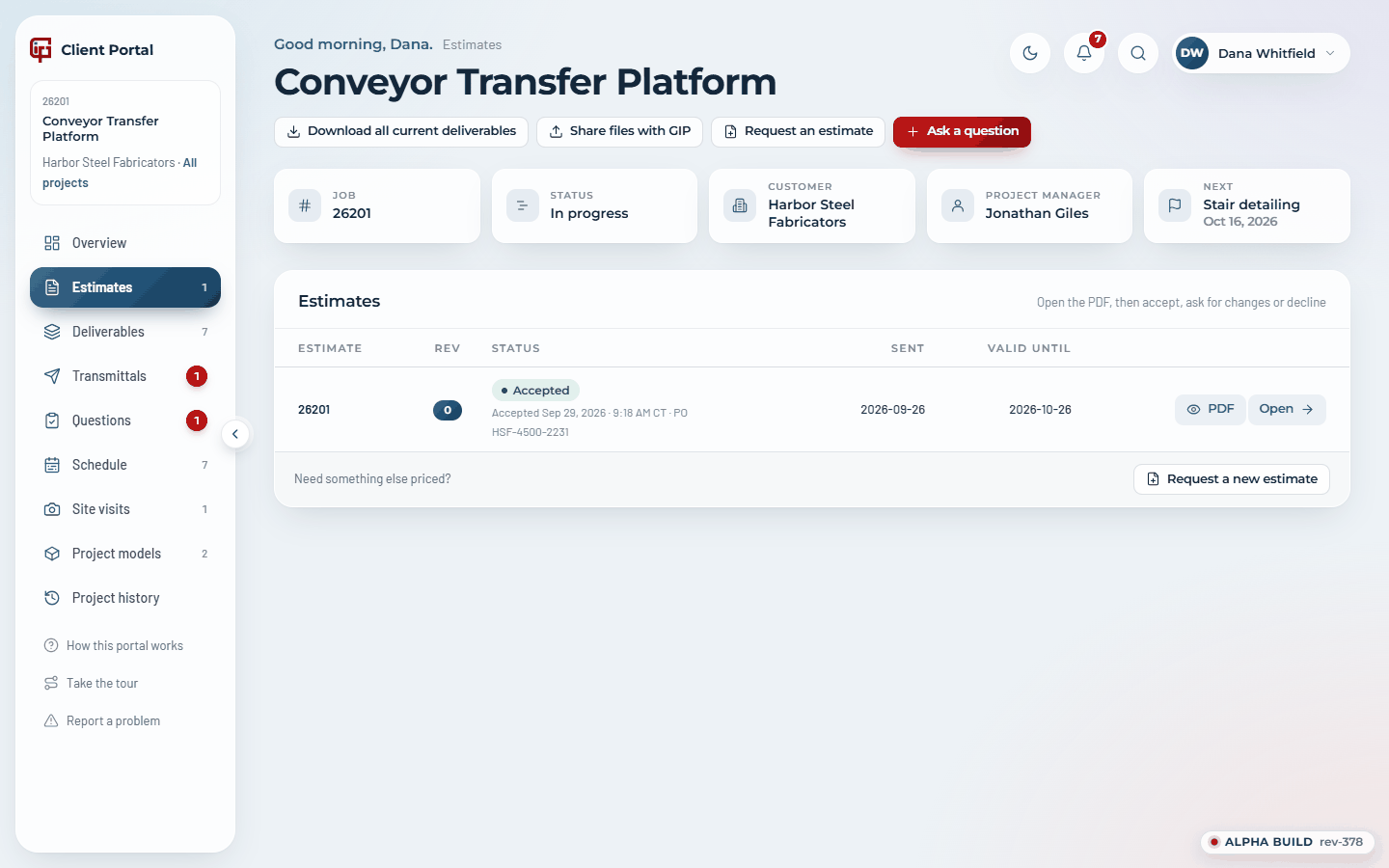
The Estimates view lists every estimate on the job: number and revision, status, when it was sent and how long it is valid, with PDF and Review. Older revisions and expired or declined estimates are kept underneath.
Reviewing and accepting
Press Review. The estimate opens in the portal; choose Accept, Ask for changes or Decline.
Accepting names the Terms & Conditions the estimate is offered under, with a link to read them, and asks about the purchase order: enter the PO number, say no PO is required, or say the PO will follow (you can add it later). Tick I have read and agree to the … Terms & Conditions, and I am authorized to accept this estimate for my company, add a comment if you like, and press Accept estimate.
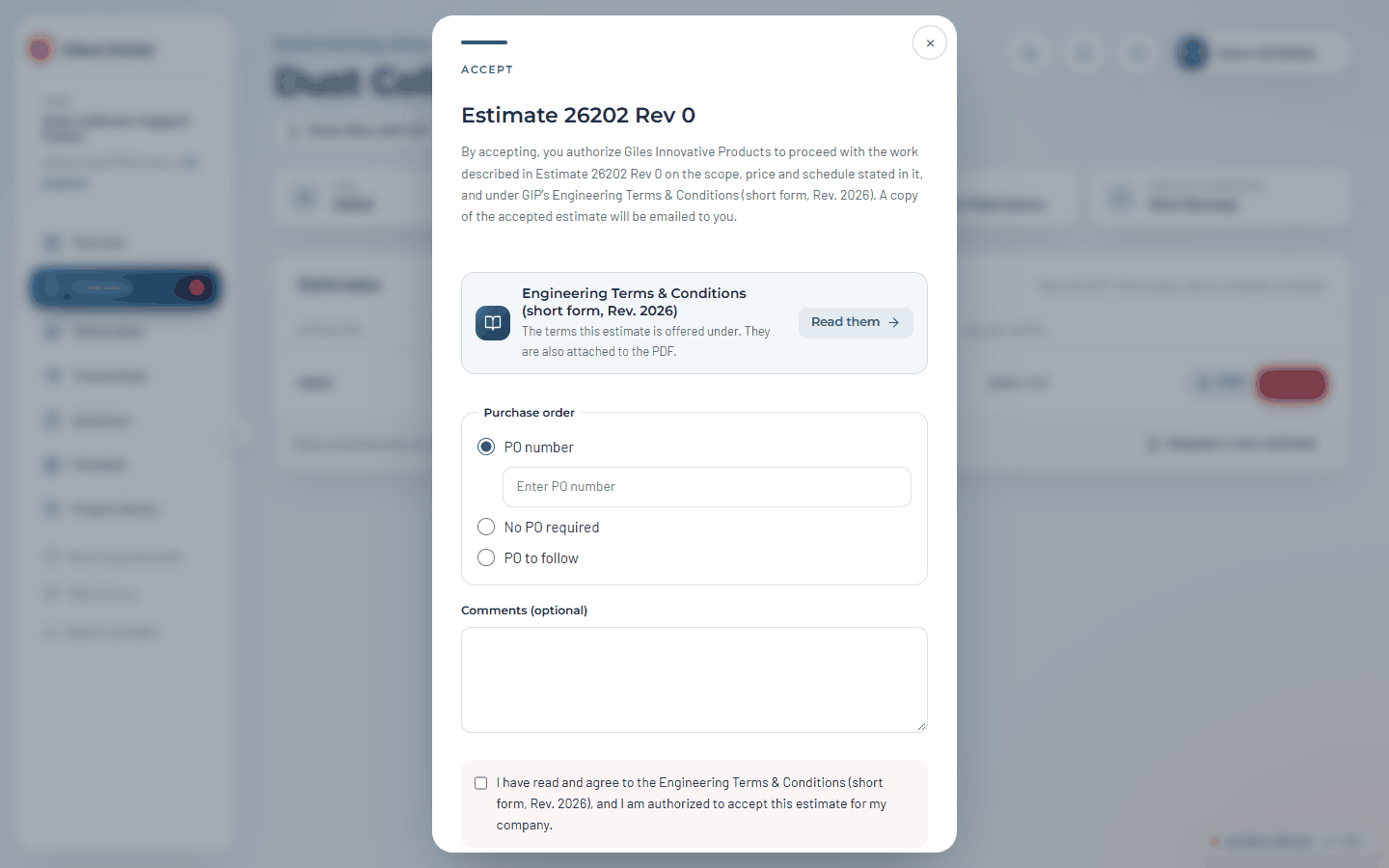
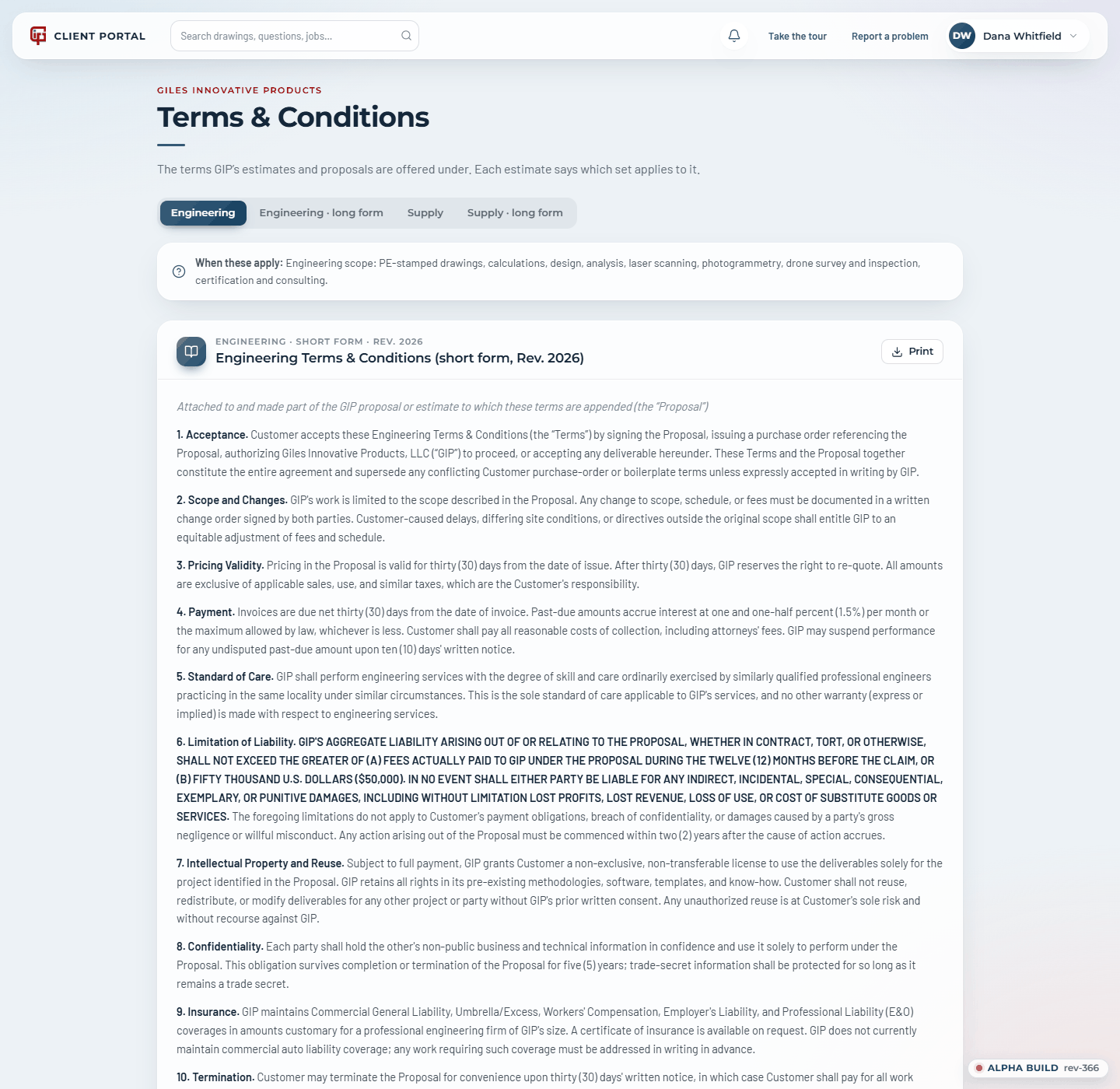
GIP's Terms & Conditions are always at www.gilesip.com/portal/terms/: Engineering and Supply, each in a short and a long form, with when each applies and a Print button.
The signed copy
Once an estimate is accepted it carries the acceptance. A green ACCEPTED line runs across the top of every page (when, who, and the PO), and an Estimate Acceptance Record page is added at the end. That page records who accepted it, their email, the date and time, the PO, the terms, how it was accepted (signed in to the portal as that person, and from where) and the statement they agreed to, with an electronic signature. GIP's terms provide that electronic signatures and PDF copies have the same effect as originals.
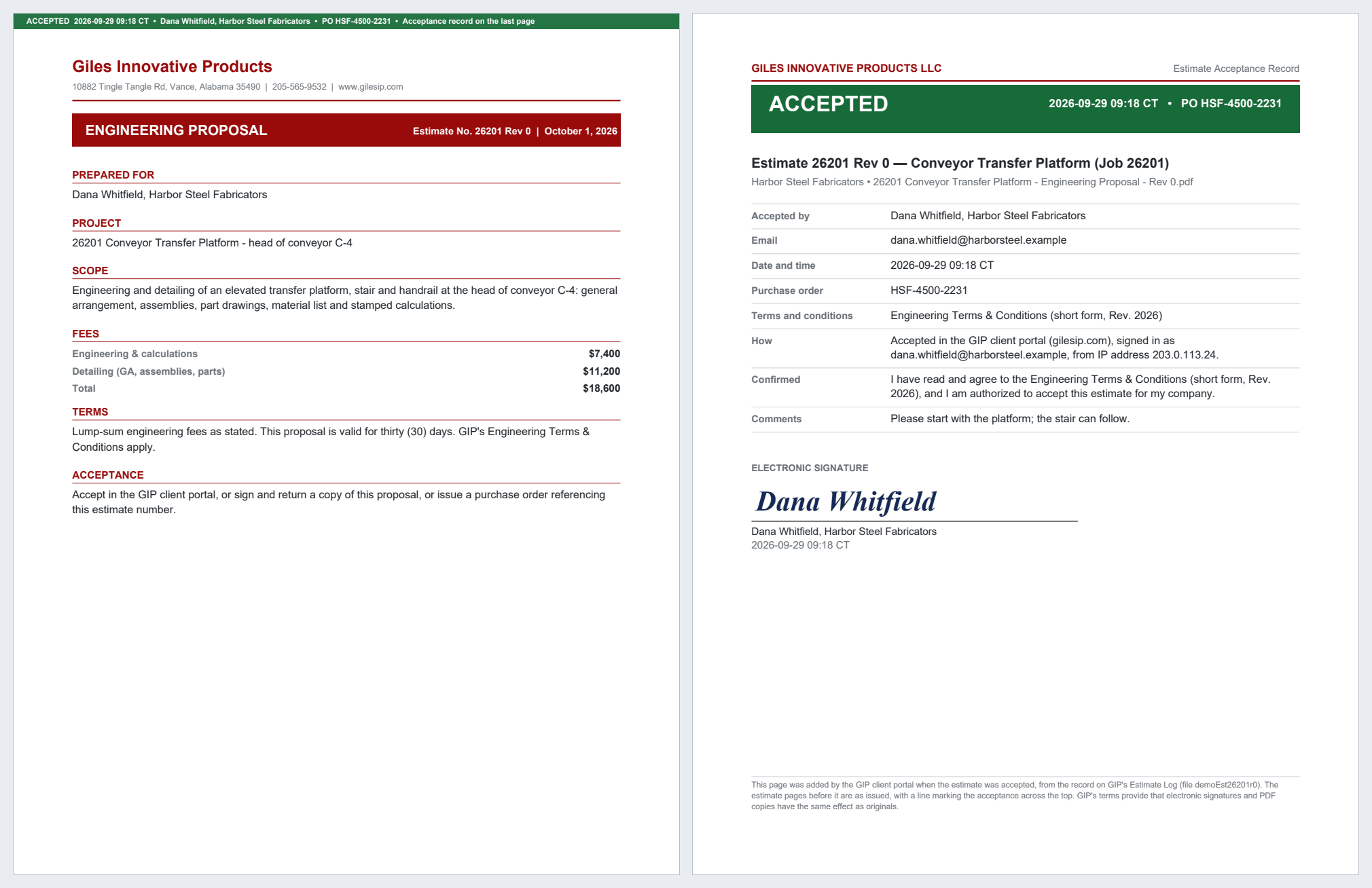
The confirmation email to you and your project manager attaches this signed copy, and PDF and Preview in the portal always give it. The estimate GIP issued is never changed. When a customer accepts by purchase order instead, GIP records the acceptance in the portal for them; the record then names who approved it and, where it applies, says the terms on the PO govern.
Ask for changes needs a sentence on what should change; GIP issues a revised estimate, which replaces the old one in the list. Decline takes an optional reason.
7. Deliverables
The overview shows current documents only. Deliverables is the full ledger: every drawing, model, report and file GIP has issued, every revision, with superseded ones marked and kept so nothing is ever lost.
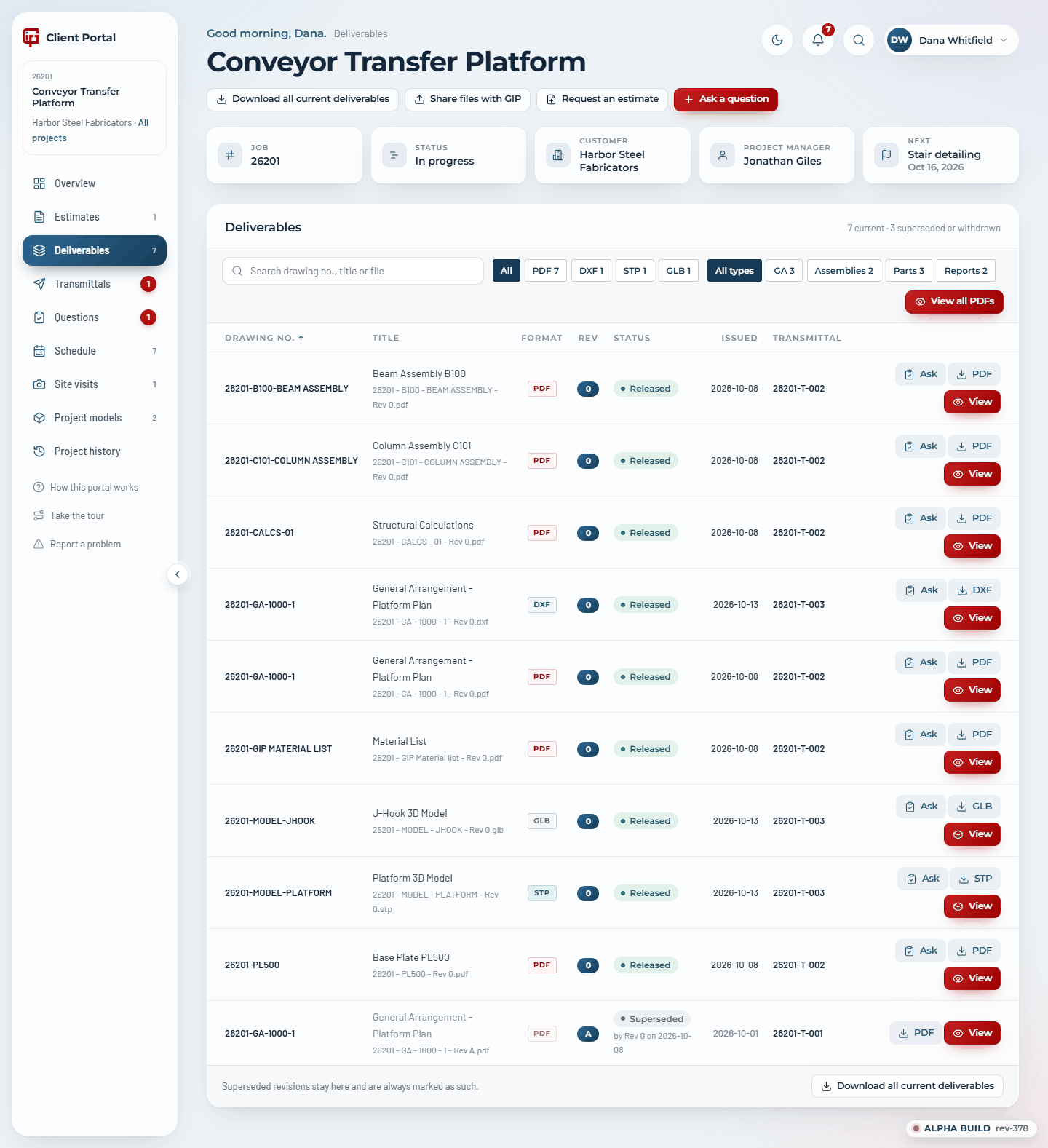
- Format and type chips filter the list; they work together with the search box. Reports gathers material lists, BOMs, calculations, FEA, analyses, scans and site notes.
- Click the Drawing no. heading to sort; hover a PDF row to see its first page.
- View opens a PDF in the markup viewer (section 10), a DWG or DXF in the CAD viewer, and an IFC, STEP, IGES or GLB model in the 3D viewer. The button on the right downloads the file, and Ask starts a question about that document.
- View all PDFs opens every current PDF in the markup viewer, one sheet after another.
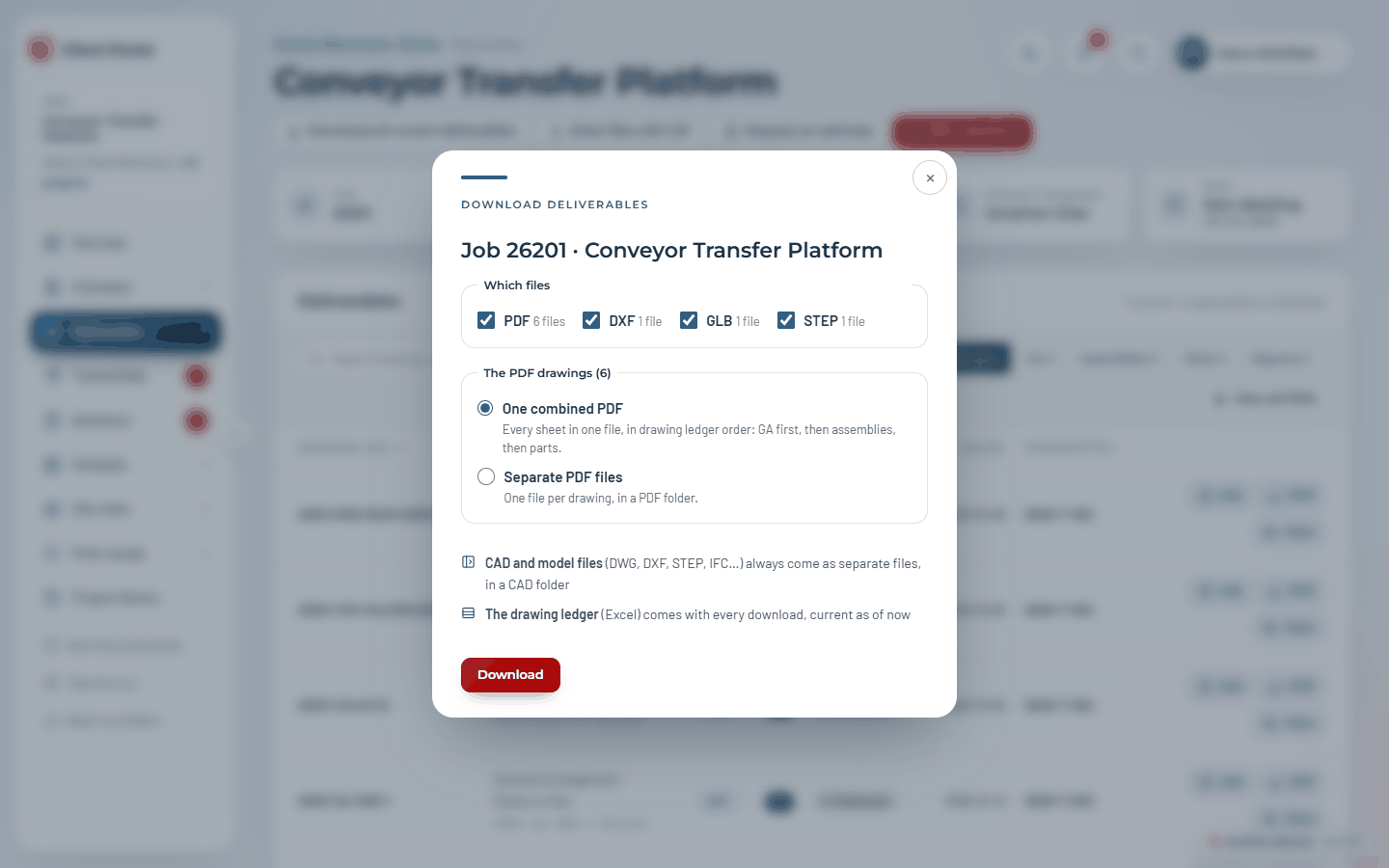
Download all current deliverables asks which files you want, with a box for each kind on the project (PDF, DXF, STEP and so on) and how many there are: tick any mix, for example just the PDFs and the DXFs. If you have filtered the list to one format, only that one is ticked to start with. For PDFs it asks whether you want one combined PDF or separate files. CAD and model files always come as separate files in a CAD folder, and an Excel drawing ledger is always included. The ZIP is made for you first: the button counts the files as they go in (a few seconds for a small job, a minute or two for hundreds of drawings or big 3D models), then the download starts by itself. Very big single files, such as a 3D model of several hundred MB, are got ready the same way and take a few seconds longer to start.
Drawings carry stamps when you open or download them, so a printed copy can't be mistaken for something it isn't. A drawing issued for approval, review or information carries a box in its top-right corner (FOR APPROVAL, FOR REVIEW & COMMENT or FOR INFORMATION ONLY, with NOT FOR CONSTRUCTION). A drawing that has been replaced carries a large SUPERSEDED watermark and a banner naming the revision that replaced it. Drawings issued for construction carry no stamp. The files GIP issued are never changed.
Every drawing has its own page (click its number) with the current revision, every earlier revision with the transmittal it came on, and any questions that cite it.
8. The CAD viewer
View on a DWG or DXF opens it in the portal's CAD viewer: pan and zoom (pinch on a phone), turn layers on and off, switch between model space and the drawing's layouts, and measure.
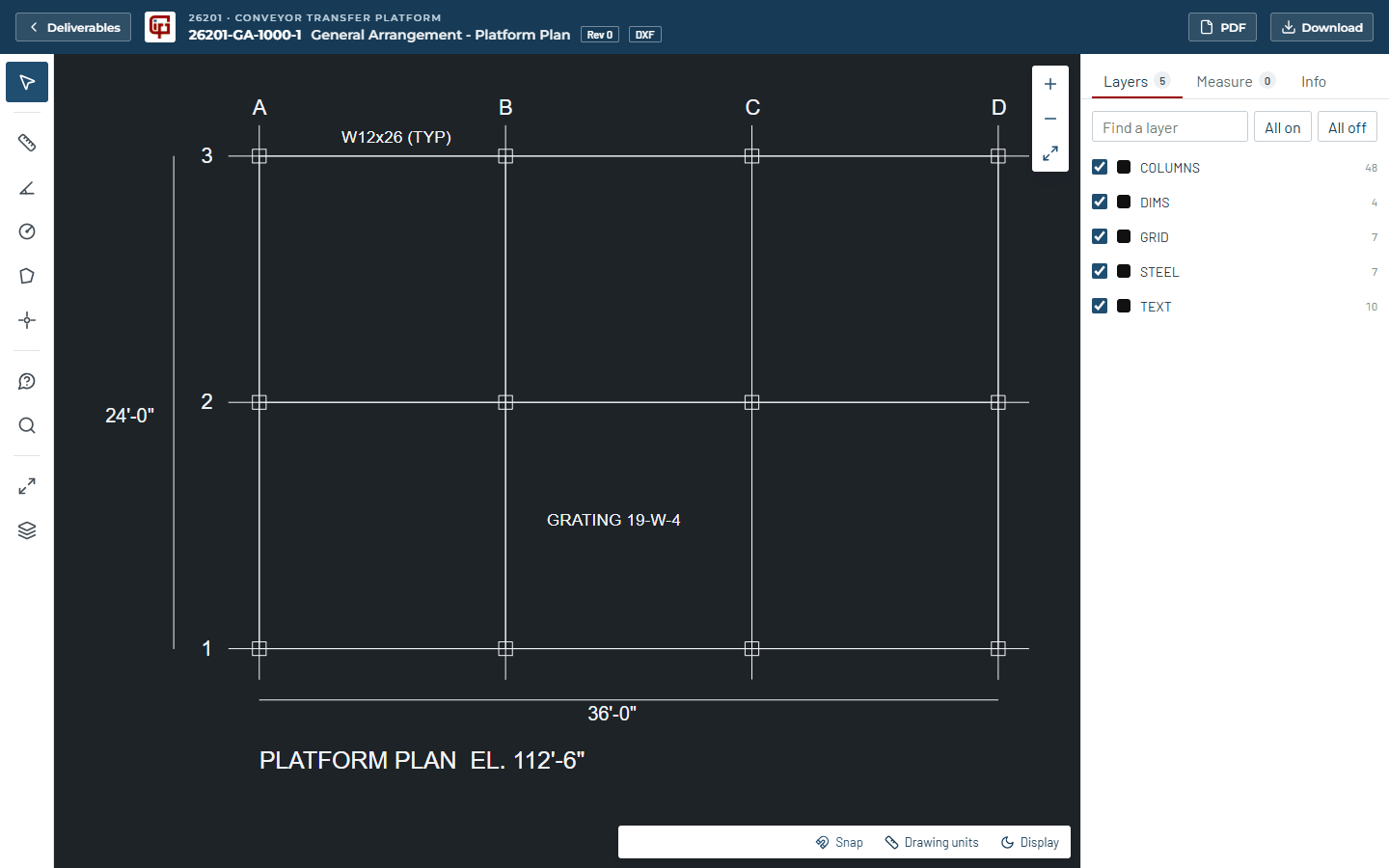
- Measure: distance, angle, radius, area and coordinates, snapping to ends, midpoints, centres and intersections. On a layout they measure through the viewport at true size. Lengths show in feet and inches (to 1/8, 1/16 or 1/32), decimal inches, millimetres or metres.
- Find (or Ctrl+F) searches the drawing's text and zooms to each match.
- Click a line or a piece of text to see what it is and which layer it is on. A dark or white background, black-and-white, and lineweights are under Display.
- Ask GIP puts a pin on the spot you click and opens the question form with the drawing, its revision and the location filled in. A picture of the view with the pin goes with your question.
Measurements are for checking only: nothing is saved and the file is never changed. A large DWG takes a little while to prepare the first time it is opened; after that it opens at once.
9. The 3D viewer
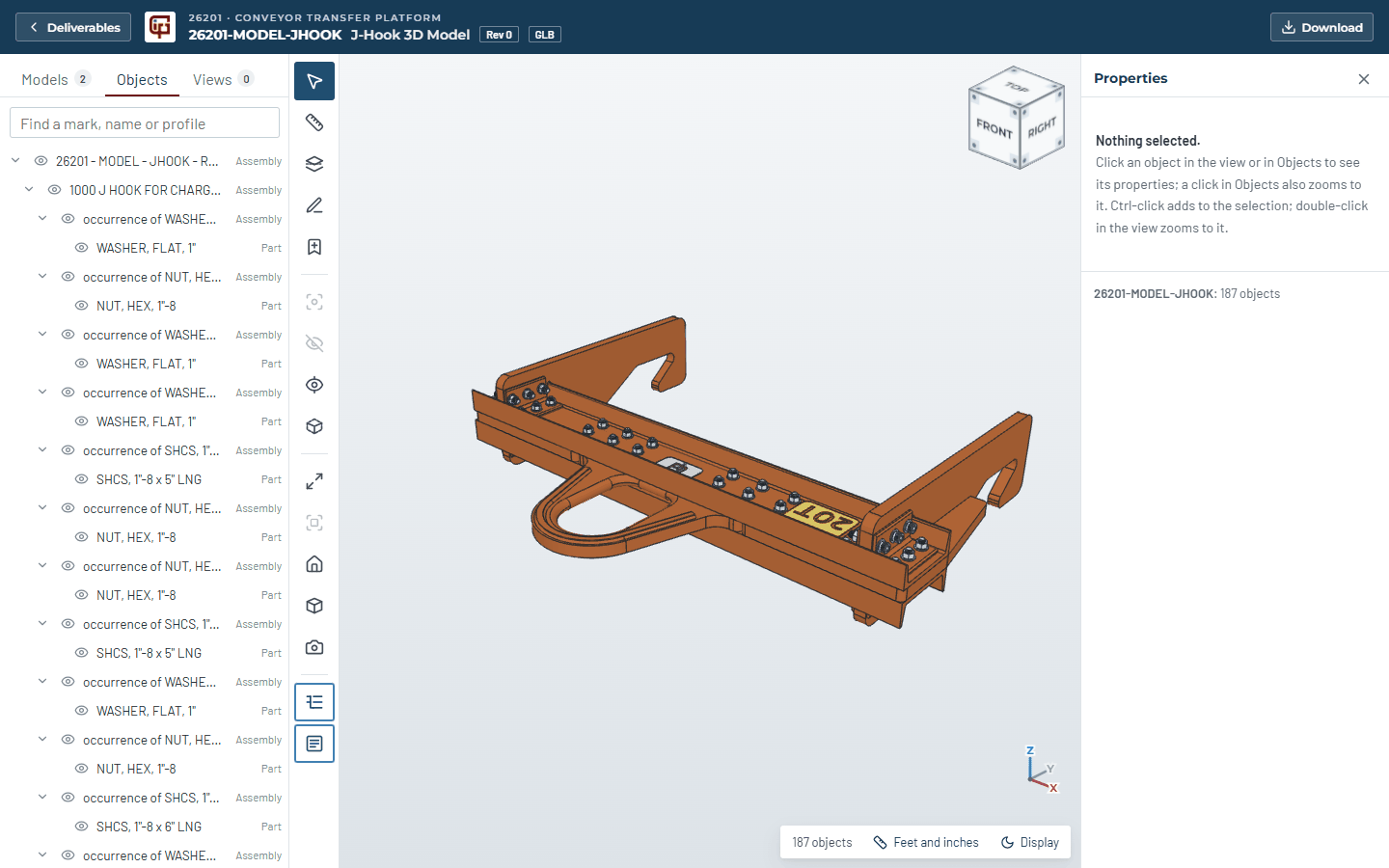
View on an IFC, STEP, IGES or GLB model opens the 3D viewer. Drag to orbit (around the point you grab), right-drag or Shift-drag to pan, scroll or pinch to zoom. The view cube (top right) looks from a face, an edge or a corner; its corners are marked so you can see where to click. The X / Y / Z marker (bottom right) shows which way the model's axes run, the same X, Y and Z that measurements give.
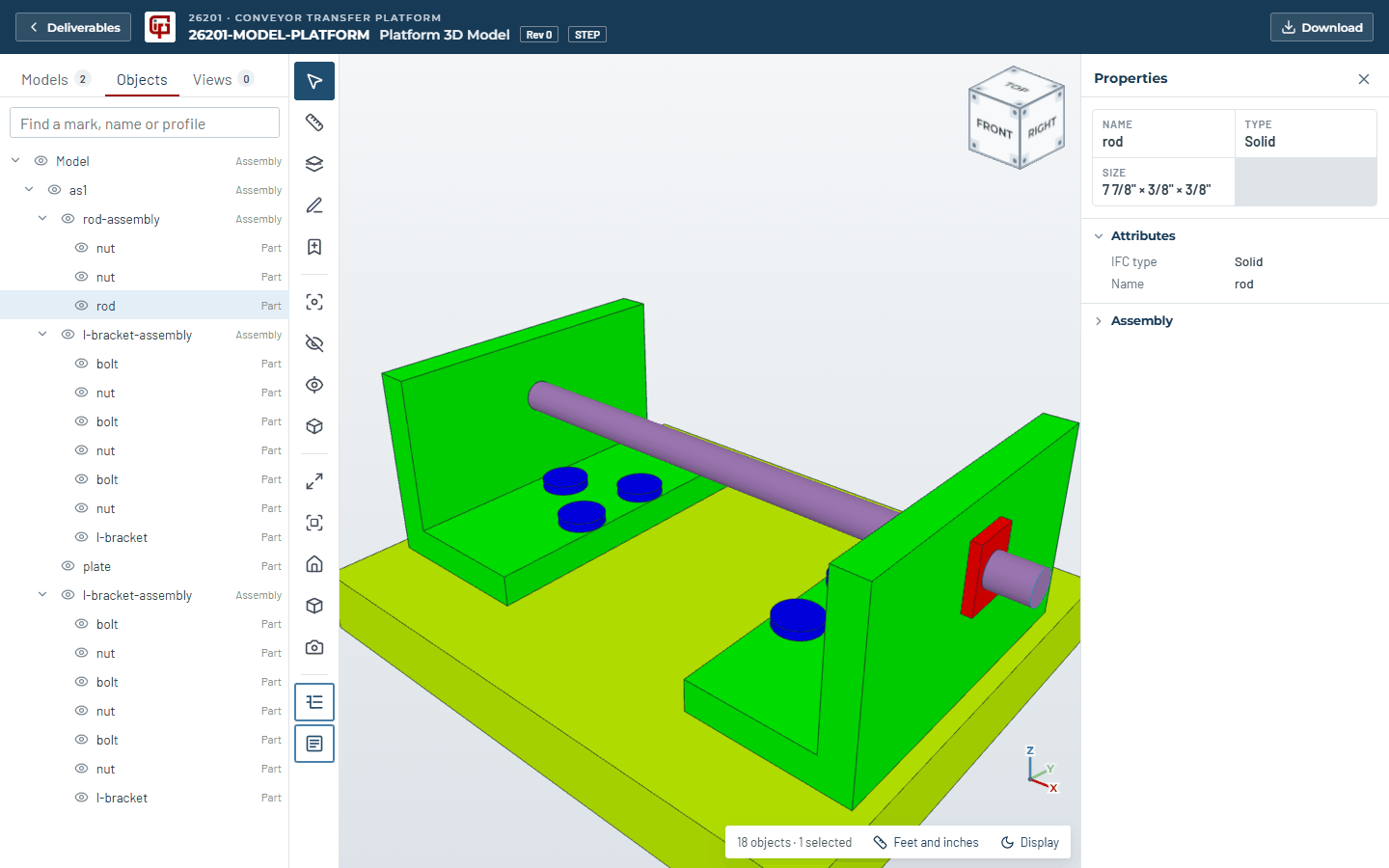
- Objects is the model's tree (assemblies and parts, or storeys in an IFC) with an eye to hide each and a search by mark, name or profile. A click on a part selects it and flies to it; Ctrl-click adds to the selection without moving.
- Models lists every model on the job; Open all models shows them together.
- Click a part to see its name, type, size, weight, and every property in the file (mark, profile and material in an IFC; the assembly it belongs to in a STEP or GLB). Select several parts (Ctrl-click, or an assembly in Objects) for their Total weight. A model published with Publish to GIP Portal carries Tekla's own weight for each part, and that is the one shown. Otherwise a rolled shape's weight is its weight per foot times its length (a W10X33 is 33 lb/ft); a plate, tube, angle or bolt is worked out from its solid and its material. Welds are not counted.
- Isolate, Hide and Zoom to the selection work on what is selected; Show all brings everything back. X-ray makes everything see-through.
- Units (feet and inches, inches, millimetres, metres), a light or dark background, part outlines, and colours (as in the file, or by object type with a key) are in the status bar.
Measuring and sections
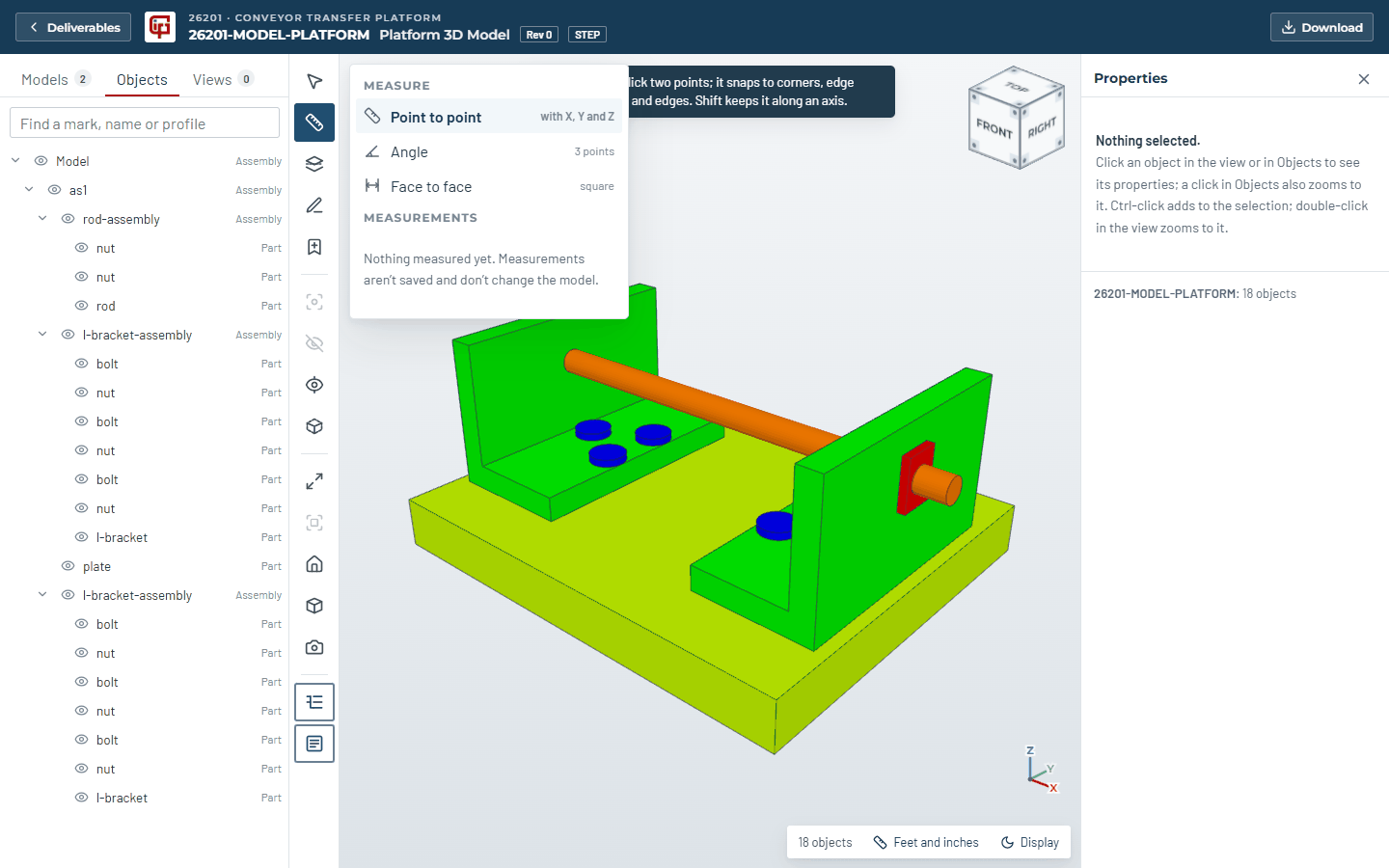
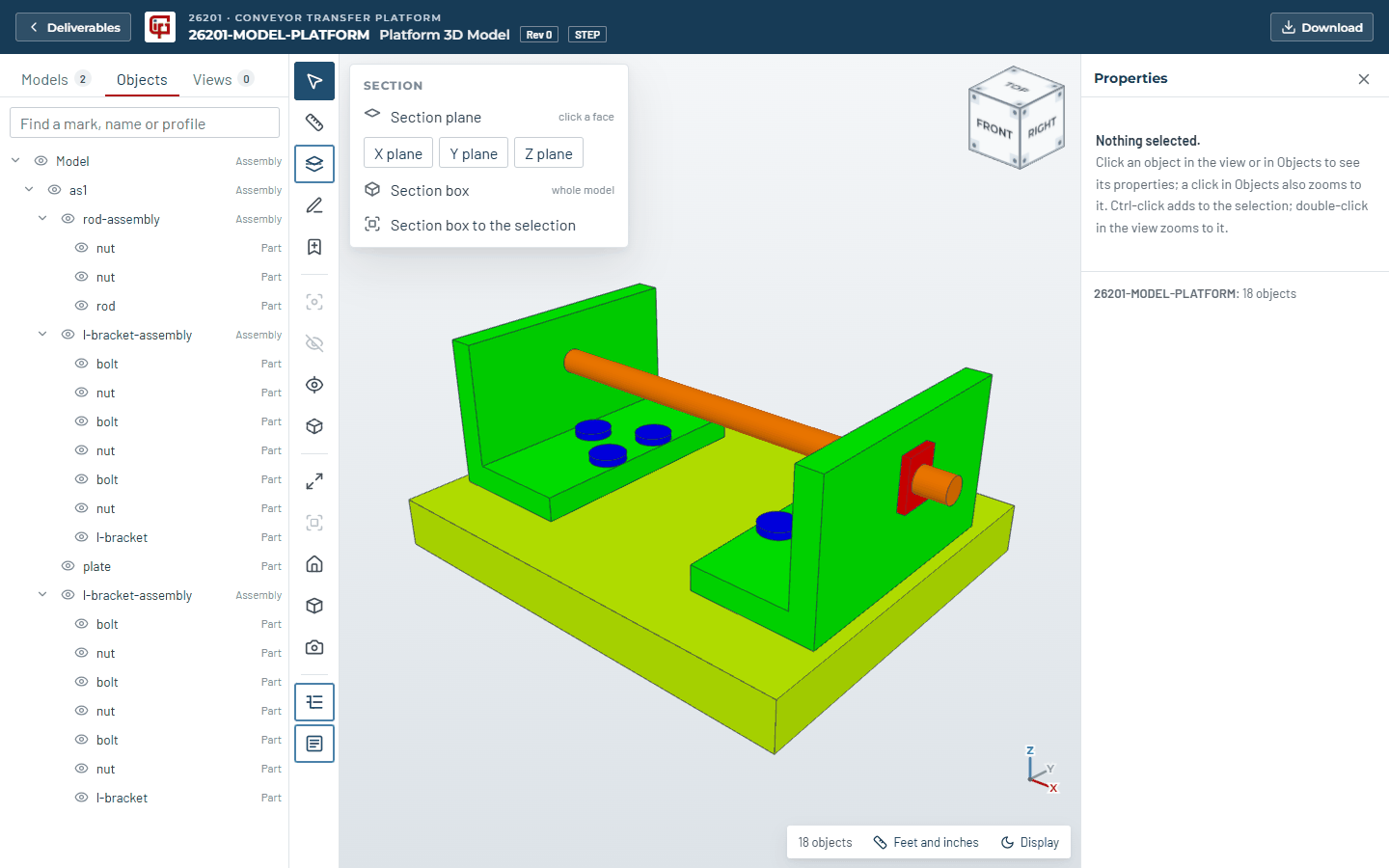
Measure gives point to point (with the X, Y and Z distances), angle, face to face, and Hole size; it snaps to hole centres, corners, edge midpoints and edges, right where the cursor is, and once the first point is placed, square to an edge (Perpendicular). Point at a hole (or a bolt or rod end) and it is ringed in yellow with its diameter: a click there measures from its centre, so hole to hole reads centre to centre, as on a drawing. Hole size clicks one hole for its diameter and the X, Y and Z of its centre in the model's own coordinates. Every panel closes with its X. Section cuts the model with a plane on a face, an X, Y or Z plane, a section box, or a box around the selection.
Point clouds with the model. When GIP has scanned the site, Models lists the scans under Point clouds: tick one and it appears with the model, lined up with it, so you can see how the new steel sits against what is there now. Measure snaps to scan points too (Scan point), so you can measure from the new steel to an existing pipe or wall. Display sets the scan’s point size, its Density (more points for an exact measurement, fewer for speed) and See-through scan, which lets the model show through it; X-ray and Section work on both.
Markups and saved views
Markup (the pen, or K) draws clouds, arrows, lines, freehand and text in eight colours. Each markup is pinned to the part it marks, so it stays with it as you turn the model.
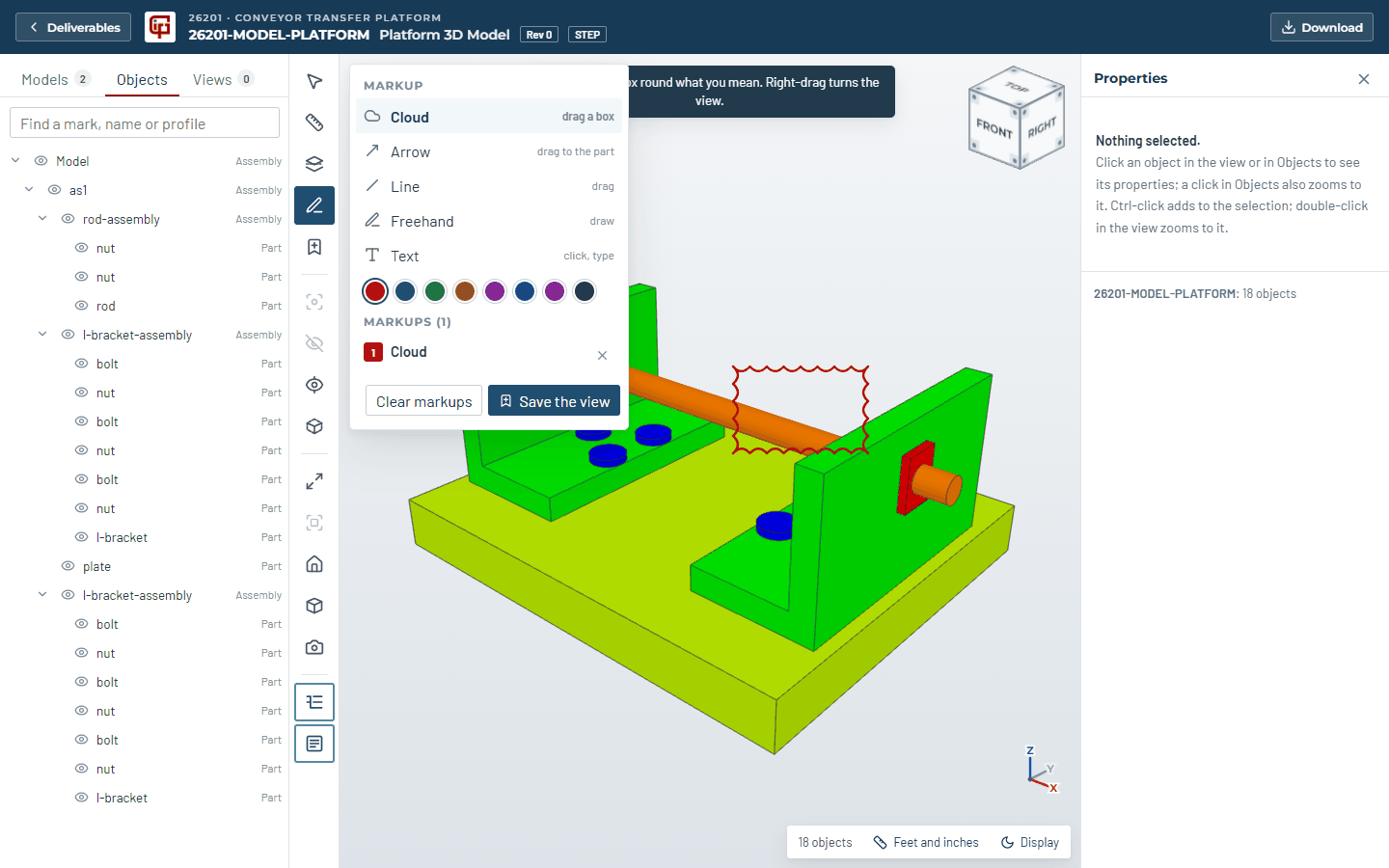
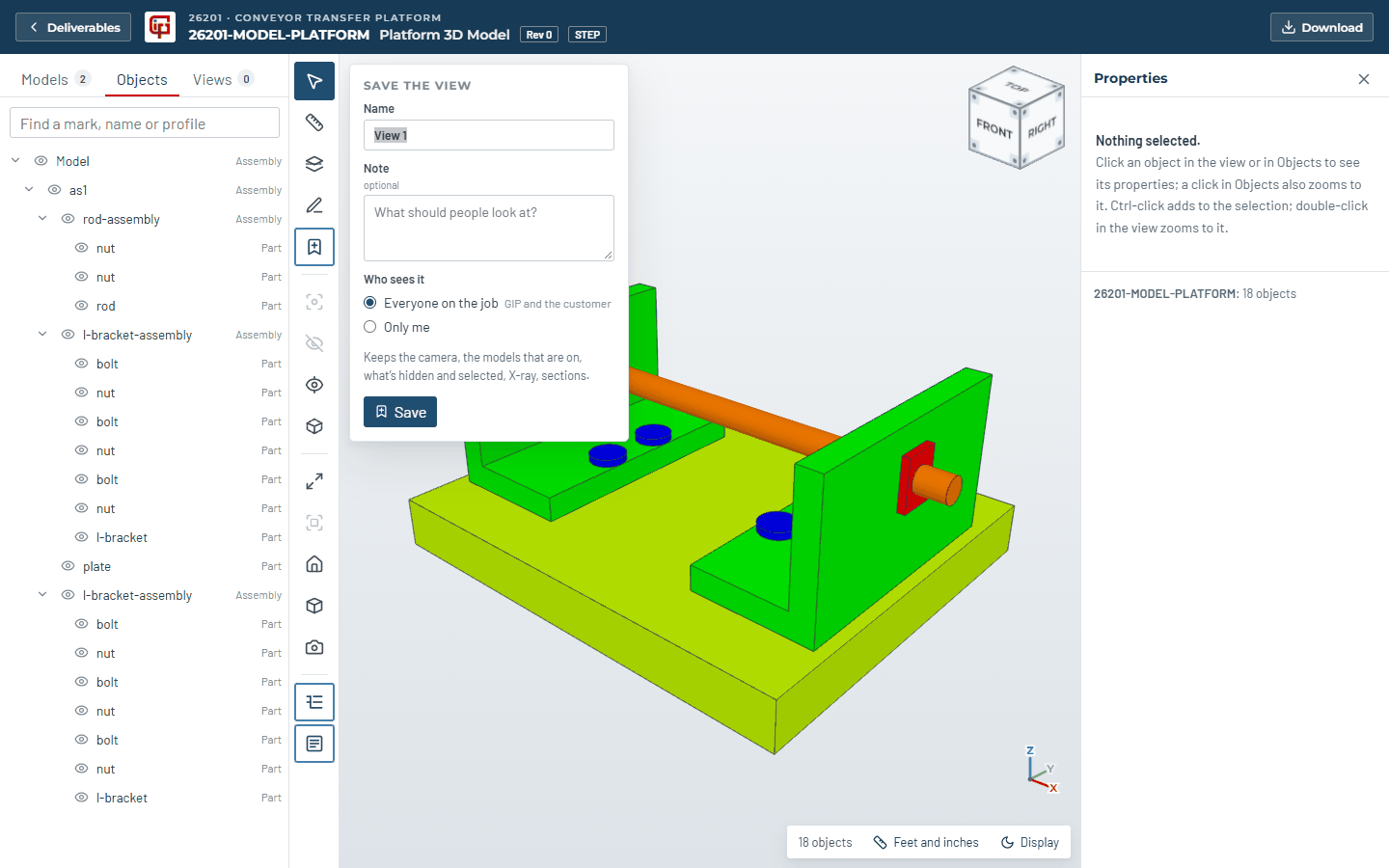
Save the view keeps the whole picture: the camera, the models that are on, what is hidden or isolated, the selection, X-ray, sections, measurements and markups, with a name, a note and a thumbnail. Choose who sees it: everyone on the job, GIP staff only, or only you. Saved views are under Views in the left panel; open one to put the model back exactly as it was. Your own views have Edit (the pencil, for the name and note), Update and Delete; Copy link gives a link that opens the view for anyone on the job who can see it. GIP staff and the job's contacts can save views while the job is active.
Big models
A model is prepared for the viewer the first time anyone opens it; after that it opens in seconds for everyone. Small models are prepared at once. A big STEP or IGES (over 1.5 MB), or a GLB over 120 MB, goes to GIP's model server; the viewer shows Preparing this model on the model server and waits up to an hour. You can leave the page and come back. Models up to 2 GB can be opened this way.
If a model can't be shown, the viewer says why in small print and offers Try again and Download. A browser that has opened several very large models can run short of memory: close other 3D viewer tabs, or restart the browser, and try again.
10. Transmittals and reviews
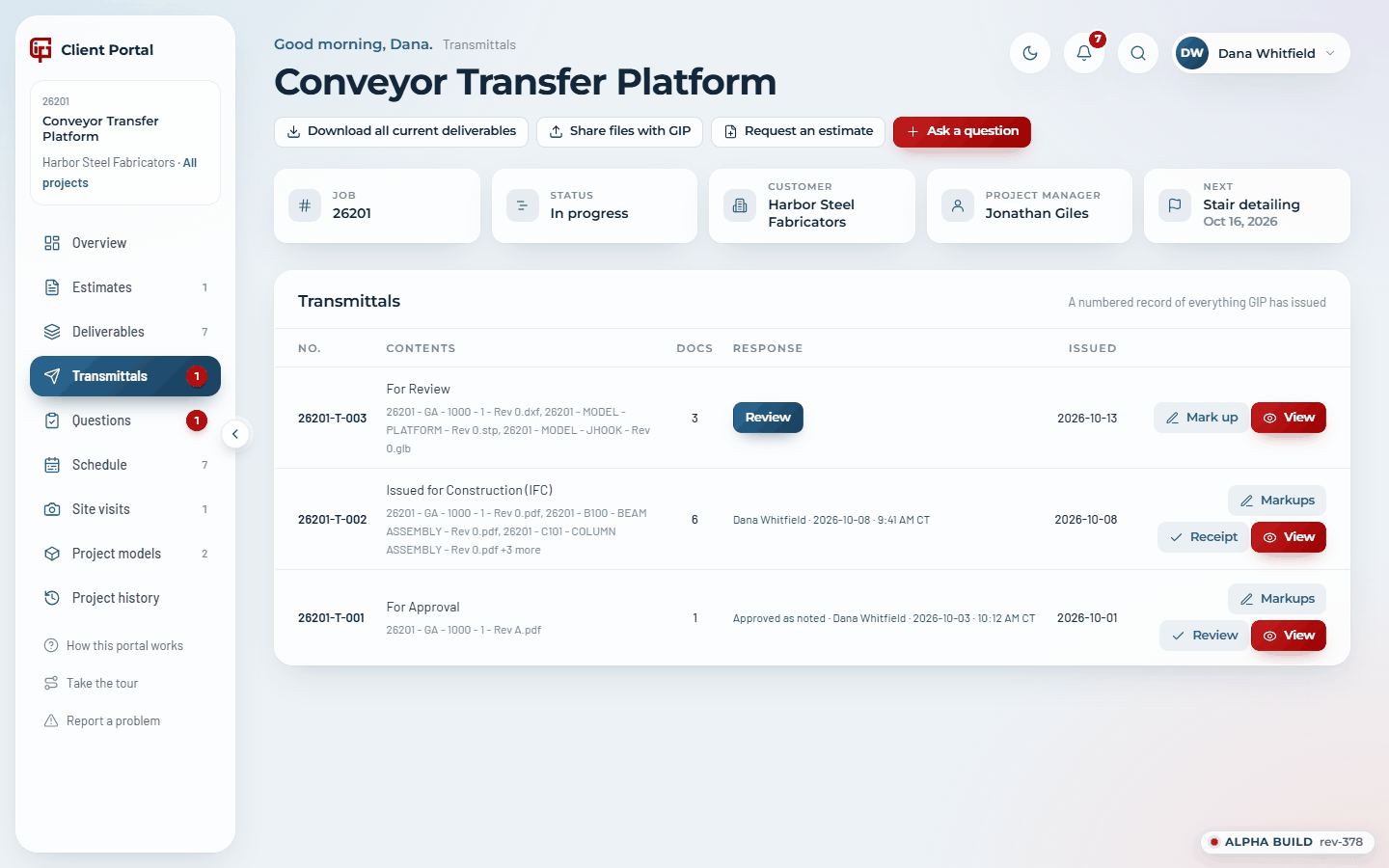
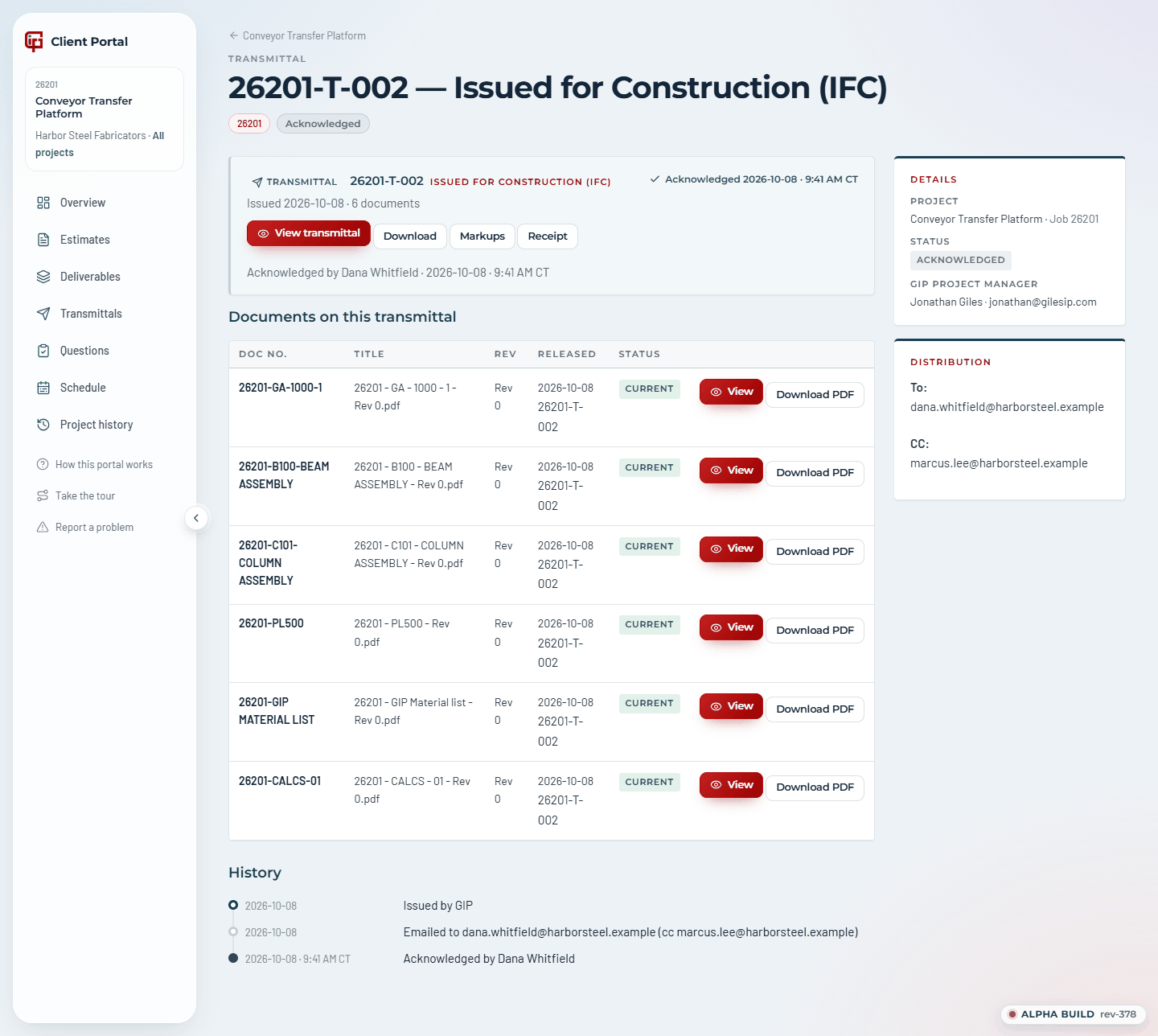
A transmittal is GIP's numbered record of an issue: which documents, at which revisions, for what purpose (for information, for review, for approval, issued for construction). Each one has a PDF and is emailed to you when it goes out.
Acknowledging
A set issued for information or for construction needs only a receipt. Press Acknowledge receipt once; that is the whole job. The portal records your name and the date and time, emails you a confirmation with a one-page Acknowledgement of Transmittal PDF, and keeps that PDF on the project (the Receipt button). Acknowledgement is a record of receipt, not approval of the design.
Reviewing a set
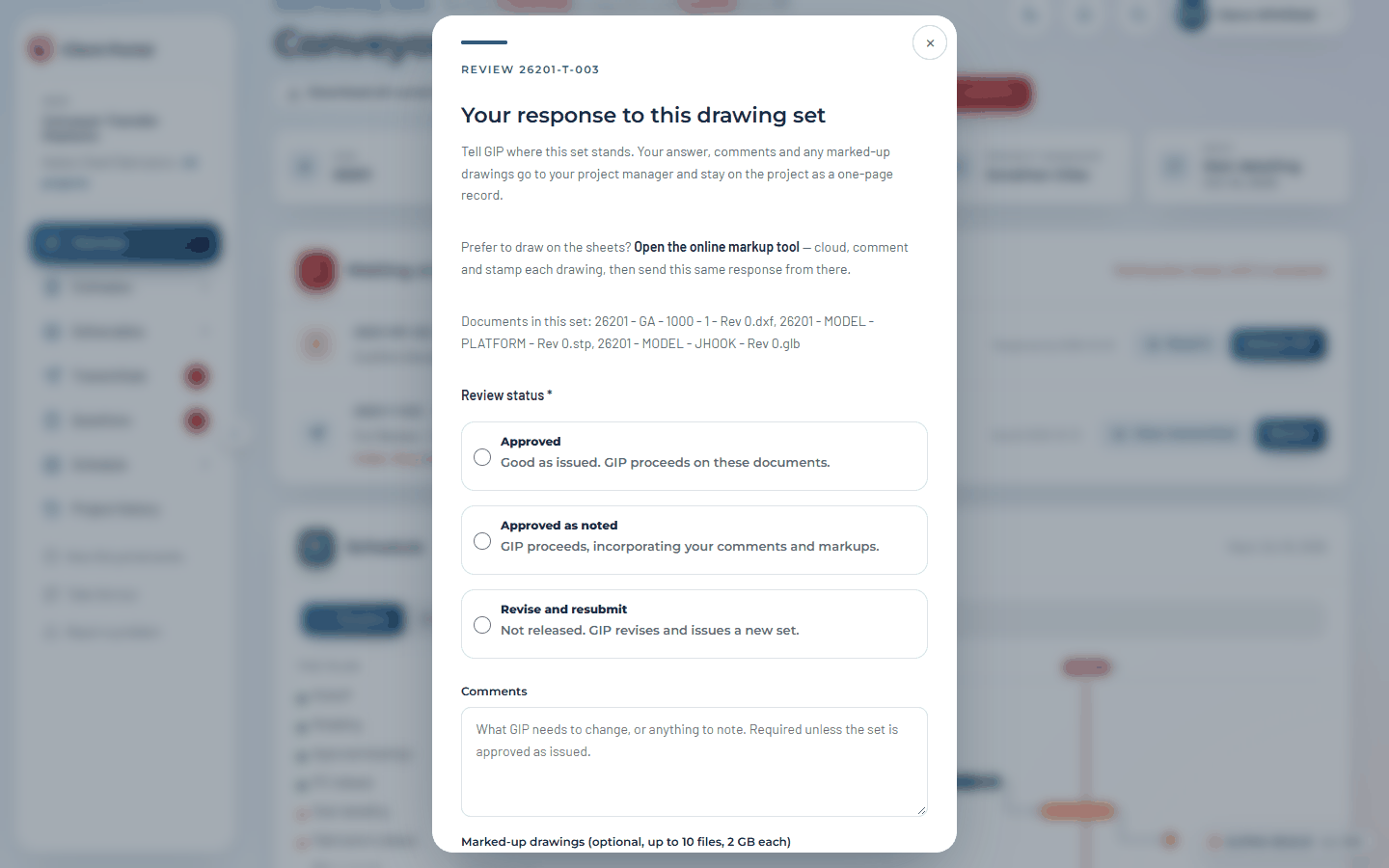
A set issued For Review or For Approval needs your decision: Approved, Approved as noted, or Revise and resubmit, with your comments. Press Review to respond, and attach marked-up drawings if you have them.
Or press Mark up to open the online markup tool: every sheet in the set in your browser, with clouds, arrows, comment pins, text, highlighter, dimensions and stamps, in eight colours and five line weights.
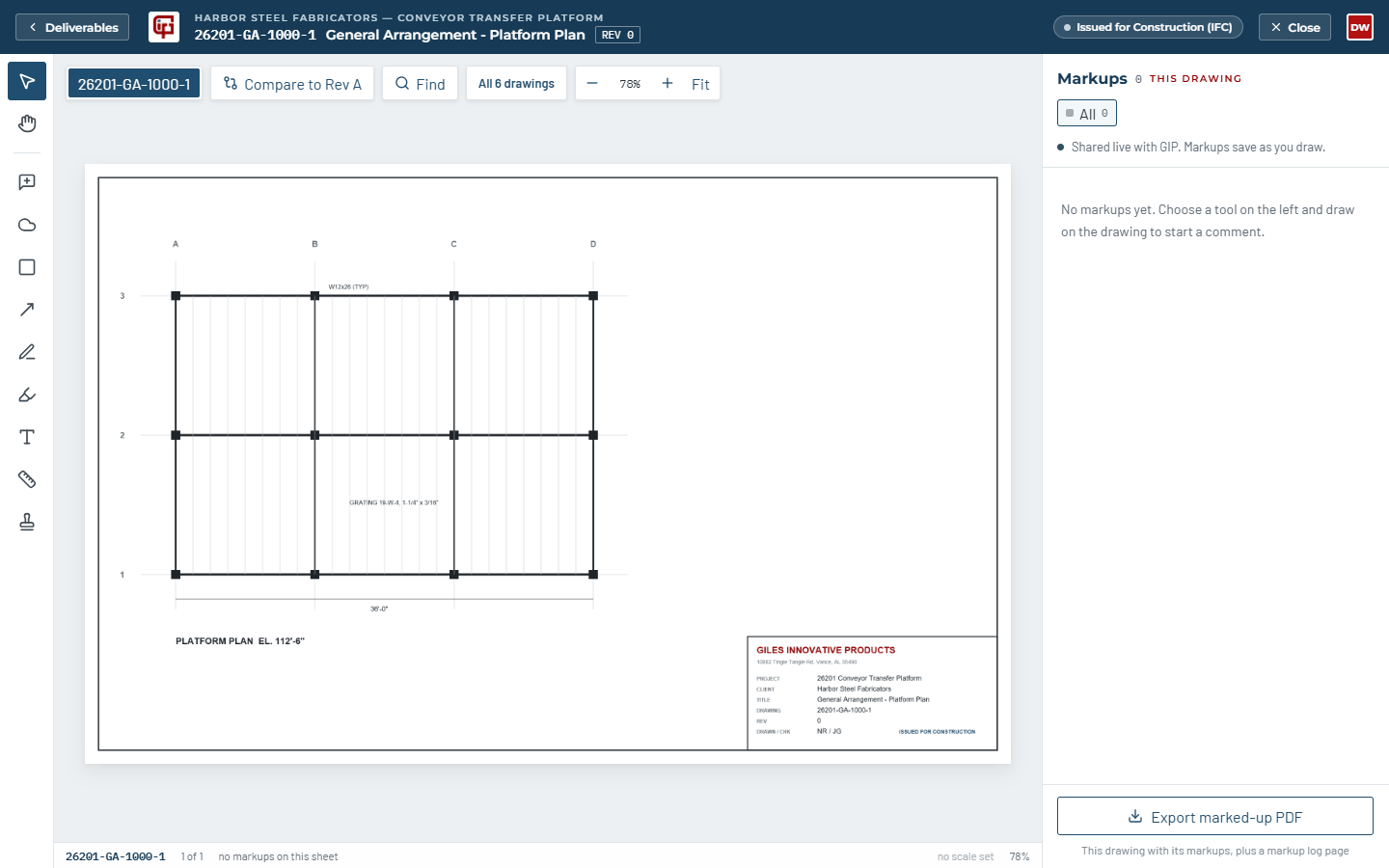
- Step through sheets with the sheet picker or [ ]; the wheel zooms about the pointer; Space pans.
- Whatever you draw is shared with GIP as you draw it, and each markup has its own comment thread. Only the person who drew a markup can move, recolour or delete it; anyone can reply.
- Scale sets the sheet's scale (or set it from a known length) so dimensions read true to 1/16"; the 90° button keeps them square.
- Compare to Rev … overlays the previous revision so you can see what changed. Find (Ctrl+F) searches the text on every sheet.
- Review & respond inside the tool sends your decision with a marked-up PDF of every sheet attached. Export gives a flattened PDF with a log of the markups.
Your review is recorded with your name and the date, GIP is emailed, and a one-page Drawing Review Response PDF stays on the project.
Unacknowledged transmittals get a reminder email 5 business days after issue and every 3 business days after that. Fabrication release is not evidenced until the set is acknowledged.
11. Questions (RFIs)
Questions go both ways, and every one is numbered and kept with the project. Ask a question sends one to GIP; when GIP needs something from you it appears under Waiting on you with an Answer RFI button.
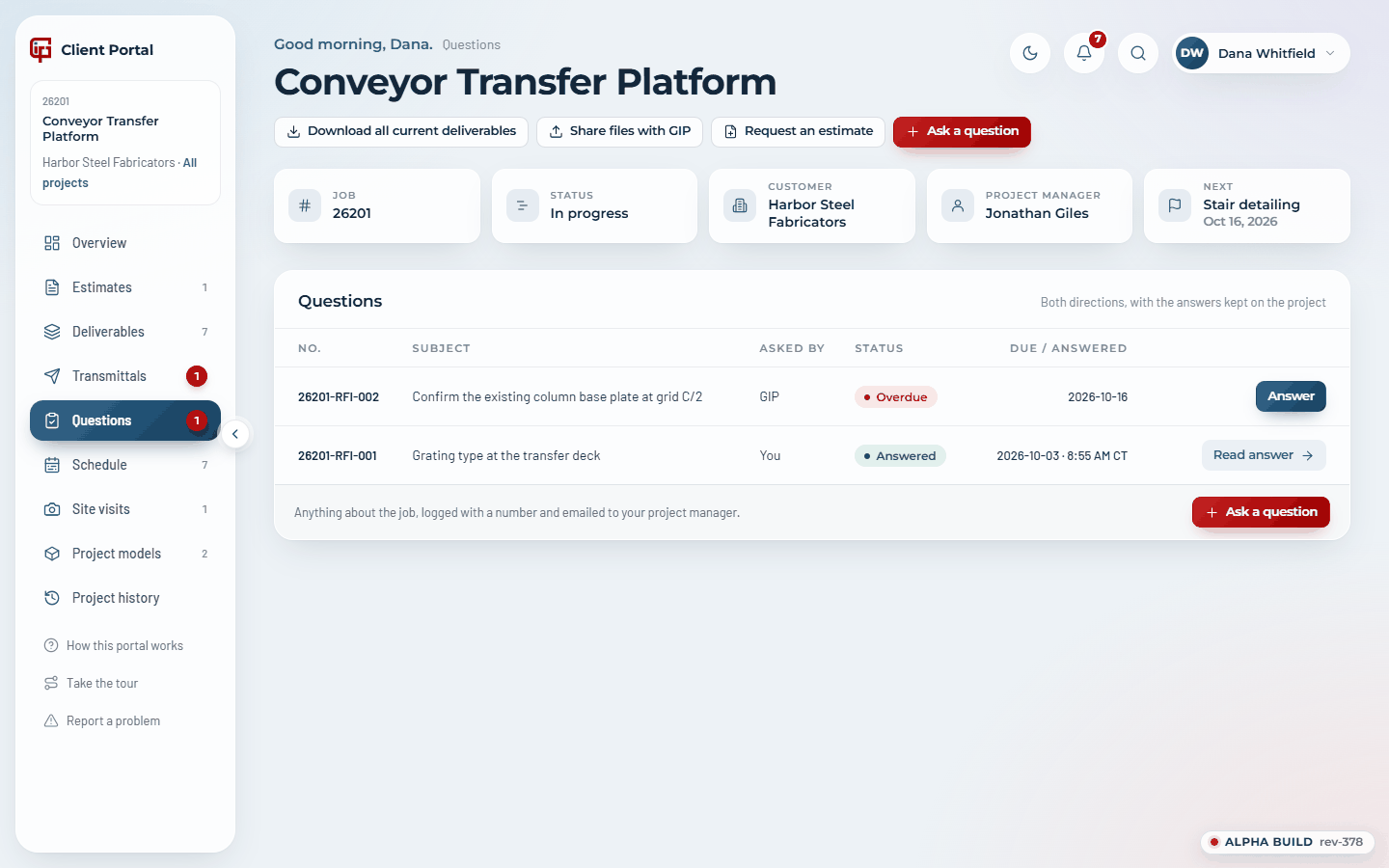
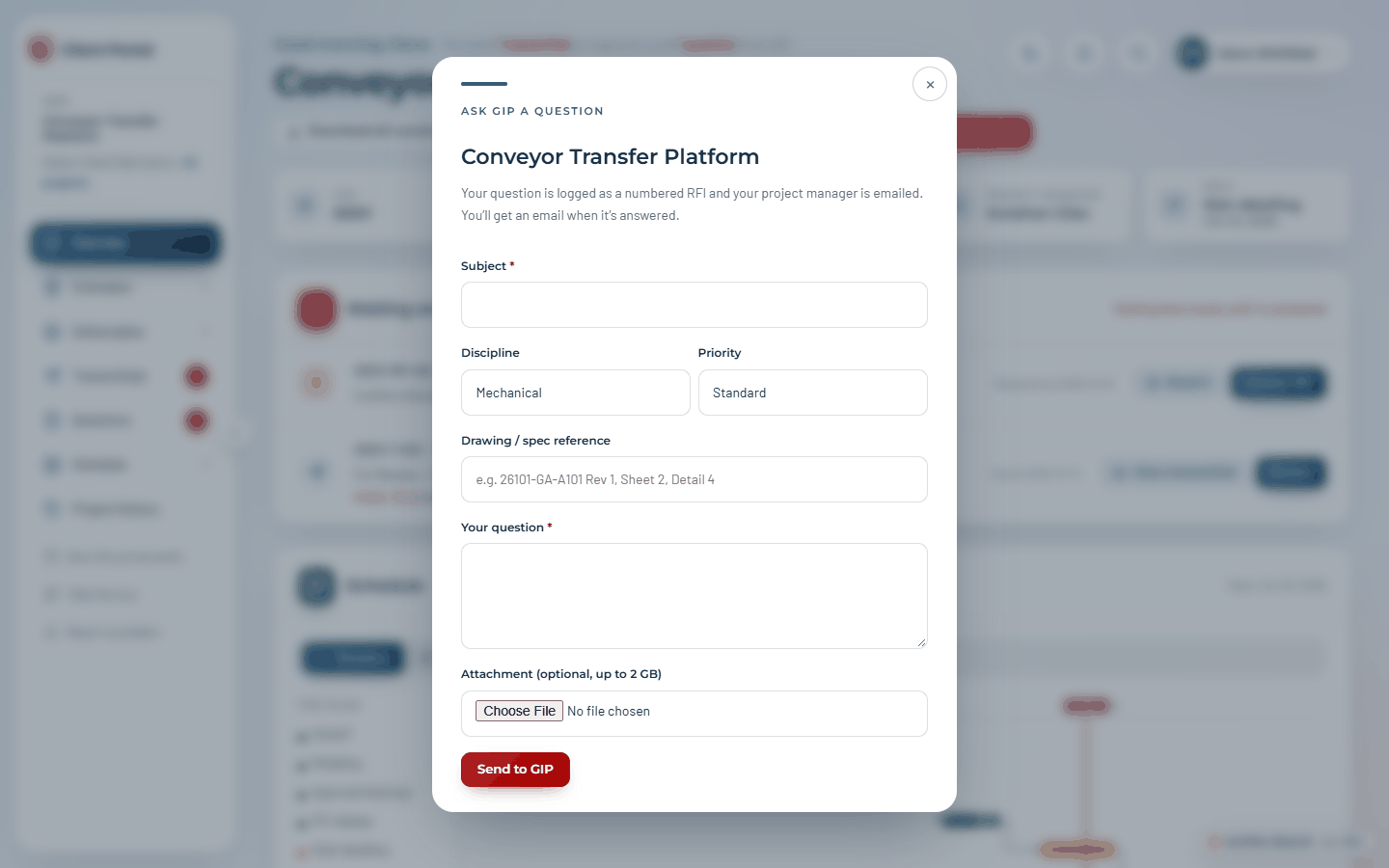
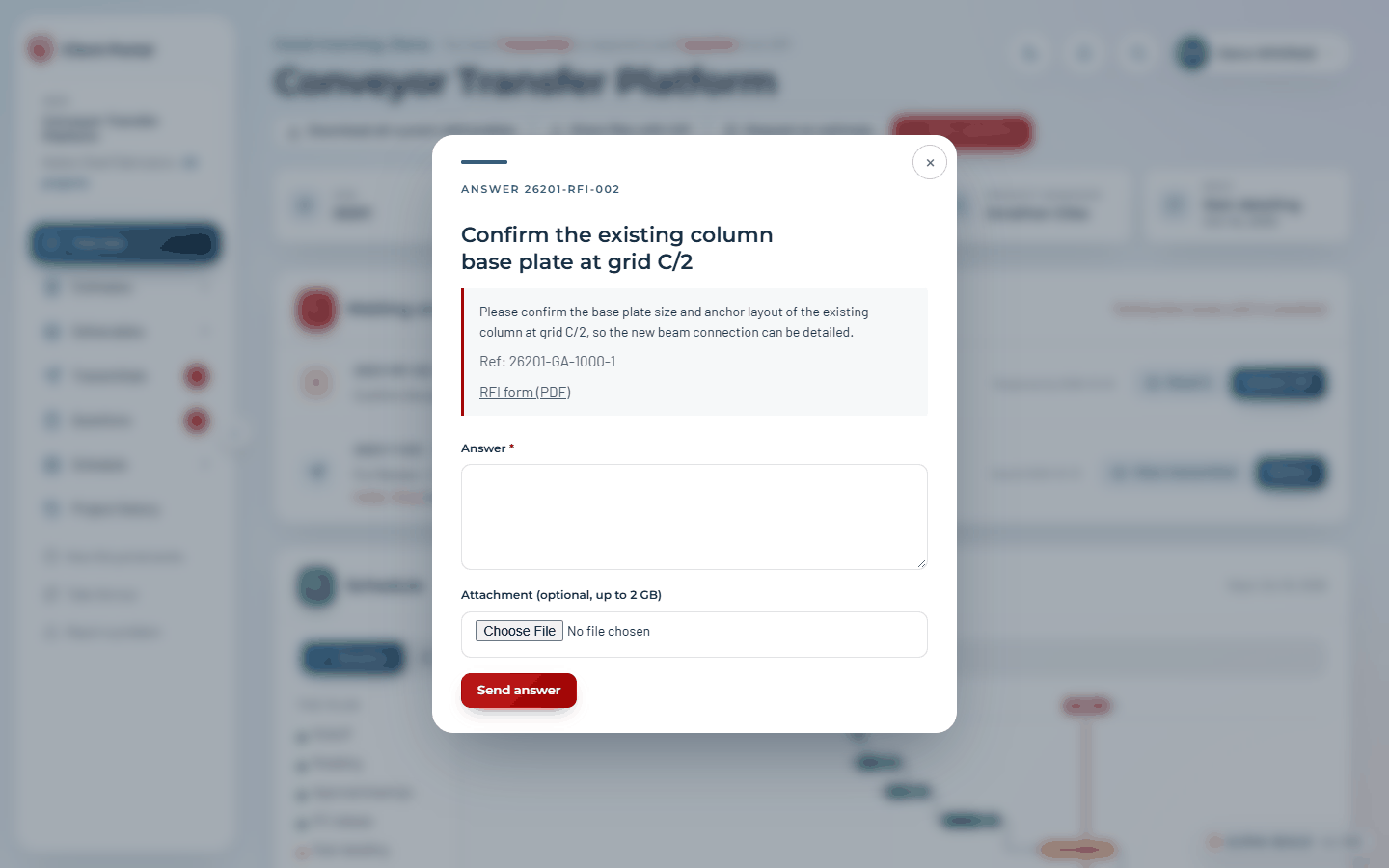
GIP answers within 5 business days by default (2 for urgent, 10 for routine). Attachments can be up to 2 GB each way.
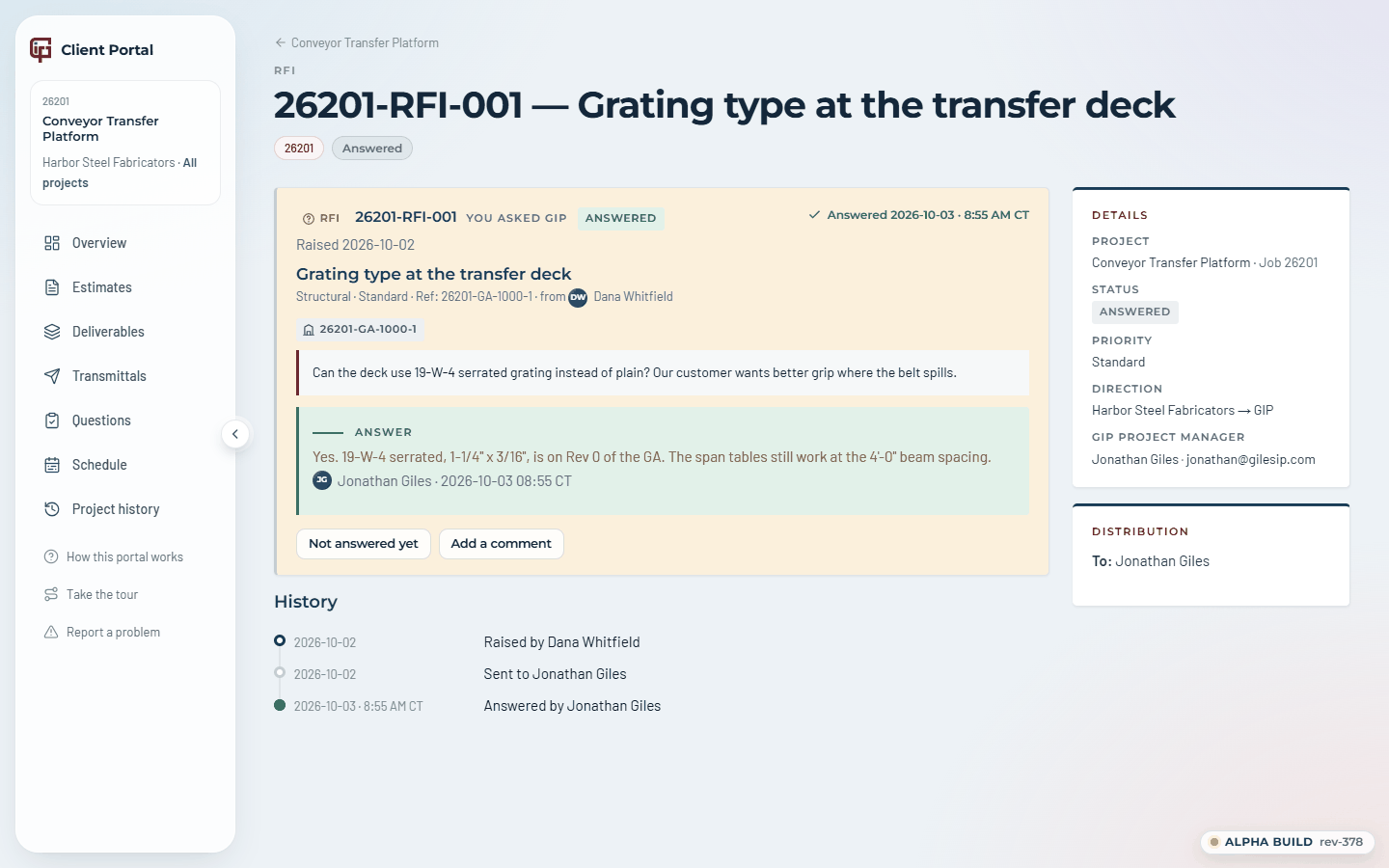
On a question's page, Add a comment adds to the thread without changing its status, and the other side is told. If you asked the question and the answer doesn't settle it, Not answered yet sends it back to GIP with your comment. A PDF attached to a question or an answer opens with View.
12. Sending files to GIP
Share files with GIP (in the project header) sends GIP anything for the job: drawings, specifications, photos, survey data, a model. Up to 10 files at a time, each up to 2 GB; a progress bar shows on the button while they upload, and the page warns you if you close it before they finish.
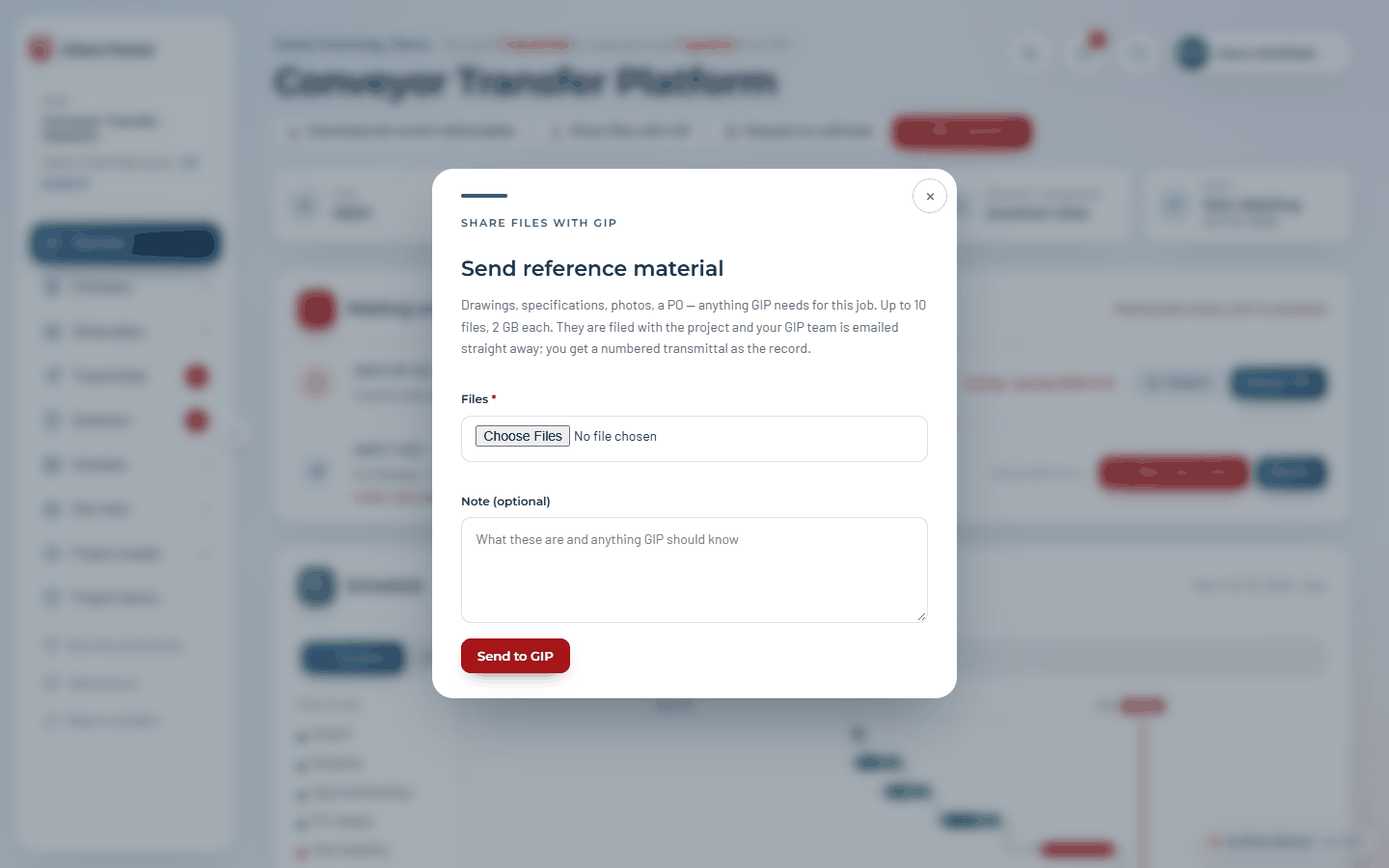
Each upload is numbered (for example 26201-R-001) with a one-page Documents received PDF, filed with the project, and your project manager and the GIP team are emailed.
13. Site visits
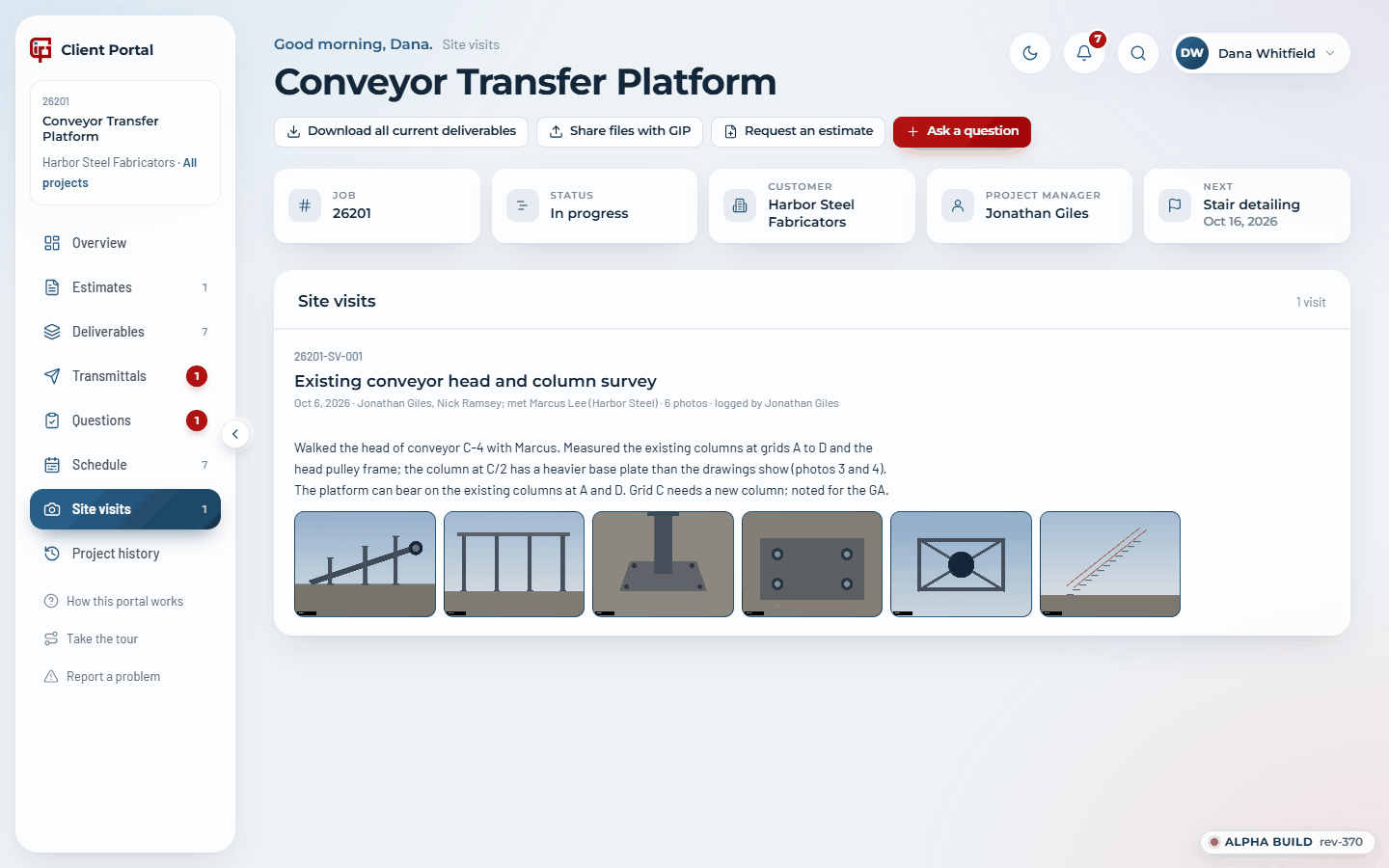
When GIP visits your site, the visit can be shared with you. Site visits in your project's menu then lists each one: the date, who went, what was done, and the photos. Click a photo to see it full size; the arrows (or your keyboard's arrow keys) step through the rest, and Download saves it. The menu item appears once GIP has shared a visit on the project.
14. Project models and point clouds
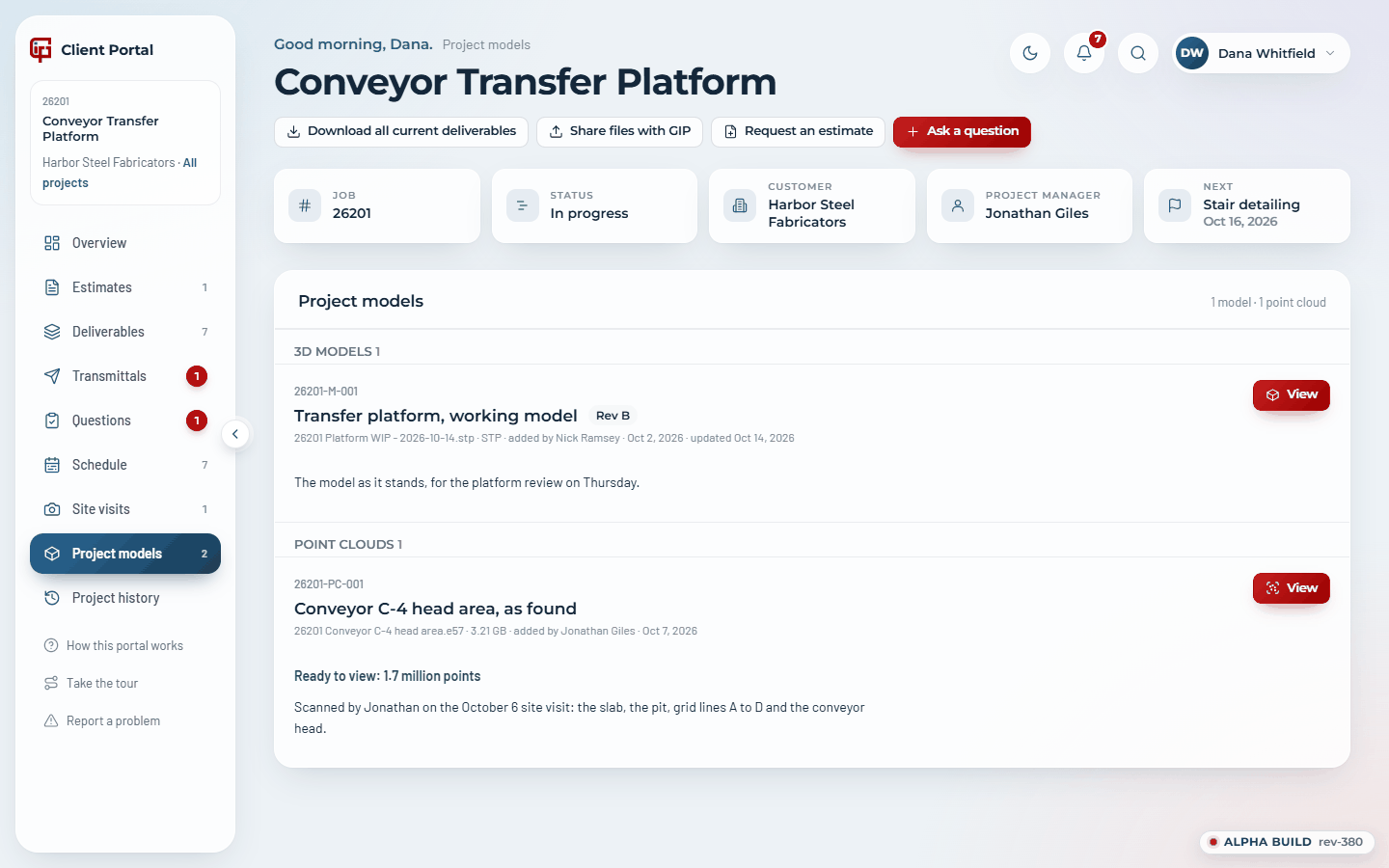
GIP can share its working 3D models and laser scans of your site with you while the design is under way, before anything is issued. Project models in your project's menu lists them: 3D models first, then Point clouds. The menu item appears once GIP has shared one on the project.
- A 3D model opens in the 3D viewer (section 9), with the same tools: turn it, measure, section, mark it up, save views. It is the model as it stands now, not an issued drawing; when GIP updates it, View opens the new one.
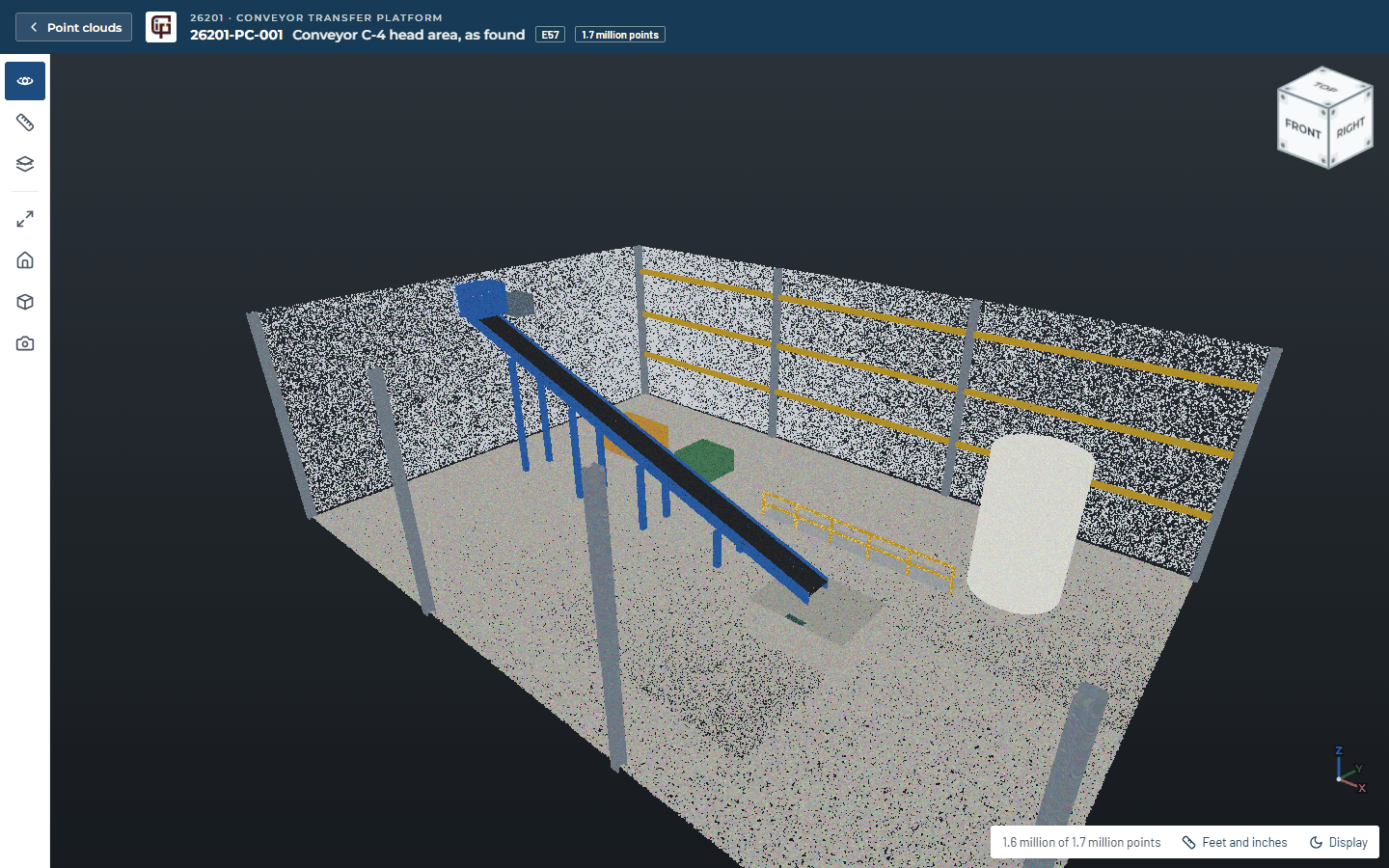
- A point cloud opens in the point cloud viewer, in your browser, with nothing to install. A scan holds tens or hundreds of millions of points, so the viewer brings in only what is on screen: it opens with the whole scan in outline and fills in detail where you look, more as you zoom in.
In the point cloud viewer:
- Turn, pan and zoom as in the 3D viewer (section 9): drag to turn about the point under the cursor, right-drag (or Shift and drag) to pan, scroll to zoom towards the cursor. Double-click a spot to move in on it. The view cube and the X Y Z marker work the same way.
- Measure (M) clicks two points on the scan: Point to point gives the distance with its X, Y and Z parts, Height the difference in level, Angle three points. Lengths show in feet and inches unless you change them in the bar along the bottom. A scan is only as accurate as the scanner and the way its scans were joined, so check anything that matters on site.
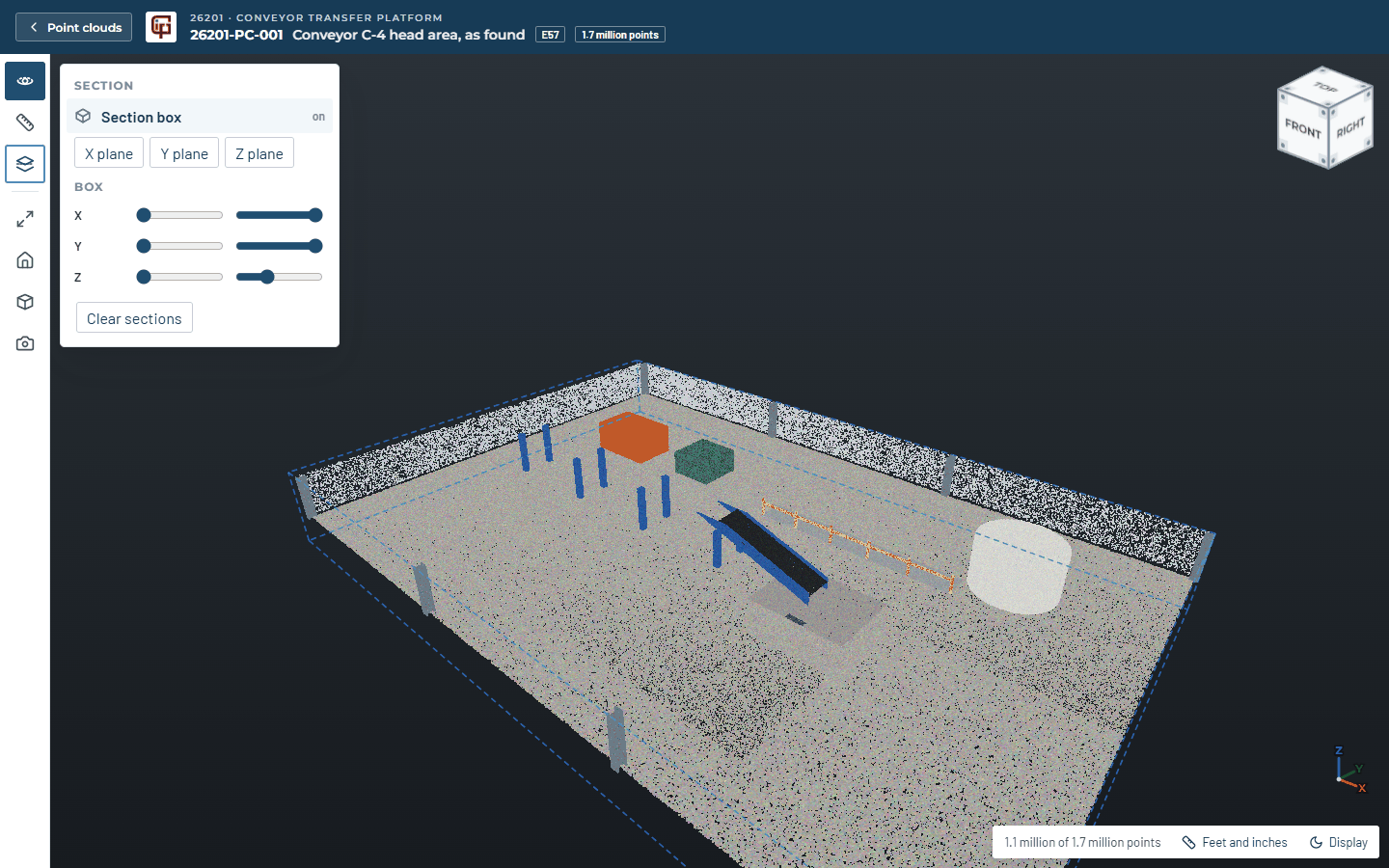
- Section (S) cuts the scan with a box, or a plane across X, Y or Z, to see into a pit or under a floor.
- Display colours the points as scanned, by Intensity (greys, often clearer indoors) or by Height (blue low to red high), and sets the point size: Fixed, 1 to 8 pixels however close you zoom, or Fill gaps, sized to the scan so surfaces look solid.
- Size and Density sliders sit on the bar at the bottom. Size makes the points bigger or smaller. Density sets how many of the scan’s points are drawn: turn it up when you need to pick an exact point for a dimension, and down if a slower computer or a phone struggles. Both are remembered for next time.
- The camera button saves a picture of the view.
15. Schedule and history
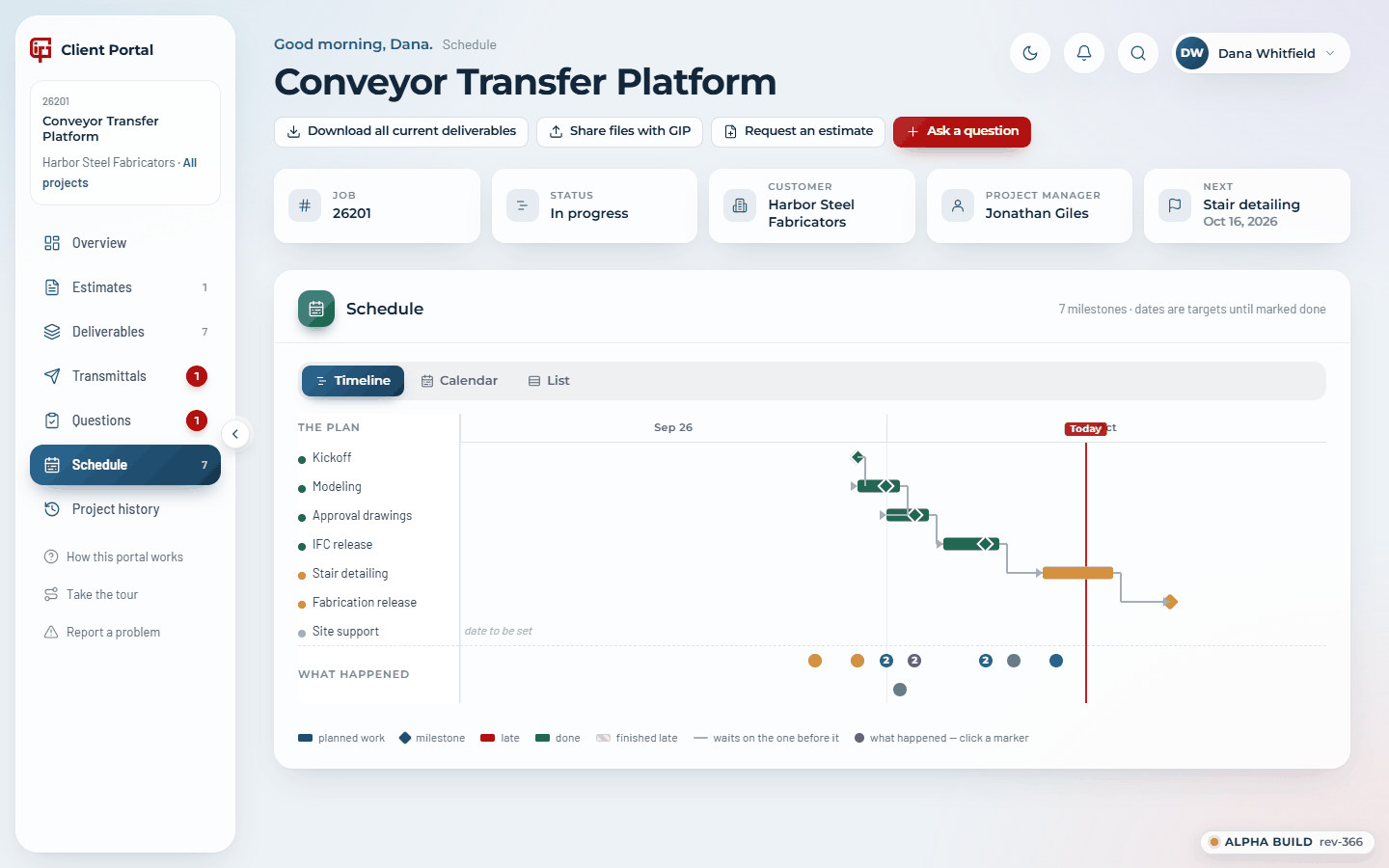
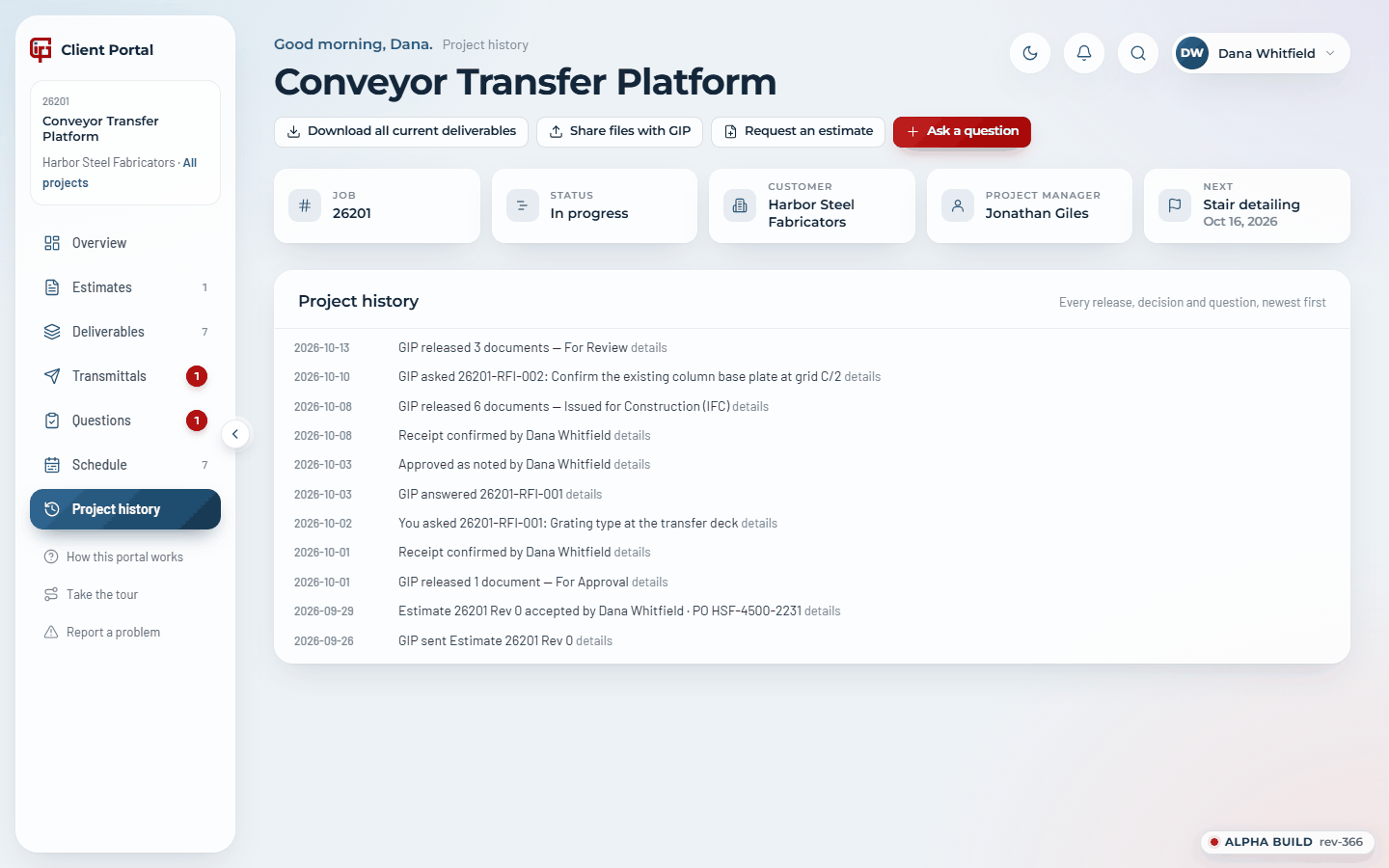
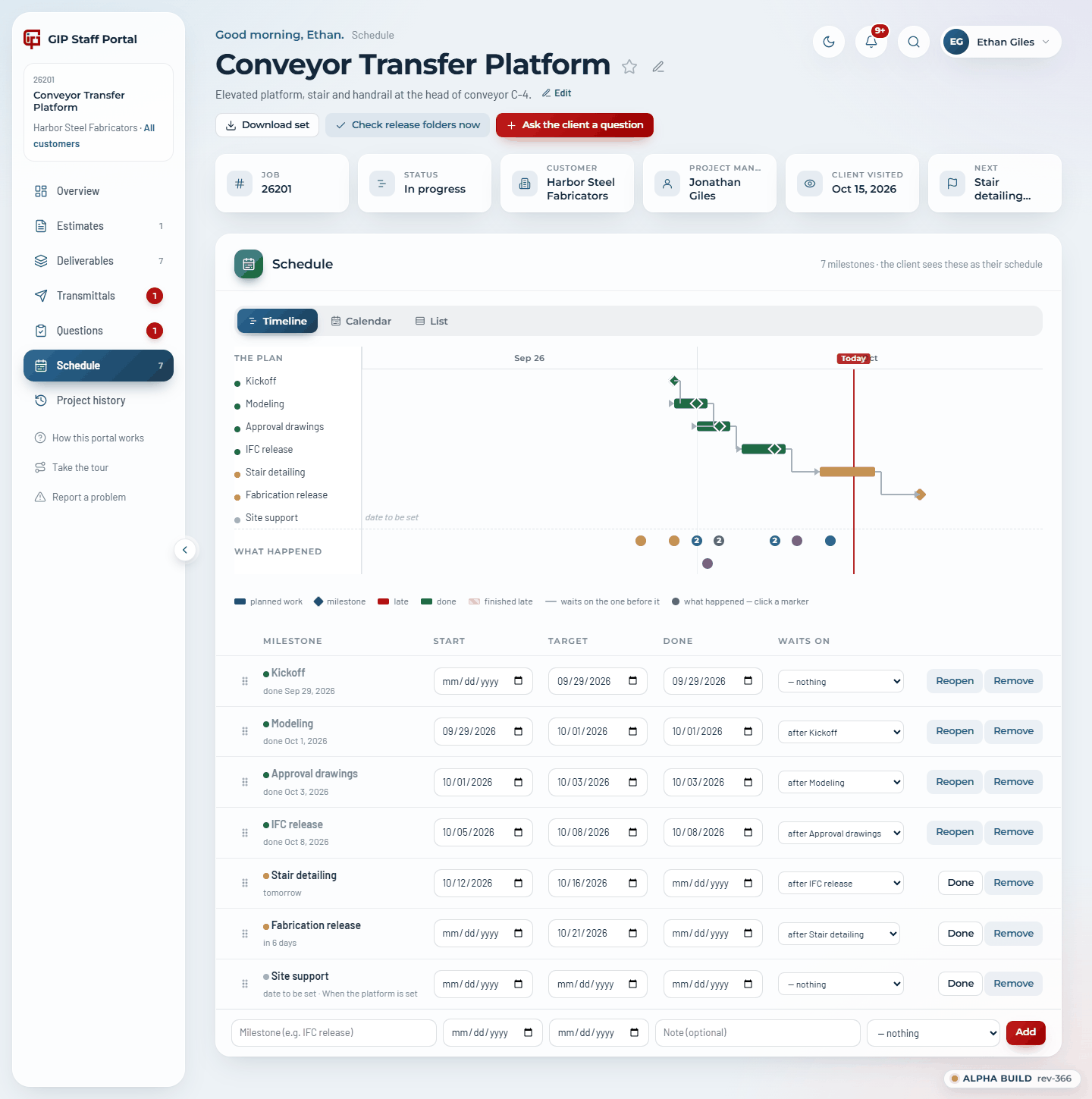
The schedule shows the milestones GIP has set, as a Timeline, a Calendar or a List; the portal remembers which you like. On the timeline a milestone with a start date is a bar and one without is a diamond; a red line marks today, arrows show what waits on what, and a hatched end shows work that finished late. Underneath, What happened marks each day something happened on the job; click a marker to see what.
16. Search
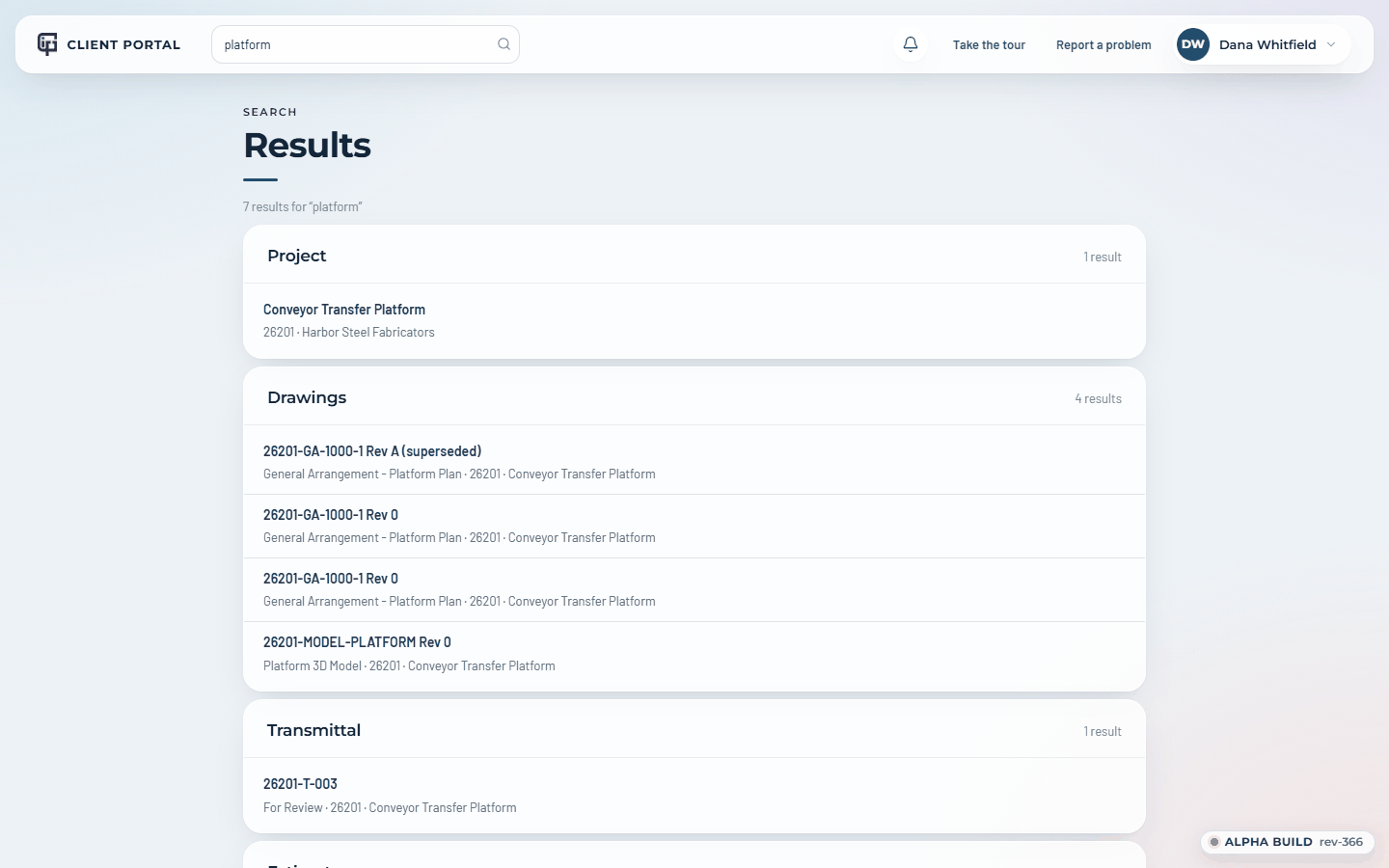
The magnifier at the top right (or /) opens the search box. Type a number, a title or a subject and press Enter: it finds projects, drawings, transmittals, questions, estimates and milestones across every job you can see. Esc closes it.
17. Notifications, emails and Settings
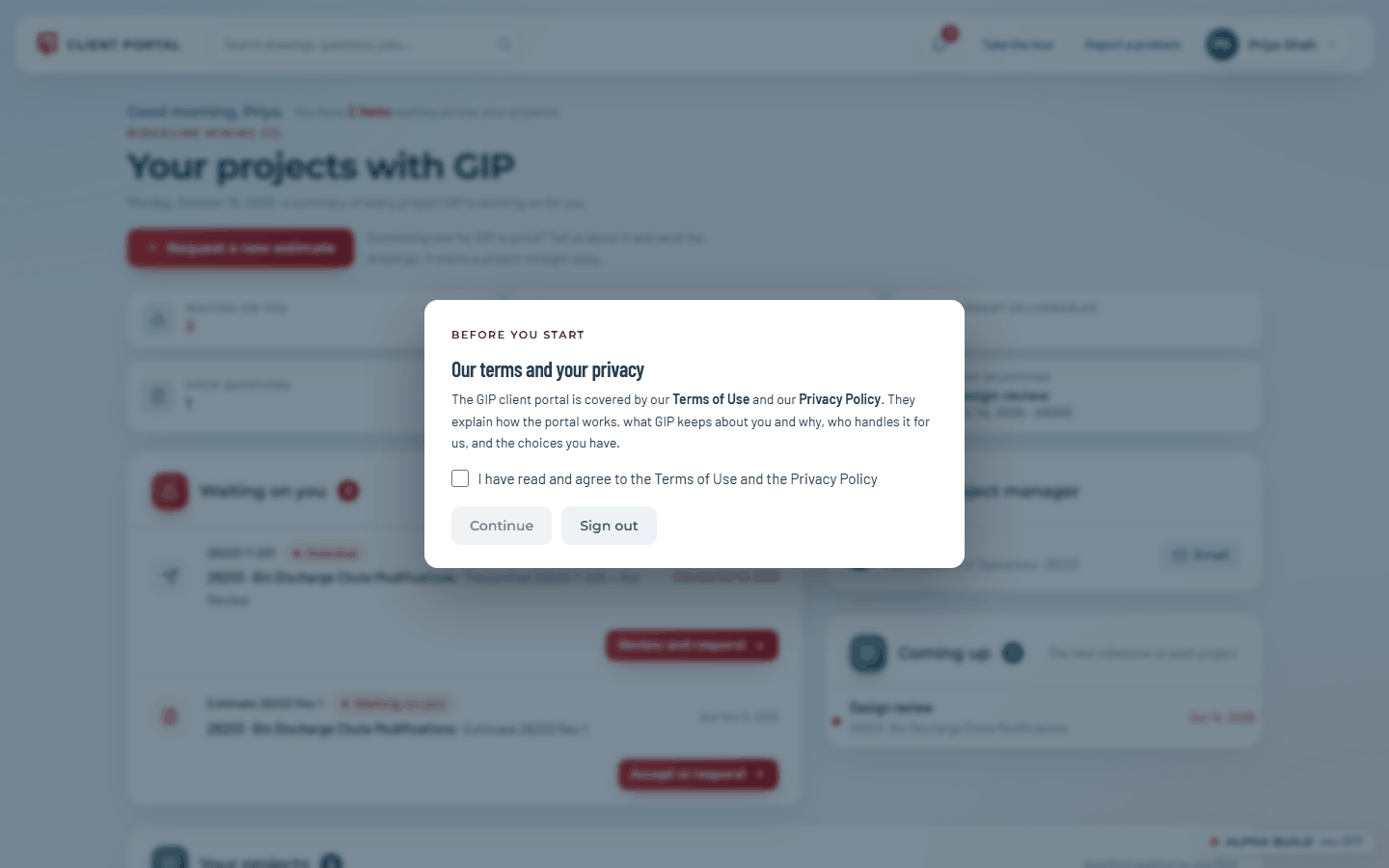
The first time you sign in, the portal asks you to agree to GIP’s Terms of Use and Privacy Policy: tick the box and Continue. It asks once, and again only if they change.
Everything that matters is emailed to you, always with a button into the portal: an estimate issued, a transmittal issued, a question from GIP, an answer to your question. These are the record and always go to every project contact. Reminders are sent while something is still waiting on you.
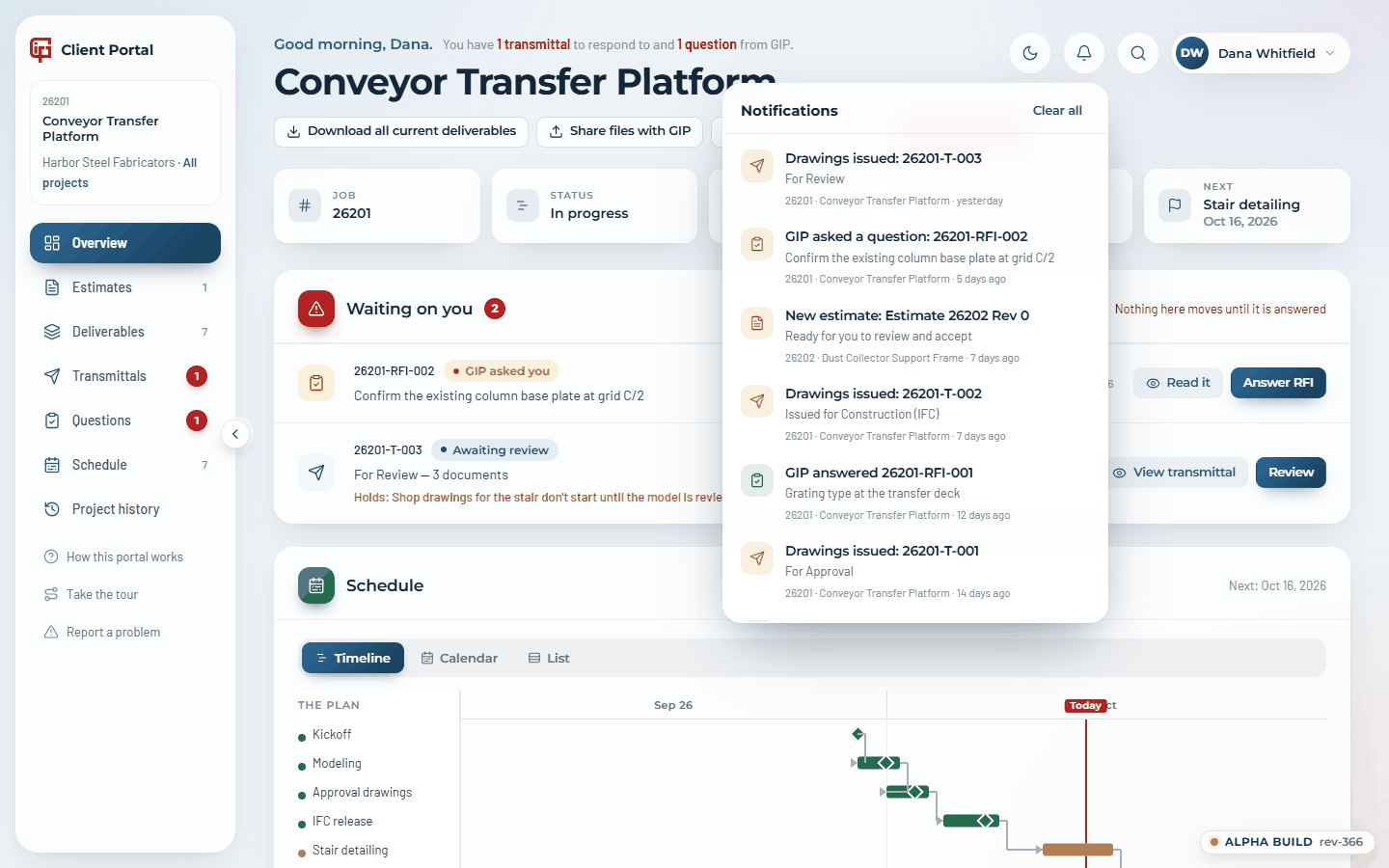
The bell at the top right shows the same events for the last 45 days, newest first, with a red count of the ones you haven't seen. Clear all empties it, and the × on an item clears just that one; what you clear stays cleared on every device.
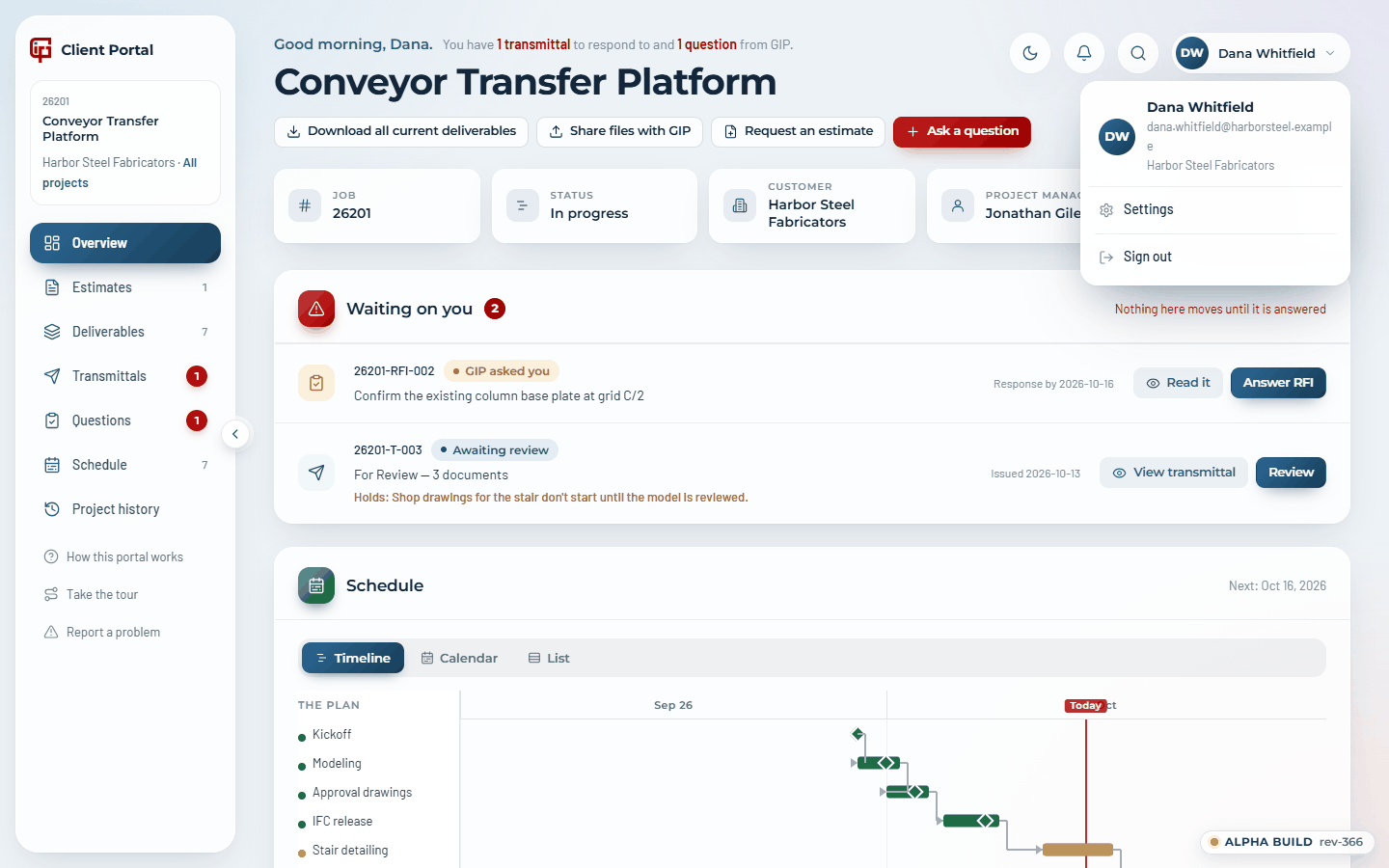
Your name at the top right opens the account menu. Settings has:
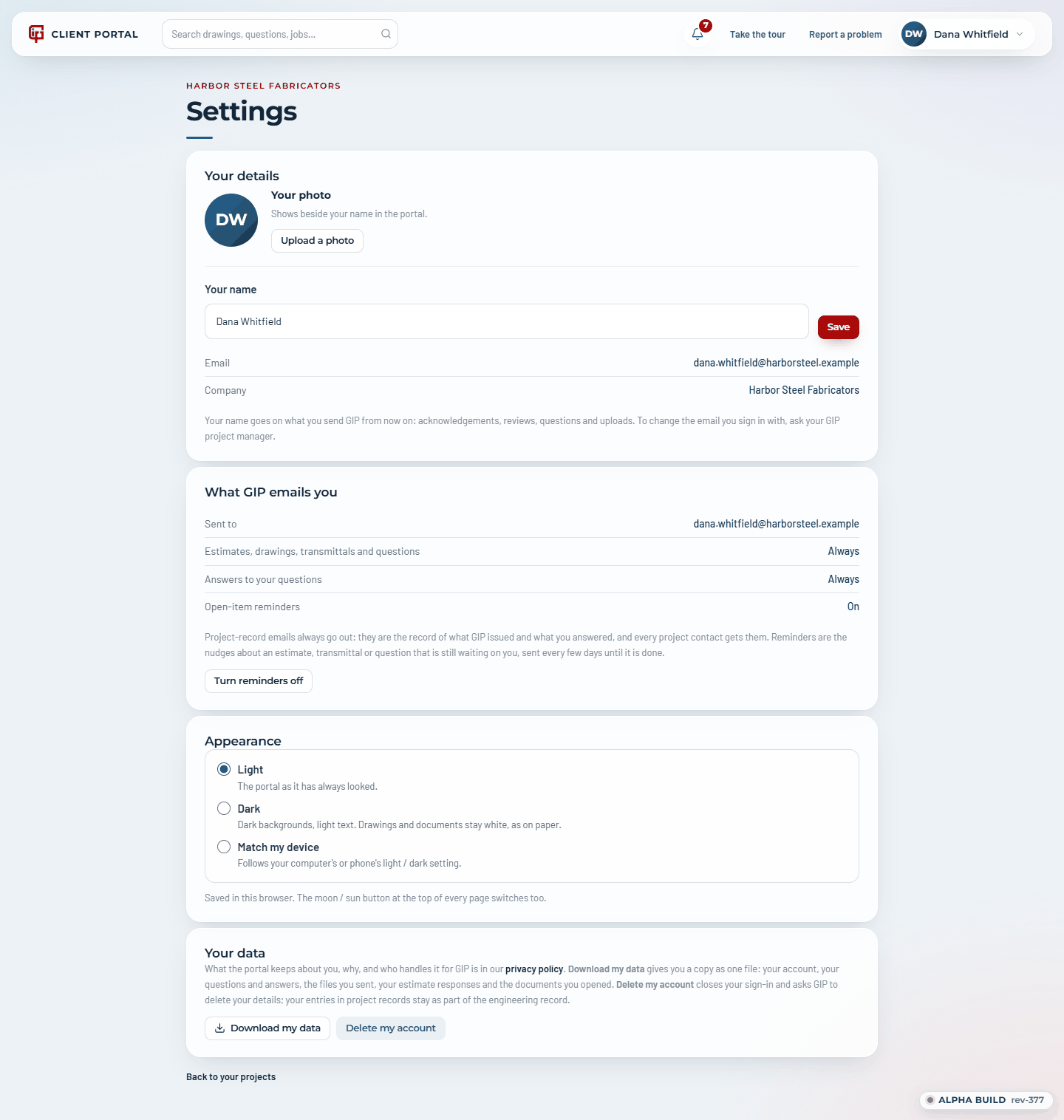
- Your details: change the name GIP sees. Your email address is changed by GIP.
- What GIP emails you: turn the open-item reminders off if you prefer. Record emails can't be turned off; they are what GIP issued and what you answered.
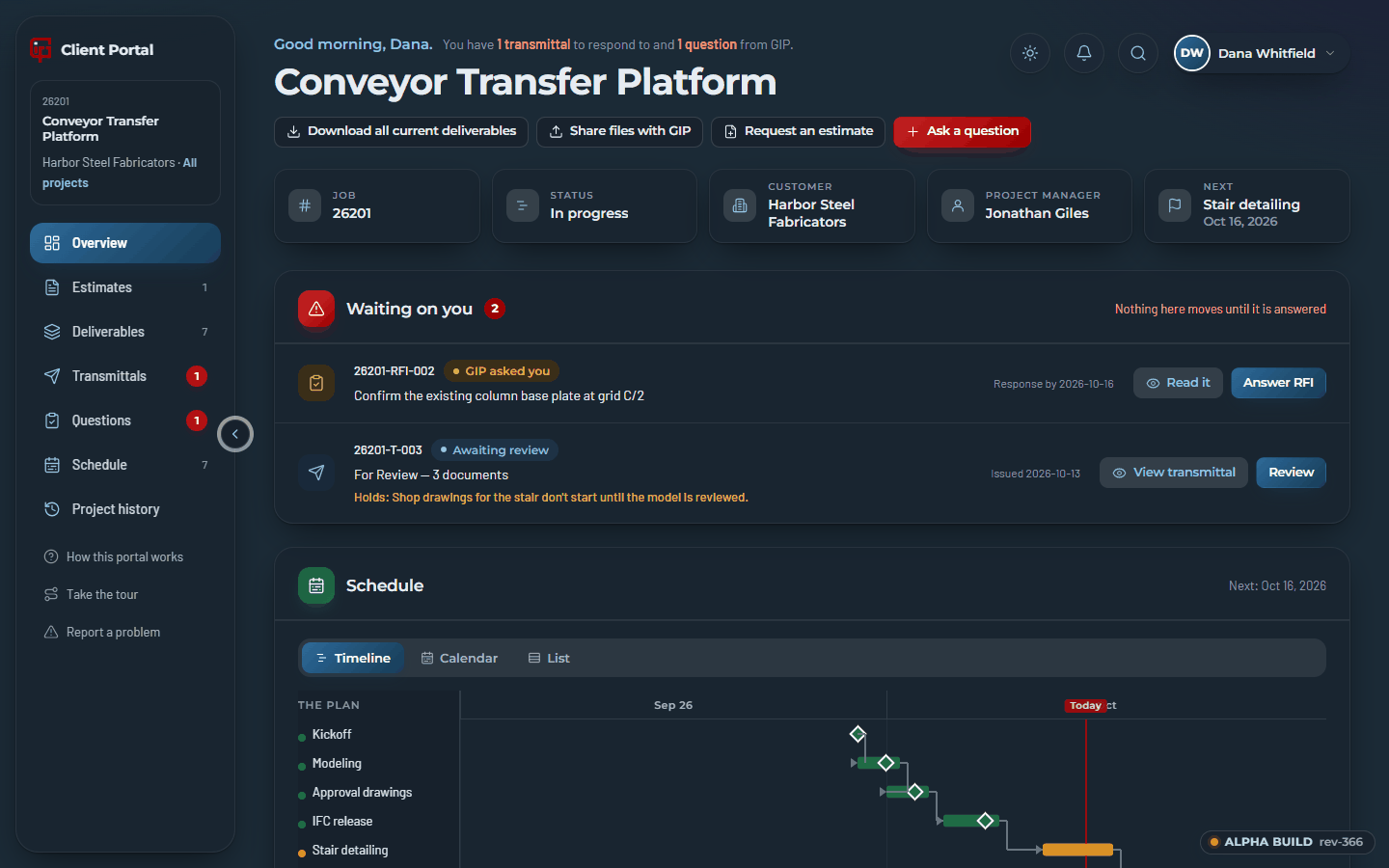
- Appearance: Light, Dark, or Match my device. The moon/sun button in the top bar switches too.
- Your photo: upload, change or remove the photo GIP sees beside your name.
- Your data: Download my data gives you a copy of what the portal keeps about you, as one file: your account, your questions and answers, the files you sent, your estimate responses and the documents you opened. Delete my account closes your sign-in straight away and asks GIP to delete your details, which we do within 30 days; your entries in project records stay, as the privacy policy explains.
18. Help and reporting a problem
How this portal works in the menu opens this manual as a help centre: the contents down the side, Common questions at the top, and a search across every section and every troubleshooting tip (press / to start typing; it understands everyday words, so quote finds estimates and login finds signing in). Take the tour runs the guided tour of the page you are on, or of the nearest page that has one.
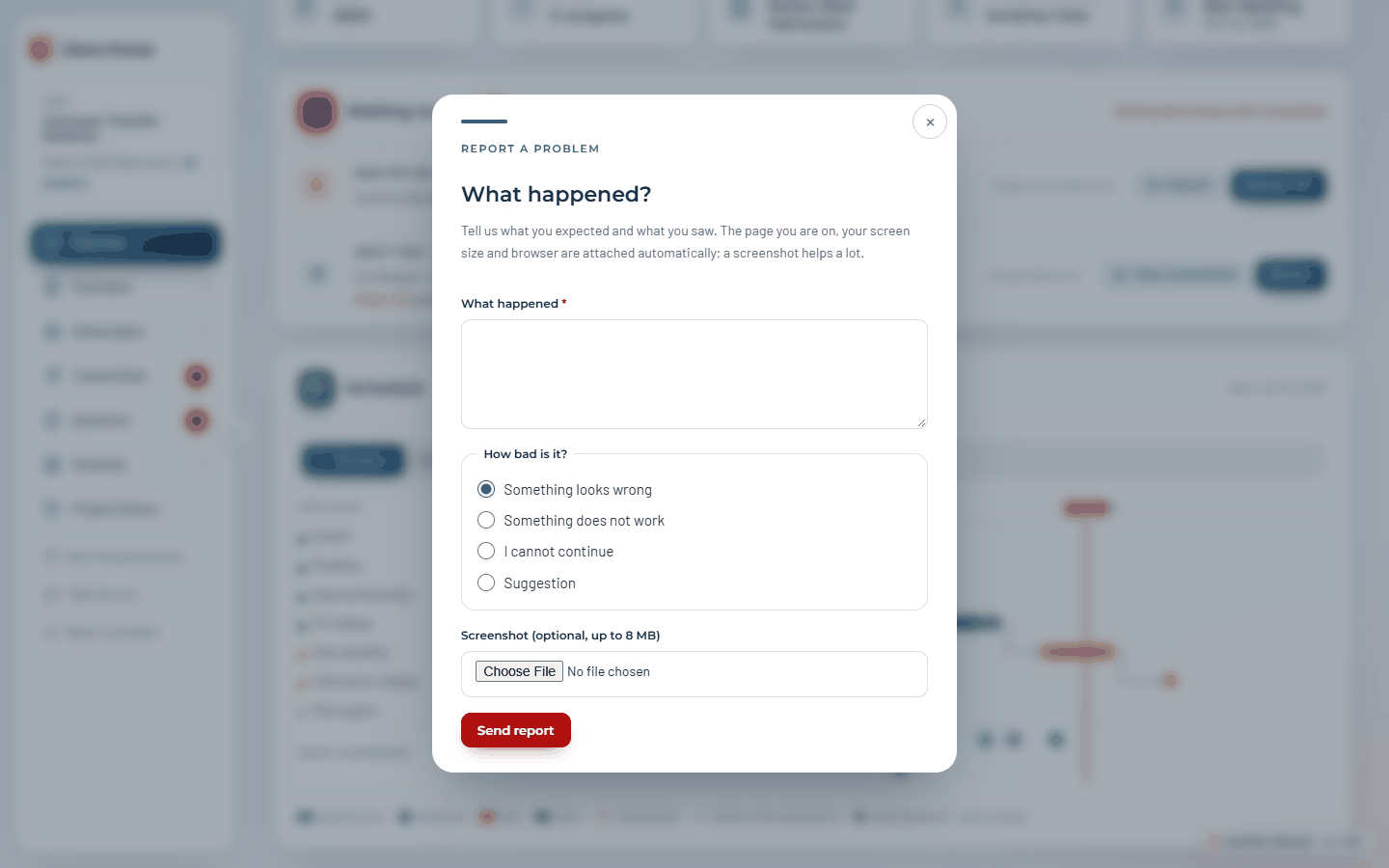
Report a problem (at the bottom of the menu) is for the portal itself: something that looks wrong, doesn't work, or stops you. Say what happened, pick how bad it is, and attach a screenshot if you can. The page, screen size and browser are attached for you. GIP is emailed, you get a confirmation with the issue number, and another email when it is fixed.
19. On a phone
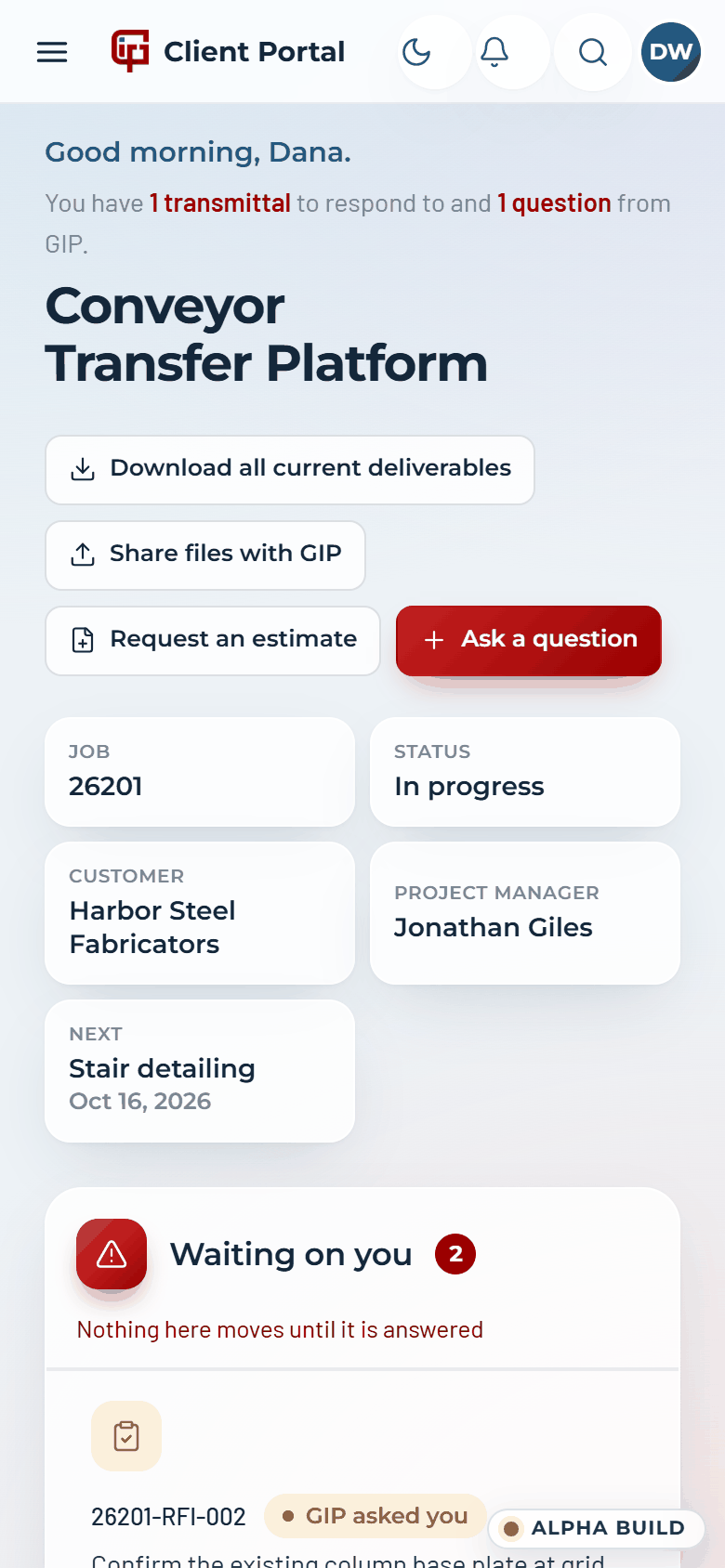
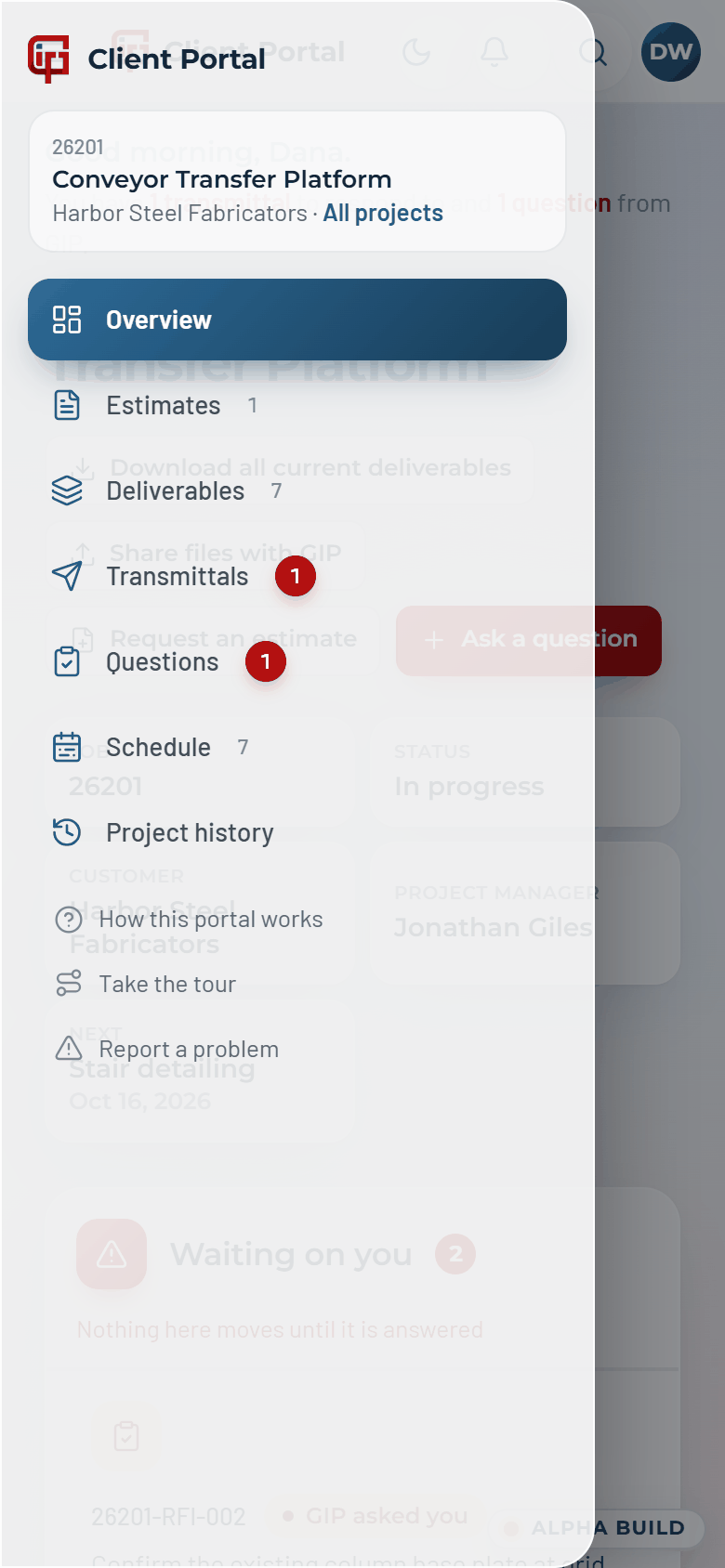
The portal works on a phone. A slim bar across the top carries the menu (☰), the theme button, the bell and search; the menu slides in from the side. Tables become one card per row, drawings and models pinch to zoom, and every button (accept, acknowledge, answer) is a single tap. Documents open in the phone's own PDF viewer. Sign in on the phone with the same email; you get a separate link for it.
Part 2 — GIP Staff Portal
The GIP Staff Portal is the staff side, at www.gilesip.com/portal/admin/. Inside a project it shows exactly what the client sees, with the staff controls alongside, so you can talk a customer through their screen from yours.
1. Signing in and roles
Staff sign in the same way as clients, with their gilesip.com address, from GIP staff sign in on the portal page, and land in the Staff Portal. Who counts as staff is the Staff & roles page (section 16). There are two roles:
| Role | Can | Cannot |
|---|---|---|
| Staff | See every project; start new projects; issue and answer questions; add client contacts and resend sign-in links; set milestones, holds and estimate values on jobs they are on the team for; release to the customer on jobs they are PM for; nudge | Close or archive jobs; remove or disable contacts; accept an estimate for a customer; change a project's customer; manage GIP staff |
| Admin | Everything | Demote or disable themselves, or the last admin |
2. Getting around: Projects Home
The switch at the top of the sidebar moves between two workspaces: GIP Projects (the client work, covered here) and My GIP (your own HR, time off and company pages, section 17). A red dot on a tab means something there is waiting on you.
The GIP Projects menu has Home, the Project Board, your Favorites, Estimates and Schedule (across every job), Customers, and for admins Project folders. Star a job on its page or its Board row and it appears under Favorites with its red count (up to 20; they follow you between devices). Client view, which shows the portal as a customer sees it, is in the account menu. Portal manual, at the bottom of the menu in both workspaces and under My GIP › Company, opens this manual in a new tab.
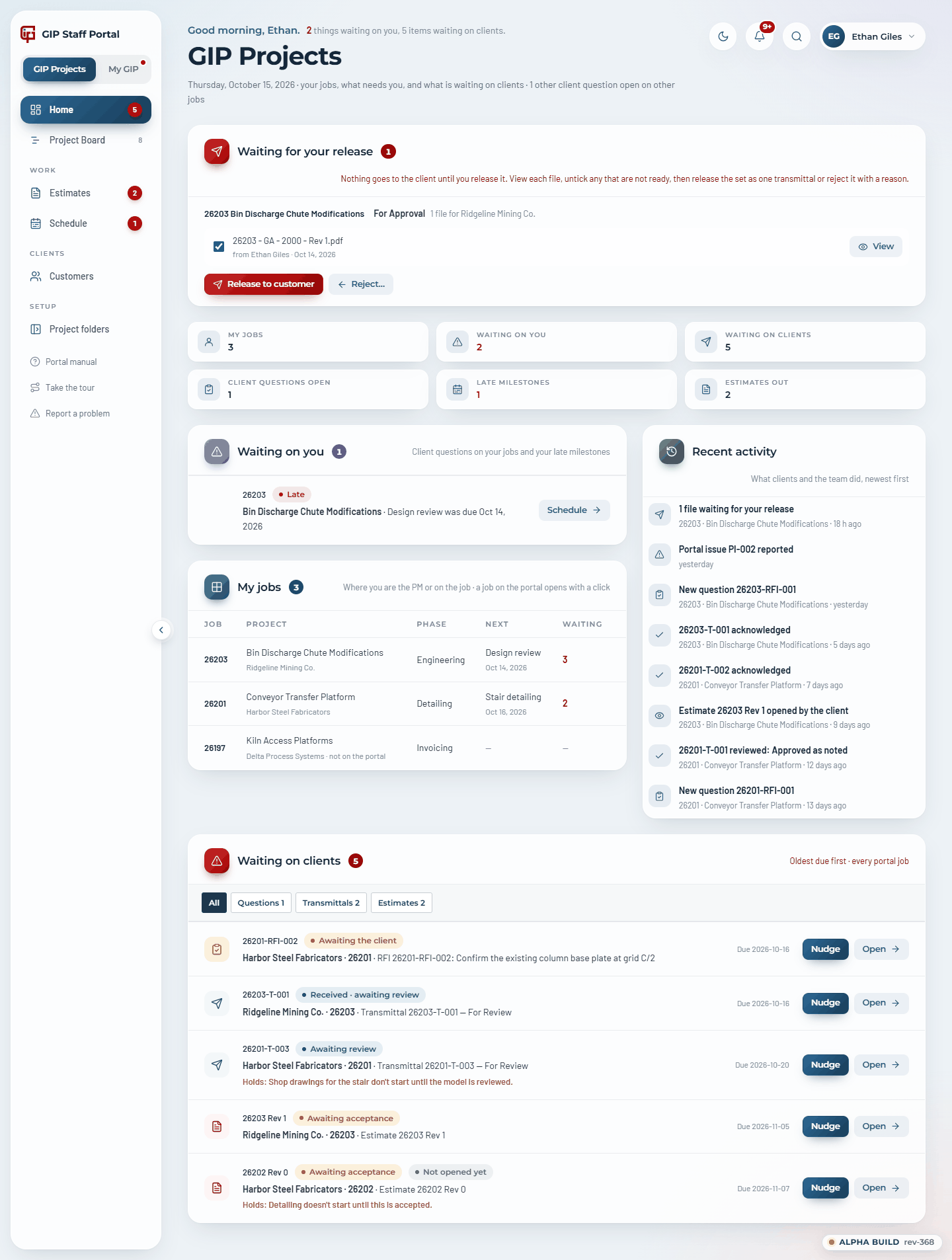
- Waiting for your release: drawings and estimates waiting for you to release them to the customer (section 9).
- Tiles: your jobs, what is waiting on you, what is waiting on clients, open client questions, late milestones, estimates out. The two waiting tiles jump to their cards.
- Waiting on you: client questions on your jobs or assigned to you, and your late milestones.
- My jobs: the jobs you are PM for or on, with their phase, next milestone and what is waiting.
- Recent activity: what clients and the team did.
- Waiting on clients: every open estimate, transmittal and question across the portal, oldest due first, filtered by type. Nudge sends that item's reminder now. An estimate the client hasn't opened is marked Not opened yet.
3. The GIP Project Board
The Project Board is every job, grouped by phase: Estimating, Waiting for assignment, Engineering, Modeling, Issued for approval, Detailing, Drawing review, Issued for construction, Out for 3rd-party estimate, Fabrication, On hold, Invoicing.
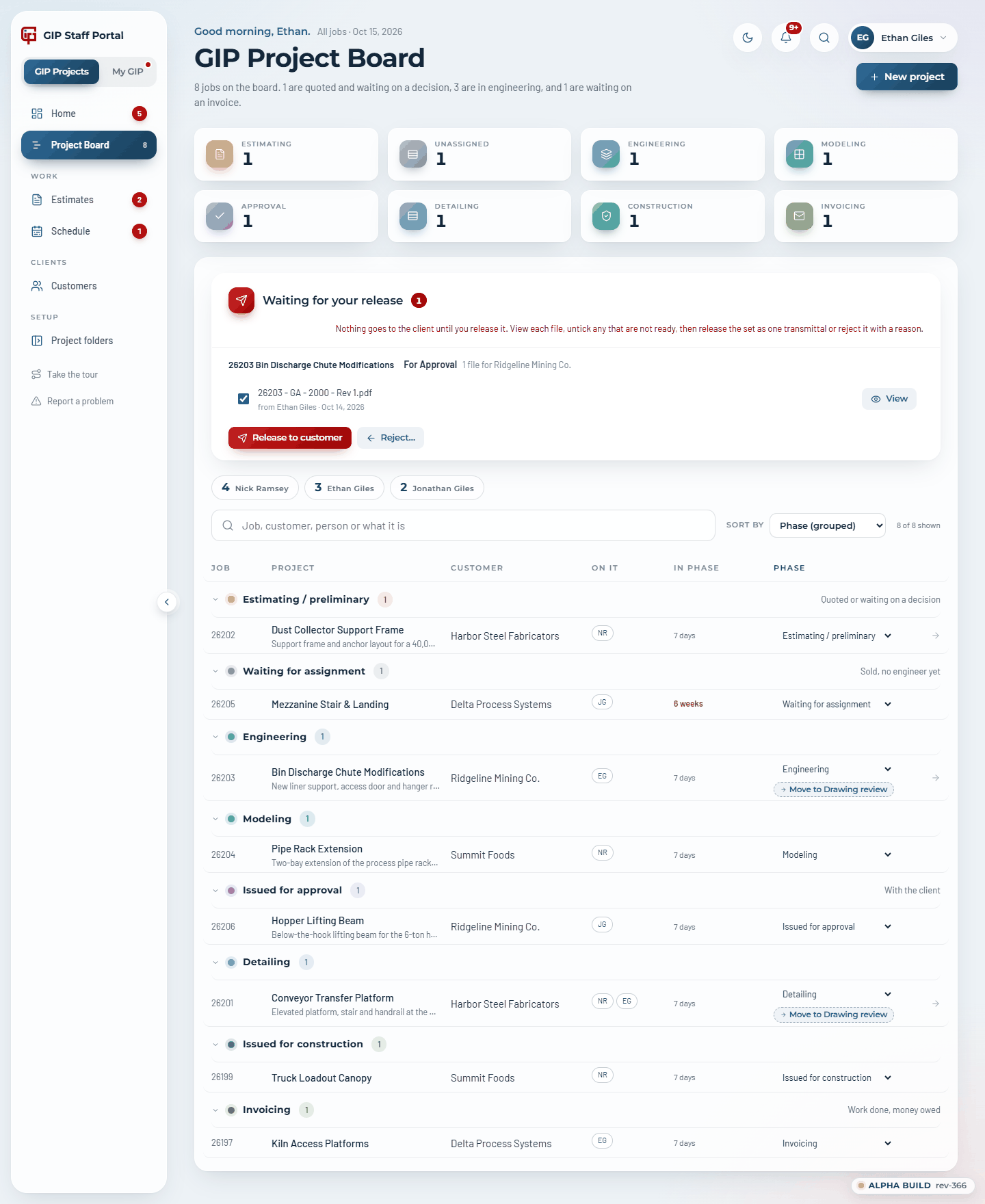
- Click a pipeline tile to show only that phase, or a person in the people strip to show only their jobs. The search box looks through job numbers, names, customers, people and descriptions.
- Sort by: Phase (grouped), Job number, Project name, Customer, Project manager or Status. The column headings sort too.
- Each row shows the job's description under its name, who is on it, and how long it has been in its phase (amber at 30 days, red at 60).
- Change the phase from the row's dropdown, or who is on it from the circle; changes save at once and are logged. The picker closes when you click elsewhere.
- Jobs move themselves when the evidence says so (an IFC transmittal moves a job to Issued for construction), or offer a dashed Move to … chip for you to accept.
- A job on the portal opens its project page; a job not on the portal opens its customer's page, where it can be added to the portal.
- A job taken off the board can be found with the search and put back with Re-open in….
4. Starting a project
New project (on the Board) allocates the next job number, writes the Jobs row, builds the Drive folders, and can put the job on the client portal and log an estimate request, all at once. Any staff member can start one.
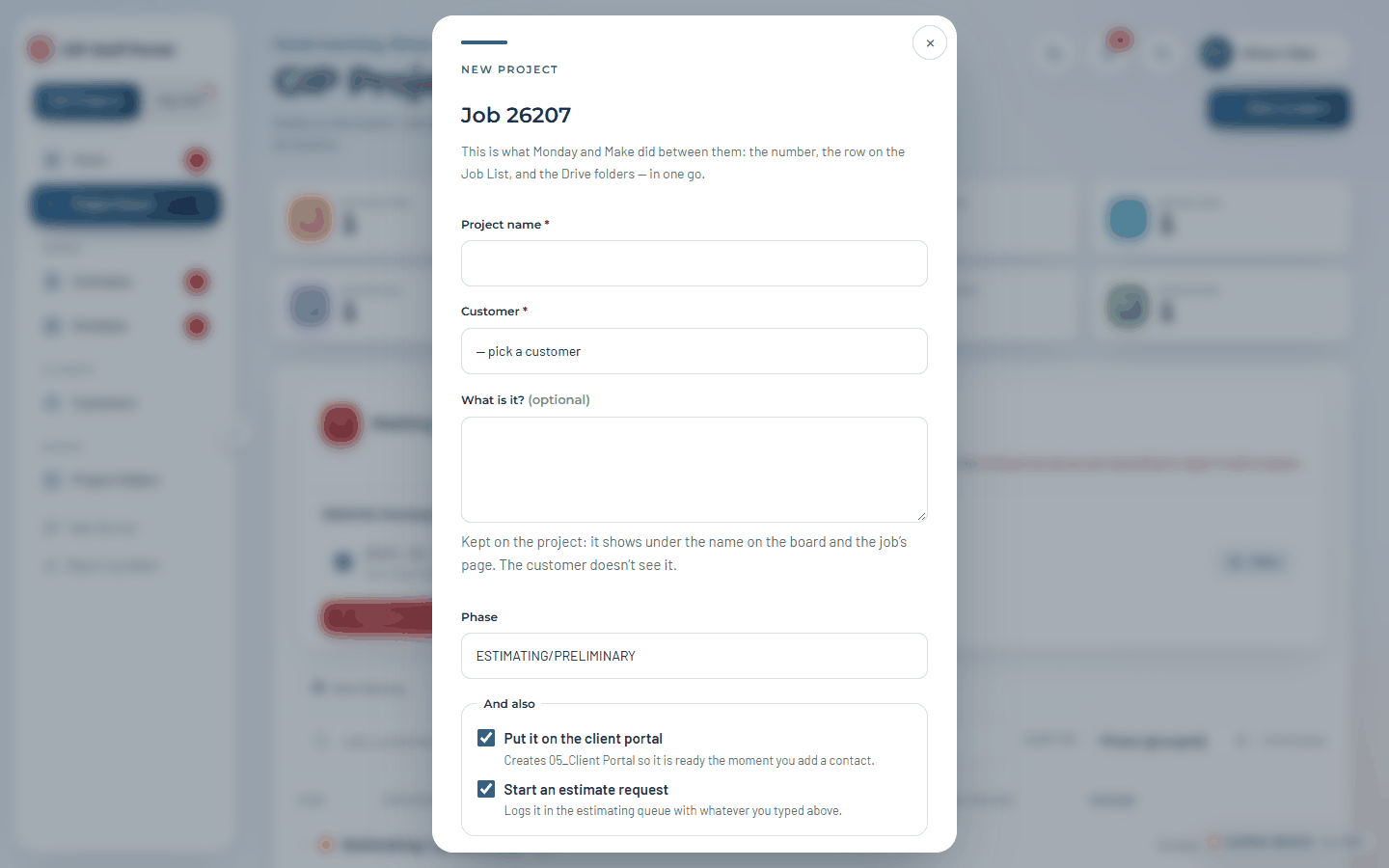
Pick the customer from the list (or + Add a customer…), name the project and say what it is; that description shows on the board and the project page, never to the customer. A customer name typed with different capitals or spacing (fives for FIVES) is filed under the existing customer. The folders, the portal and the estimate request finish in the background in about a minute.
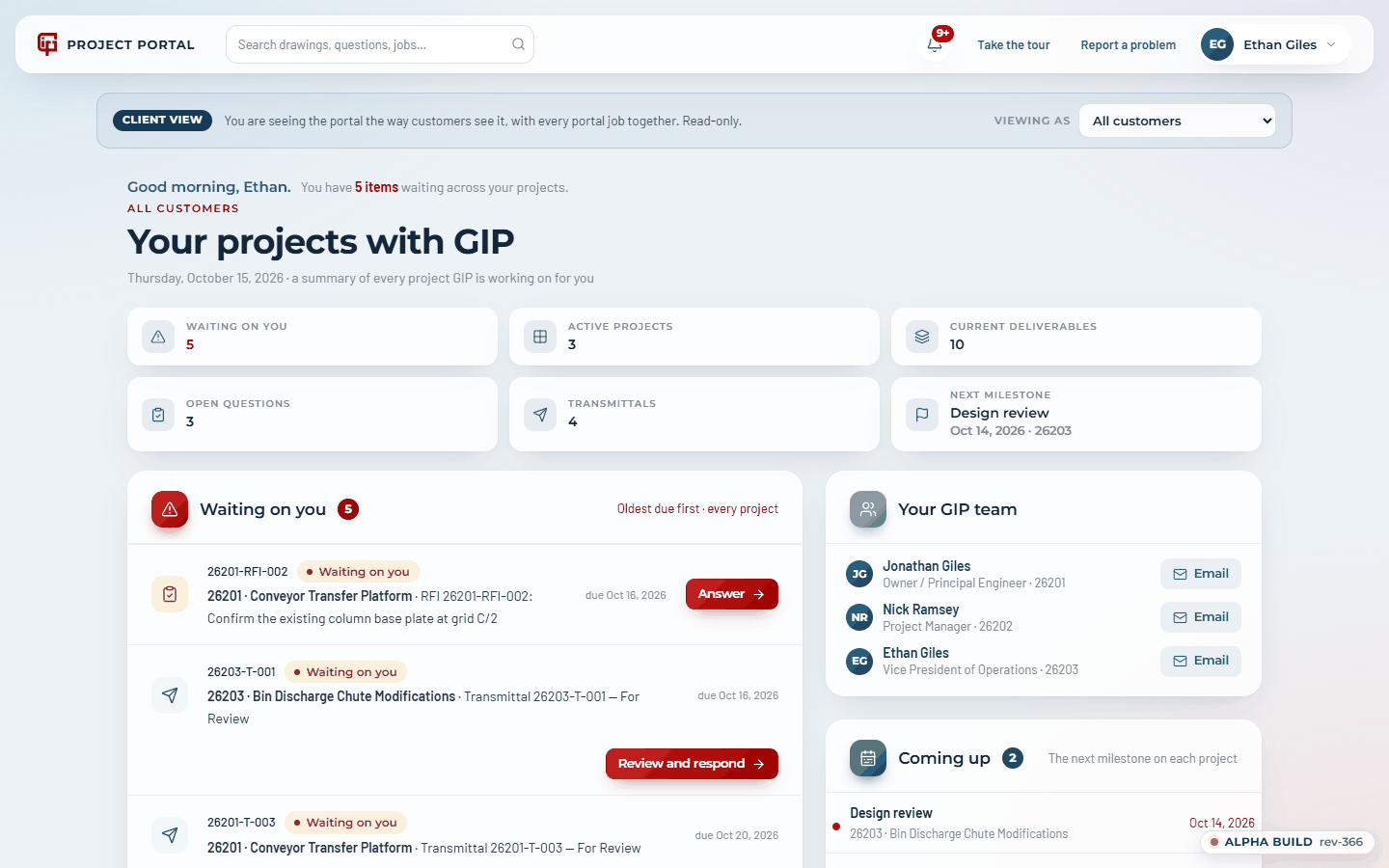
5. Customers and the client view
Customers lists the active portal projects and every customer on the Jobs tab. Open a customer to see all their jobs. Jobs on the portal show Manage; the rest show Add to portal. Every job has Edit (section 6).
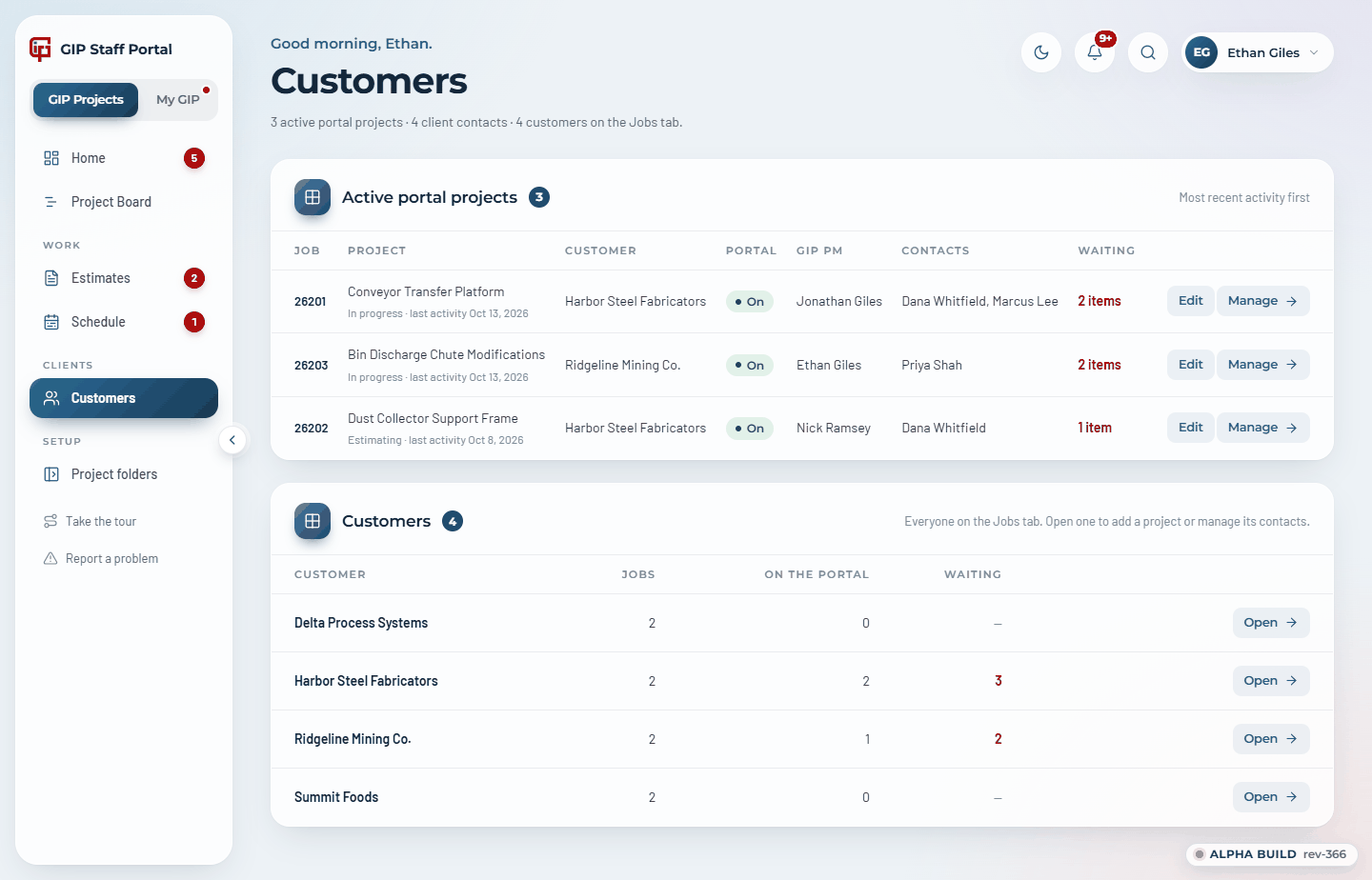
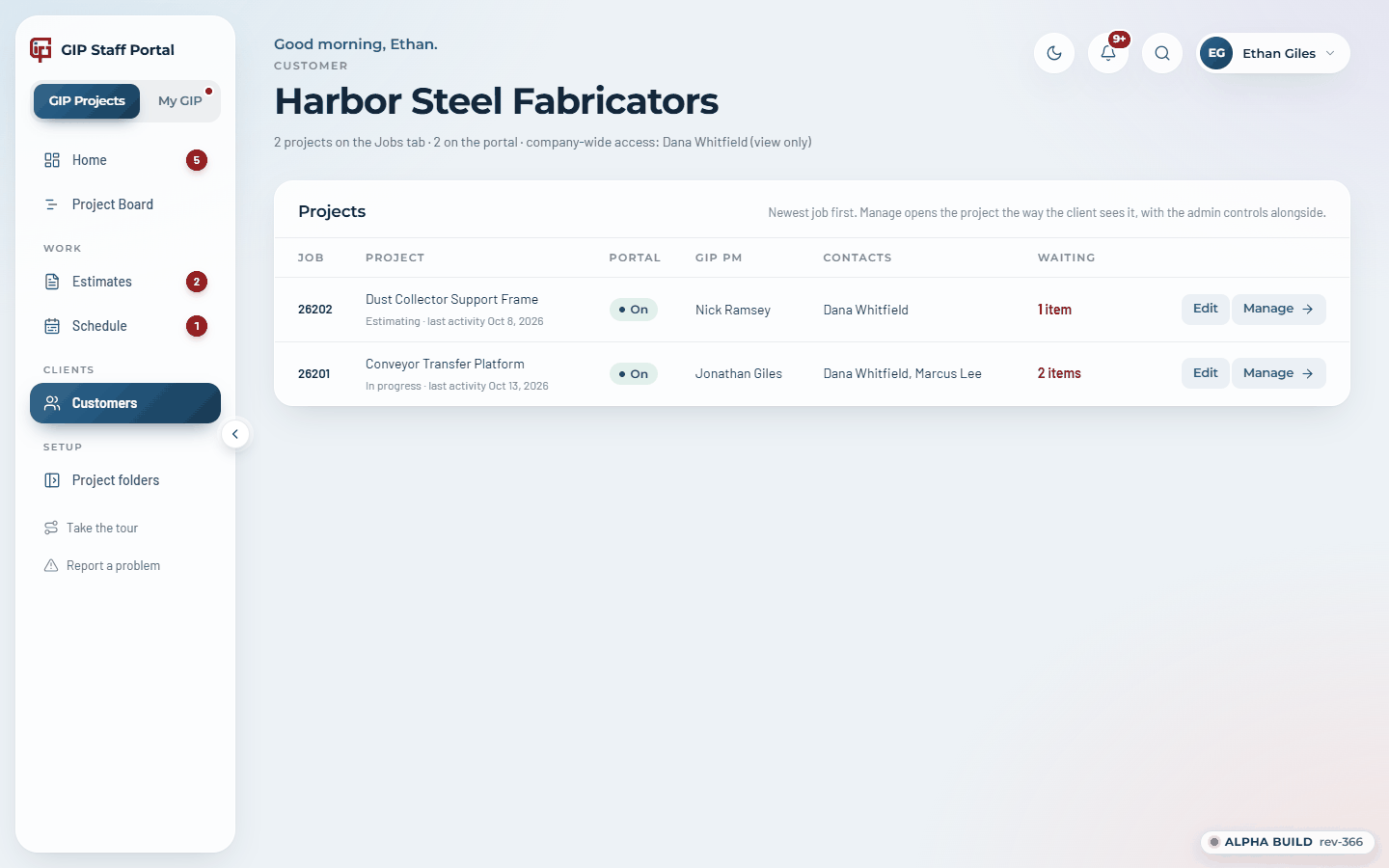
Add to portal builds the job's portal folders in Drive, gives the portal access to them, sets Portal = Y on the Jobs tab and makes you the PM if none is set. The client sees nothing until you add a contact.
Client view (account menu) shows the portal as a customer sees it, read-only, under a Client view bar. Viewing as picks a customer, or all of them.
6. A project in the Staff Portal
Inside a project the sidebar is the client's own, and the Estimates, Deliverables, Transmittals, Questions, Schedule and History views are the same ones the client sees. The overview adds the staff cards.
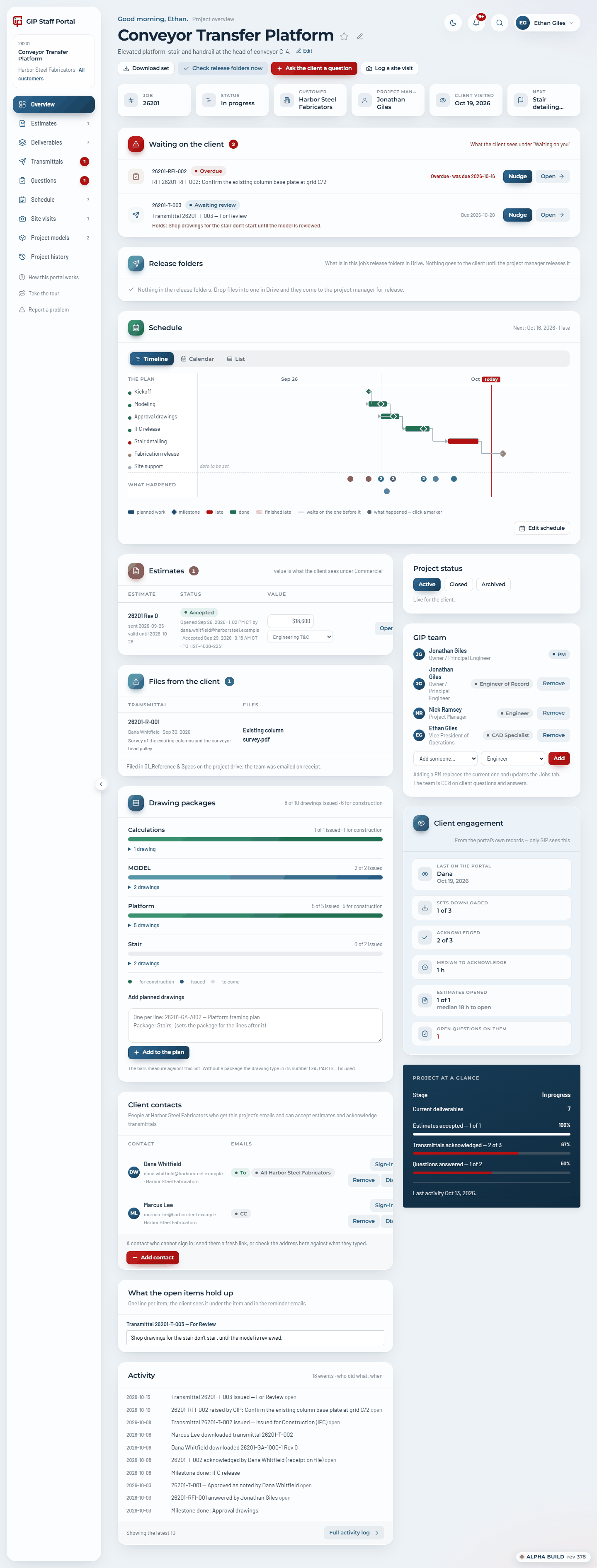
| Card | What it does |
|---|---|
| Header | Download set, Check release folders now, Ask the client a question; tiles including when the client last visited; the description; the star; and the pencil for Edit project. |
| Waiting on the client | What they see under Waiting on you, with Nudge. |
| Release folders | What is in the job's release folders in Drive and what is waiting to be released. |
| Schedule | The client's schedule, read-only here; Edit schedule opens the Schedule tab. |
| Estimates | Each estimate with its value and terms. |
| Files from the client | What the client sent with Share files with GIP. |
| Project status | Active (live), Closed (read-only for the client, no reminders or releases) or Archived (hidden from the client). Admins only. |
| GIP team, Client contacts | Section 7. |
| Client engagement | When a contact was last on the portal, sets downloaded and acknowledged, median time to acknowledge, estimates opened, open questions on them. |
| Drawing package plan | The drawings the job will issue, one per line, grouped into packages. It drives the client's package progress bars. |
| Activity | Who did what, when. The full log is under History. |
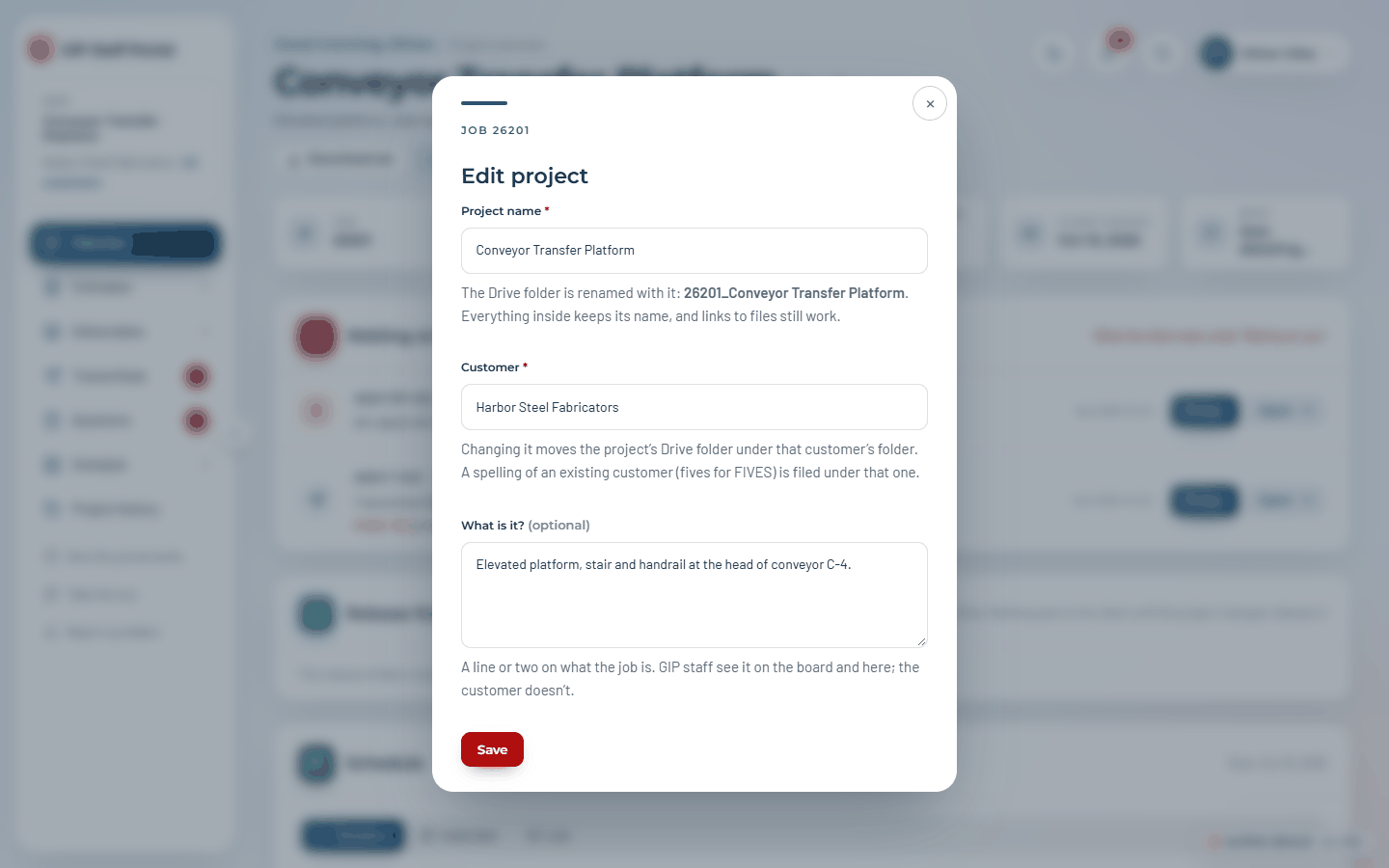
Edit project changes the project's name (the Drive folder is renamed with it; you see the new folder name as you type) and its description. Admins can also change its Customer: the project's Drive folder moves under that customer's folder, and the Jobs row follows. Edit project also opens from each job on a customer's page, for jobs that aren't on the portal.
7. Client contacts and the GIP team
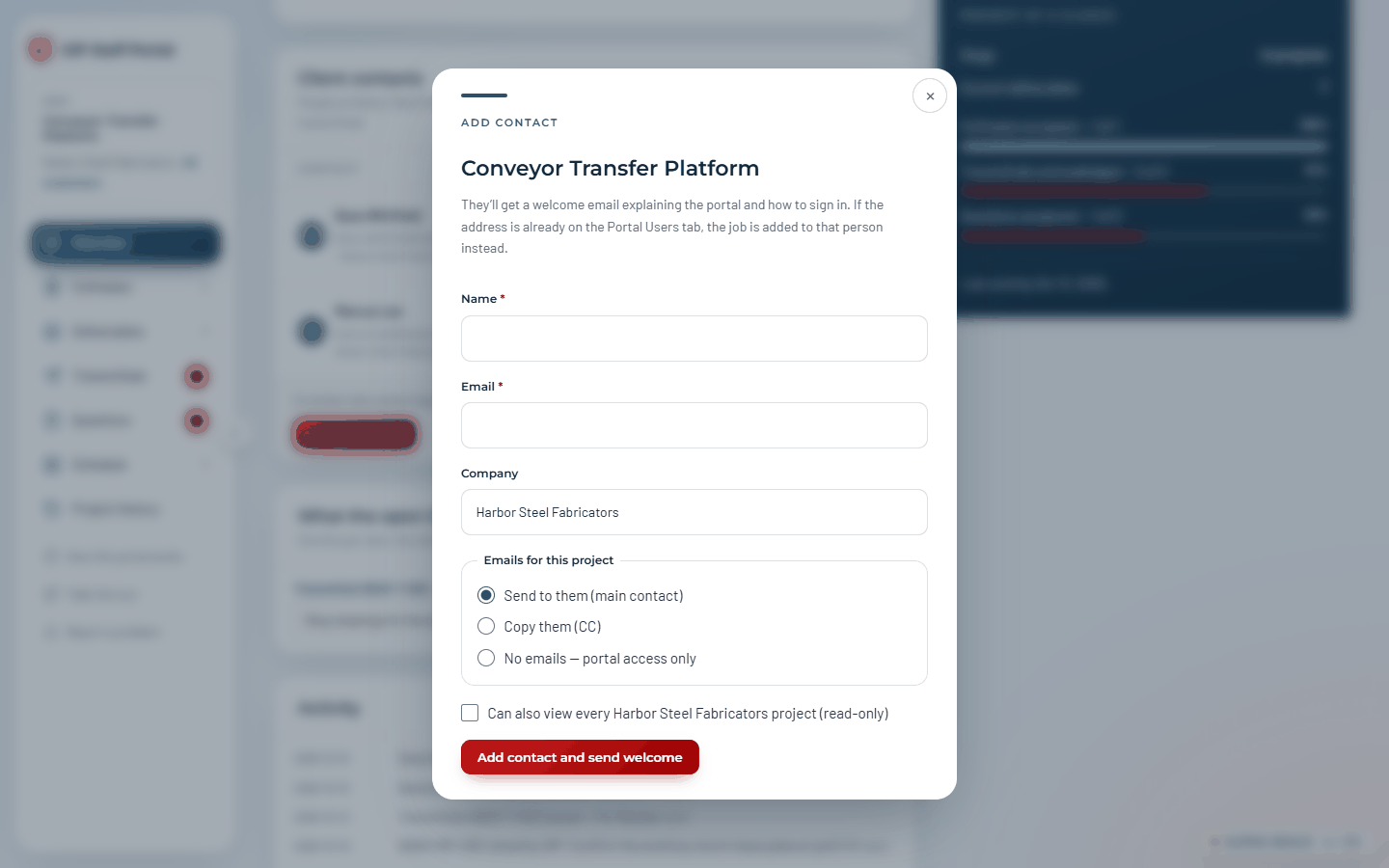
Add contact asks for a name, email and company, and how they should be emailed: Send to them (the main contact: they get everything and can accept, acknowledge and answer), Copy them (CC), or No emails (portal access only). Ticking Can also view every … project gives them read-only access to all that customer's jobs. People already on the portal for the customer are offered first; one click fills them in. A new person gets a welcome email; an existing person gets a "job added" note only if their access really changed.
On the contacts card, Sign-in link sends a fresh link (the first thing to try when someone says they can't get in), Remove takes them off the job, and Disable locks them out everywhere (admins only).
The GIP team card lists who from GIP is on the job: PM, Engineer of Record, Engineer, CAD Specialist. Pick a person and a role and press Add. Making someone PM replaces the current PM and updates the Jobs tab, so transmittals and estimates go out under the right name. Admins and the job's PM can change the team. The team is copied on client questions and answers.
8. Schedules
The project's Schedule tab is where milestones are edited: add one with a start date (optional; it makes a bar on the timeline), a target date and a note; say what it waits on; drag the grip (or Alt+Up/Down) to set the order; Done stamps today, Reopen and Remove do what they say. The client sees the result as their schedule.
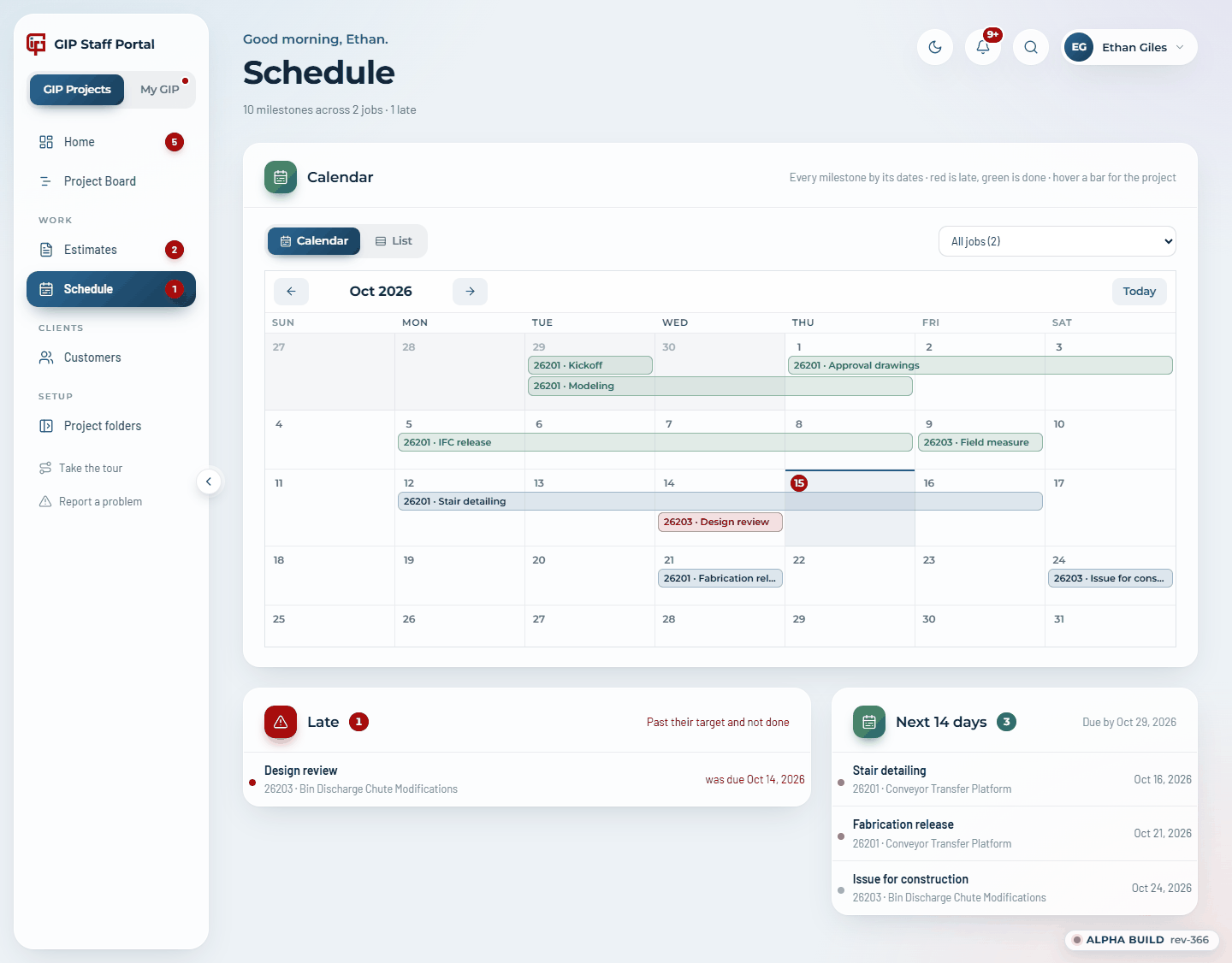
Schedule in the menu shows every job's milestones on a calendar (late in red, done in green), with what is late and what is due in the next 14 days, or as a list by job. Filter it to your jobs or one job.
Holds: for each open estimate and unacknowledged transmittal, one line saying what GIP cannot start until it is dealt with ("detailing doesn't start until this is accepted"). The client sees it under the item and in every reminder.
9. Releasing drawings and estimates
Releases are driven by Drive, and the PM decides when they go to the customer.
- Name the files to the convention (Part 3) and drop them in the job's release folder for the purpose: For Information, For Review, For Approval or IFC. On jobs started on the 2026 folder layout that is 04_Issued/<purpose>; on older jobs, 05_Client Portal/01_Released Drawings/<purpose>. Estimates go in the estimates folder.
- Ten minutes after the last file lands, the set joins the Release Queue. The job's PM (or the admins, if it has none) is emailed Waiting for your release and sees it in the bell.
- On the Waiting for your release card (Projects Home and the Board), check the files. View opens one; untick any that aren't ready.
- Press Release to customer: the set goes out as one transmittal. It is numbered, the transmittal PDF is built, each drawing is logged (earlier revisions are superseded), the client contacts are emailed, and it appears in the portal. Or press Reject… with a reason: the file moves to the folder's Not Released subfolder and whoever put it there is emailed.
A file named HOLD in a folder still pauses it while you assemble a set. Check release folders now runs the check at once instead of waiting, and says what it found. Removing a released file from Drive marks it Withdrawn in the portal and tells the PM; putting it back (same name) reattaches it.
10. Estimates
The Estimates page is every estimate on every portal job, awaiting acceptance first. For each: its status and holds, the Value (the lump-sum figure the client sees under Commercial), the Terms it is offered under (Engineering or Supply, short or long form; fixed once the client responds), when it was sent and when it expires, whether and by whom the client opened it, the response, and the last nudge.
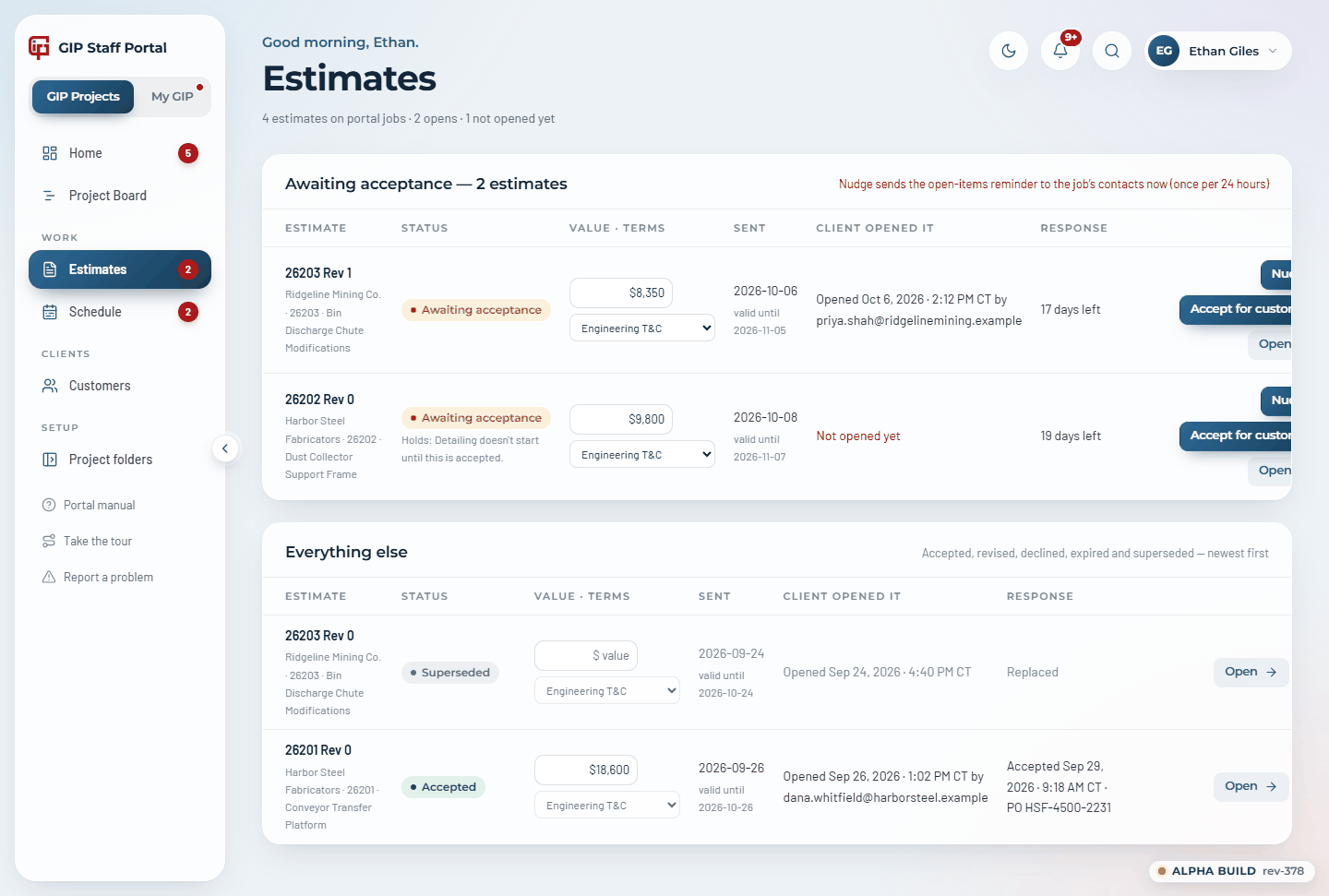
Automatically: a reminder on day 5, another 5 days before expiry, expiry at 30 days (the client is told and can ask for a new one), and a note to the PM when a requested revision has had no new estimate for 5 business days.
Accepting for the customer
Some customers accept by sending a purchase order rather than clicking Accept. An admin can record that with Accept for customer on an open (or expired) estimate. The customer's PO number is required. Choose which terms govern (the terms on the customer's PO, the default, or GIP's terms on the estimate) and who at the customer approved it: one of the job's contacts, or a name typed in. A contact you pick gets the same confirmation a customer acceptance sends, with the signed estimate attached and the PM copied; otherwise the PM is told.
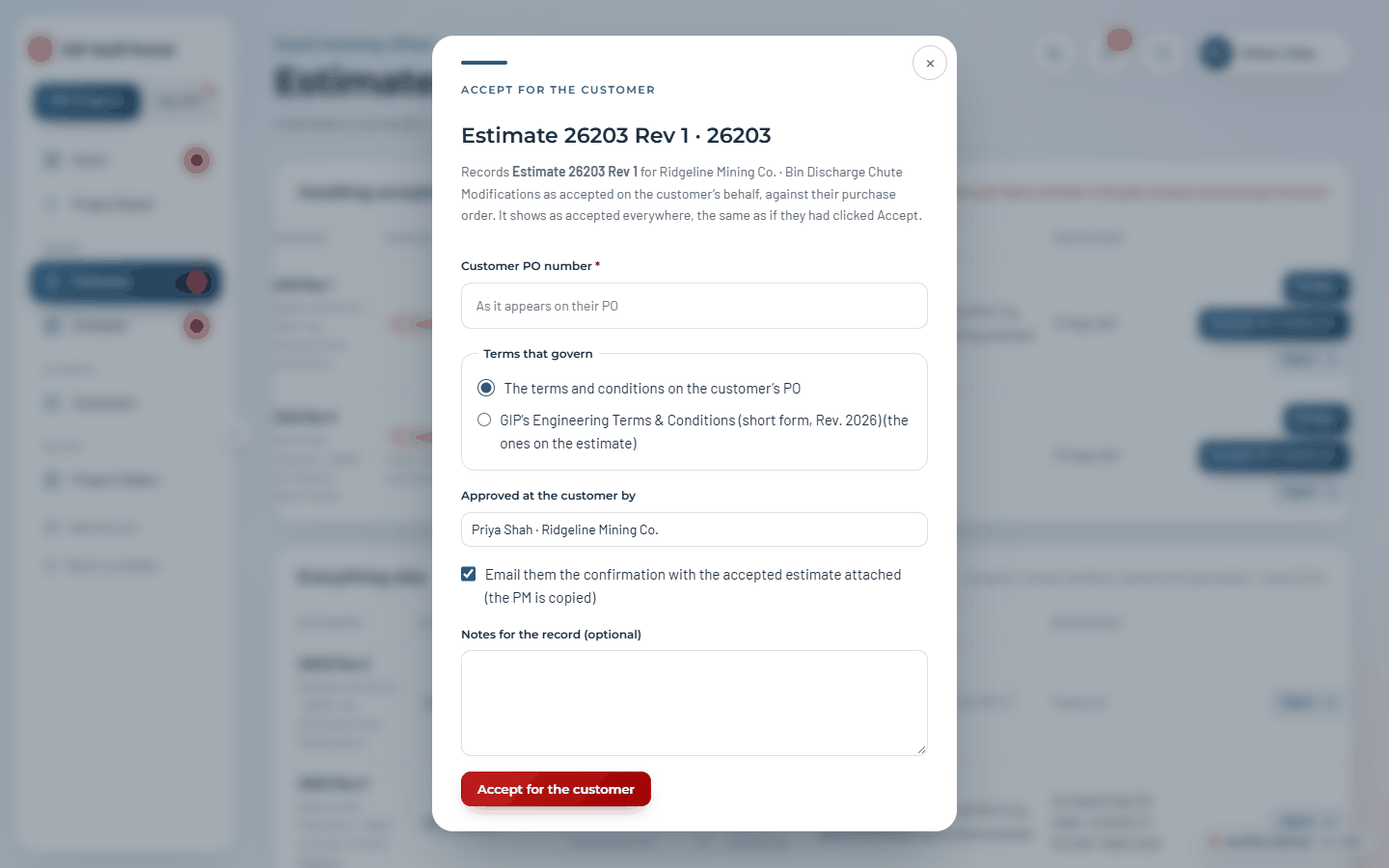
Recording a PO that came by email
A customer who accepts in the portal can choose PO to follow. Until the PO number is entered, the estimate counts as waiting on the customer, so the project's Estimates tab keeps its red number. The customer can add it themselves; when it comes to GIP by email instead, an admin uses Record PO on the estimate (on the project's Estimates tab, its overview, or the Estimates page). Enter the PO number and, if it helps, a note on how it came. The Estimate Log records who at GIP entered it and when, the estimate shows the PO, and the red number goes. No email is sent.
Every accepted estimate, however it was accepted, gets a signed copy (Part 1, section 6). It is filed in an Accepted folder inside the job's estimates folder, and its link is on the Estimate Log.
11. Questions (RFIs)
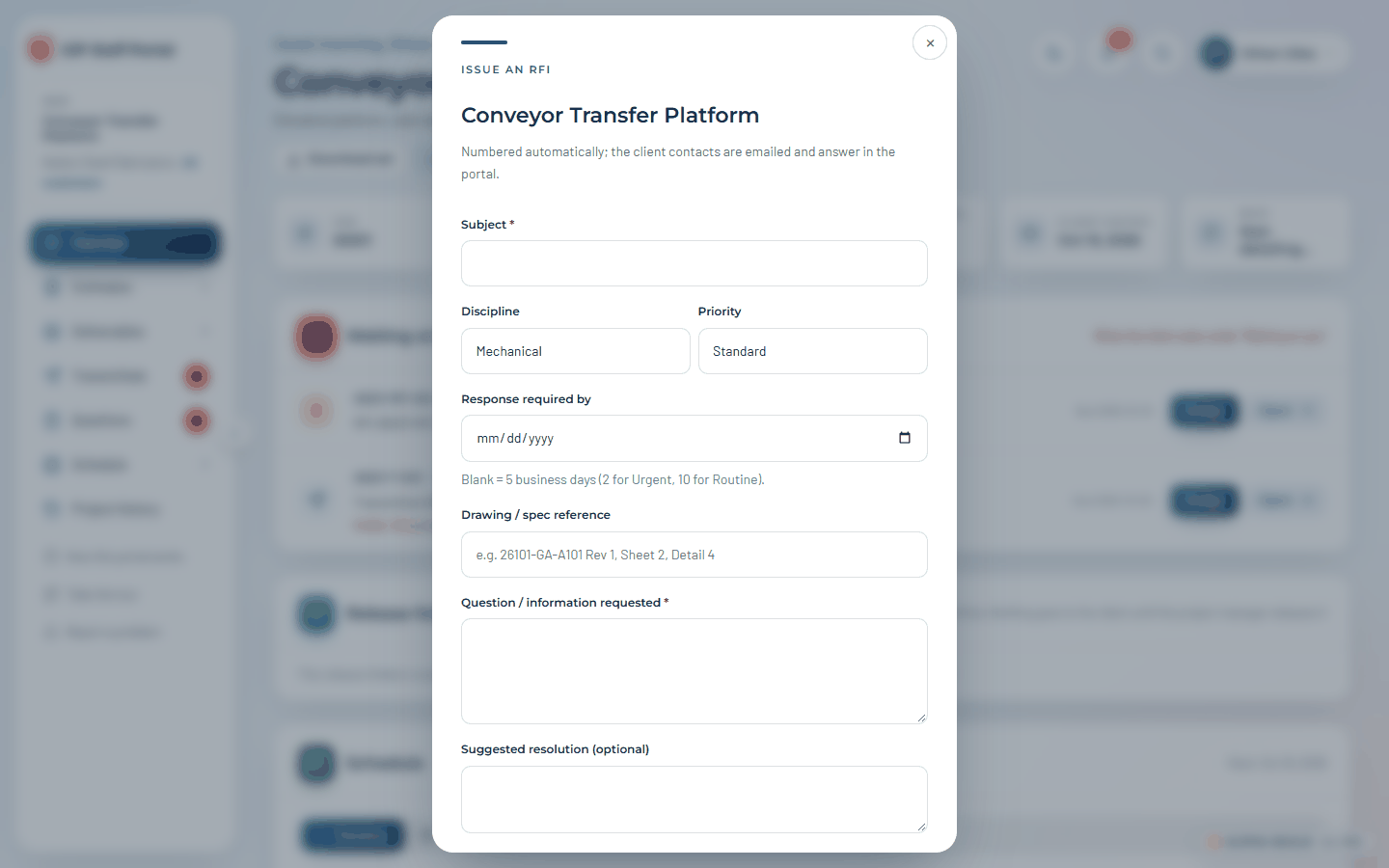
Ask the client a question (project header) issues a numbered RFI: subject, discipline, priority, response date (blank means 5 business days; 2 urgent, 10 routine), drawing reference, the question, a suggested resolution and an attachment. The portal builds the one-page GIP RFI PDF and emails the client contacts with it attached.
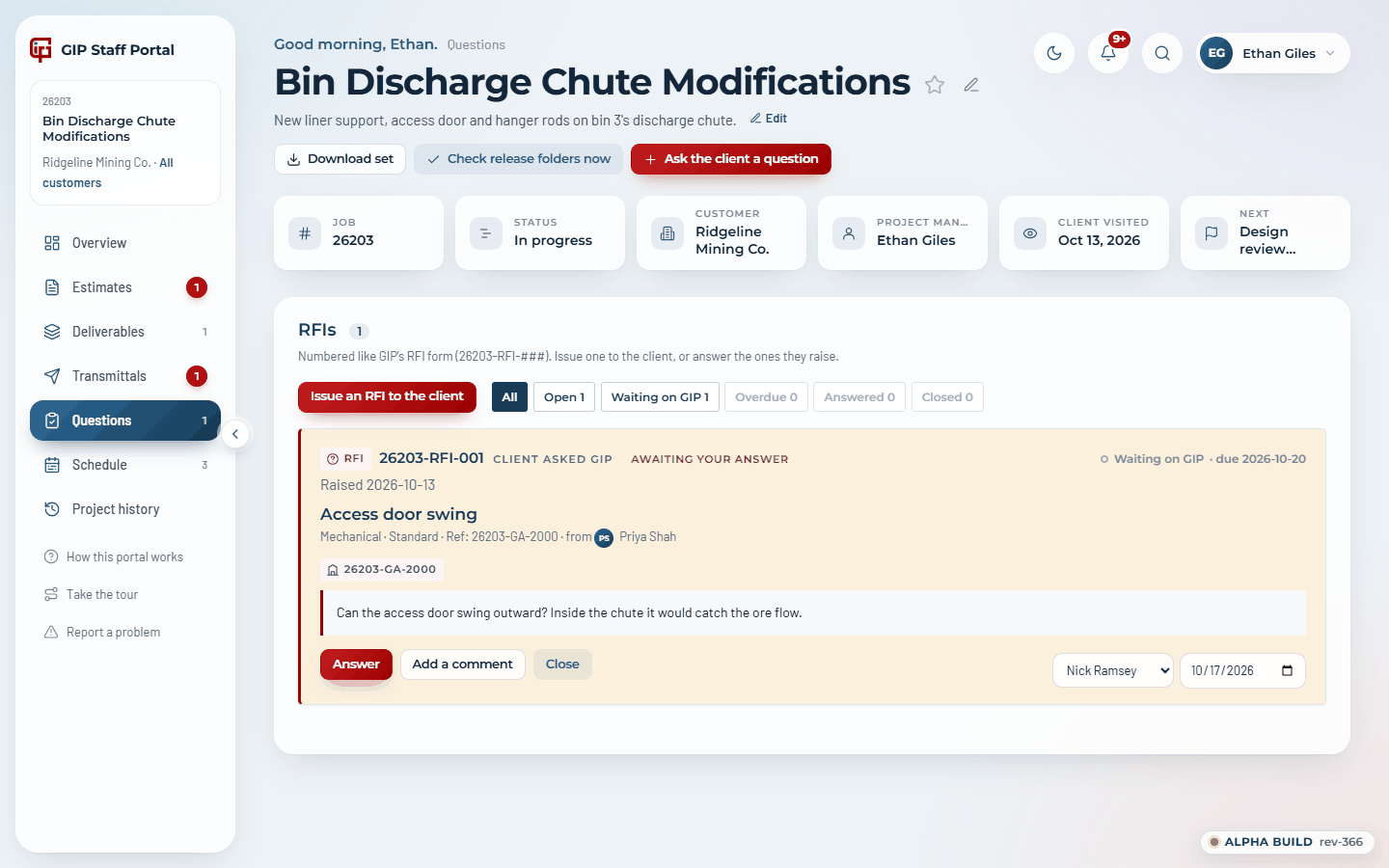
The project's Questions view shows each RFI with the staff actions: Answer a client's question, Add a comment, Close, and on questions the client asked, assign it to a person with a "back to the PM by" date. The person is emailed and the question shows under their Waiting on you.
12. Site visits
Every project has Site visits in its menu, and Log a site visit in its header. Log one after you have been out: the date, a title, who went (and who you met), what was done, and the photos, as many as you took, up to 2 GB each. The photos go straight from your browser into the job's Drive folder for the visit (02_Field Data/Site Visits/<date> <visit no.> on 2026-layout jobs, 04_Installation & Commissioning/02_Site Photos/… on classic ones), with a progress bar while they upload. Each visit is numbered, for example 26201-SV-001.
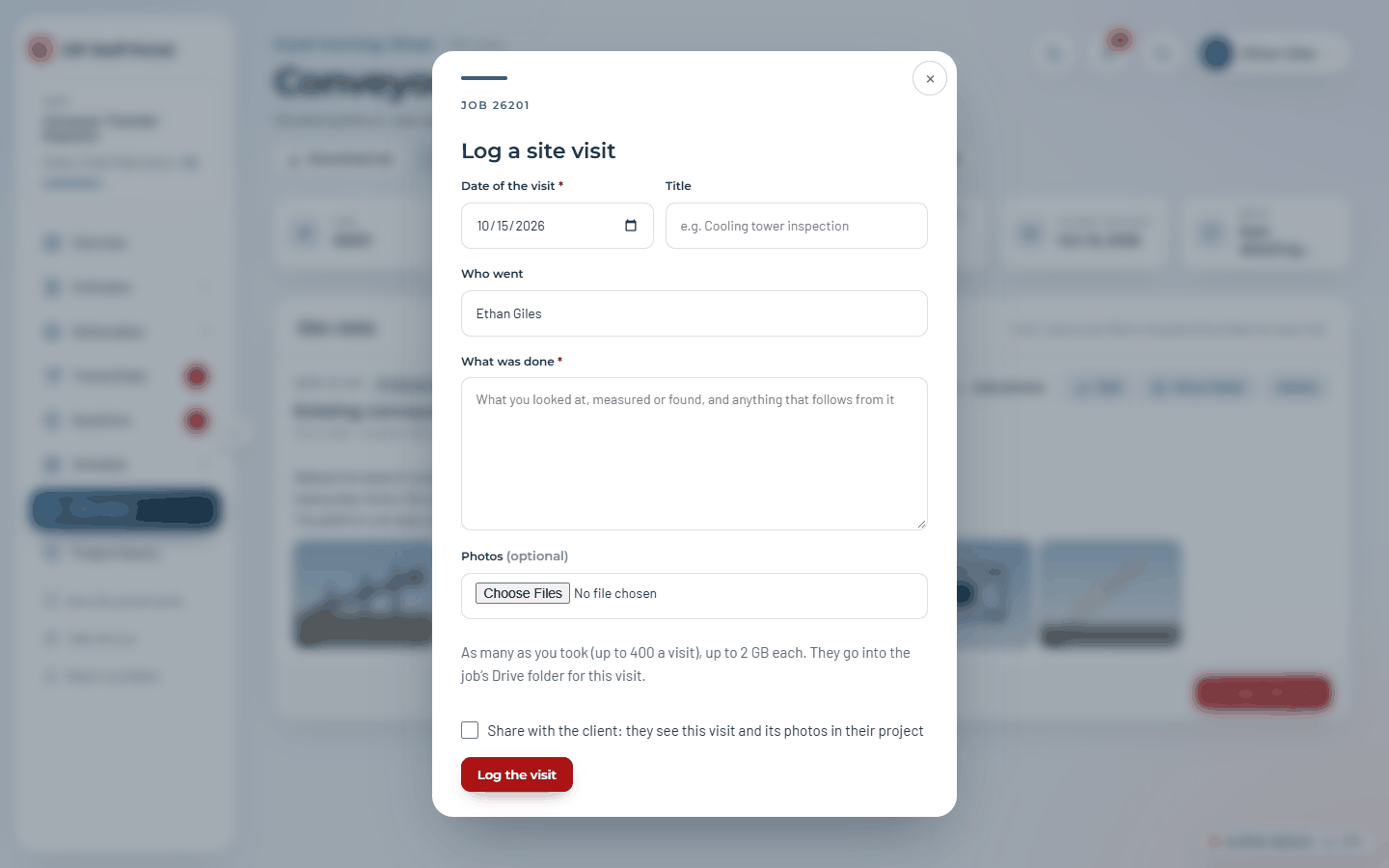
A visit is GIP's own record unless you tick Share with the client; then the client sees it, and its photos, under Site visits in their project. You can change that later with Edit.
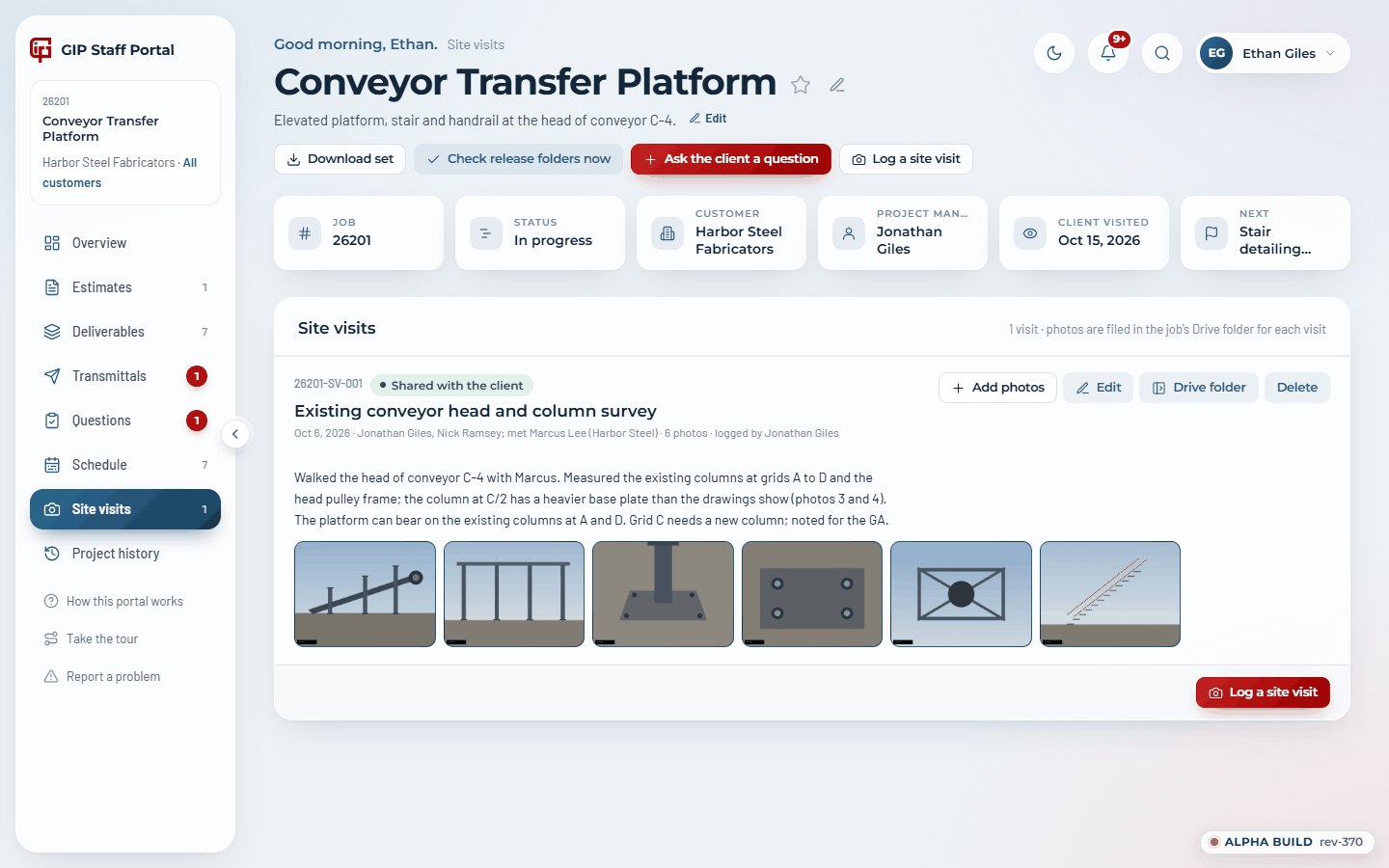
- Add photos uploads more to the same visit; Edit changes the date, title, who went, what was done and whether the client sees it.
- Drive folder opens the visit's folder in Drive, with every photo at full size.
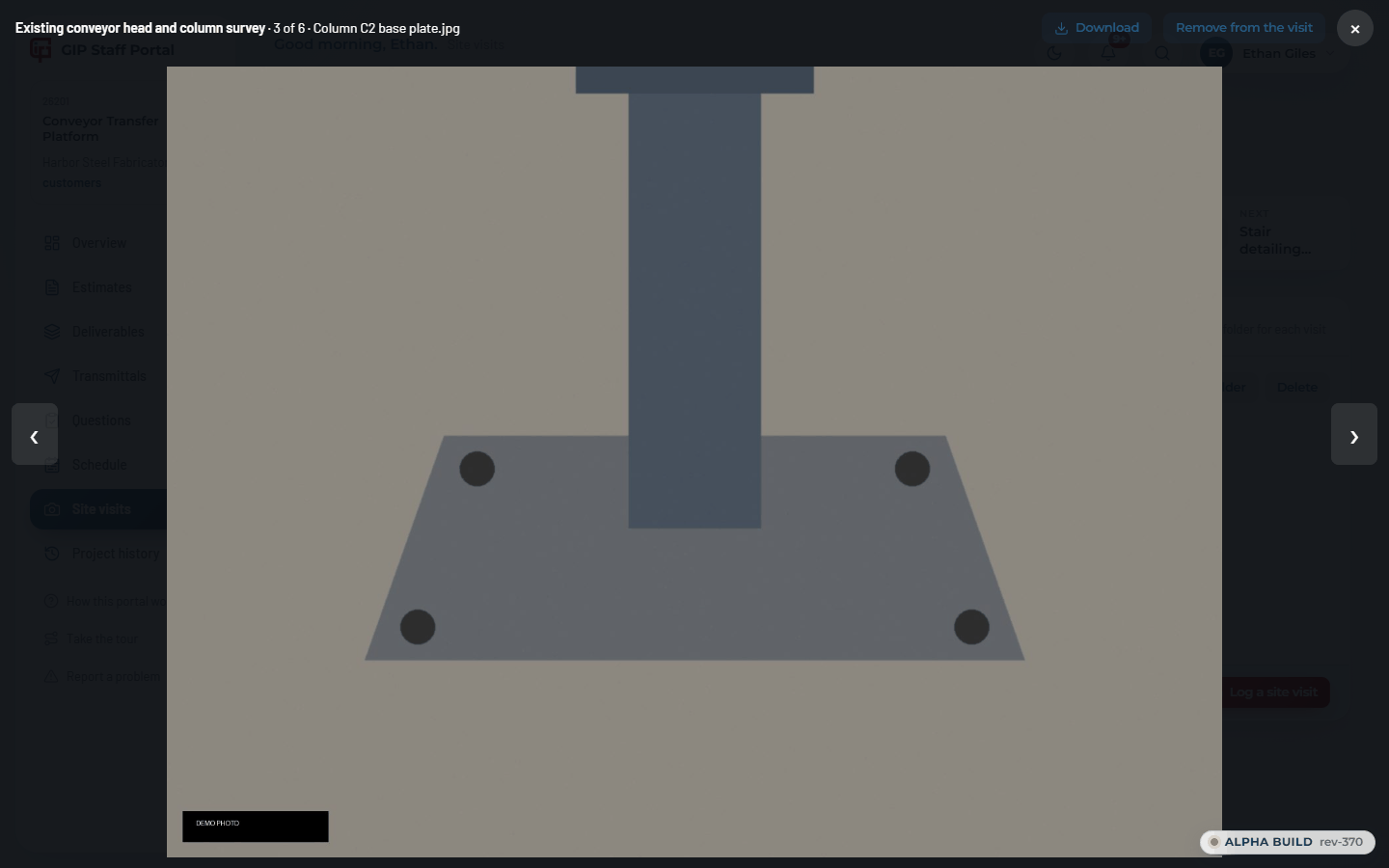
- Click a photo to see it full size, step through with the arrows, and Download it. Remove from the visit takes a wrong photo off the visit; the file stays in Drive.
- Delete (whoever logged the visit, or an admin) takes the visit off the project. Its photos stay in Drive.
13. Project models and point clouds
Every project has Project models in its menu: the working 3D models (IFC, STEP, IGES or GLB) and the laser scans (E57, LAS or LAZ) that GIP and the client can look round and measure in the browser (Part 1, sections 9 and 14). They are not deliverables: nothing is released or transmitted, and no email goes out. The file stays where it is in the job's Drive folders: a model in, say, 02_Work in Progress (WIP), a scan in 02_Field Data on a 2026-layout job or 02_Engineering & CAD/04_CAD Software Files/06_Point Cloud on a classic one.
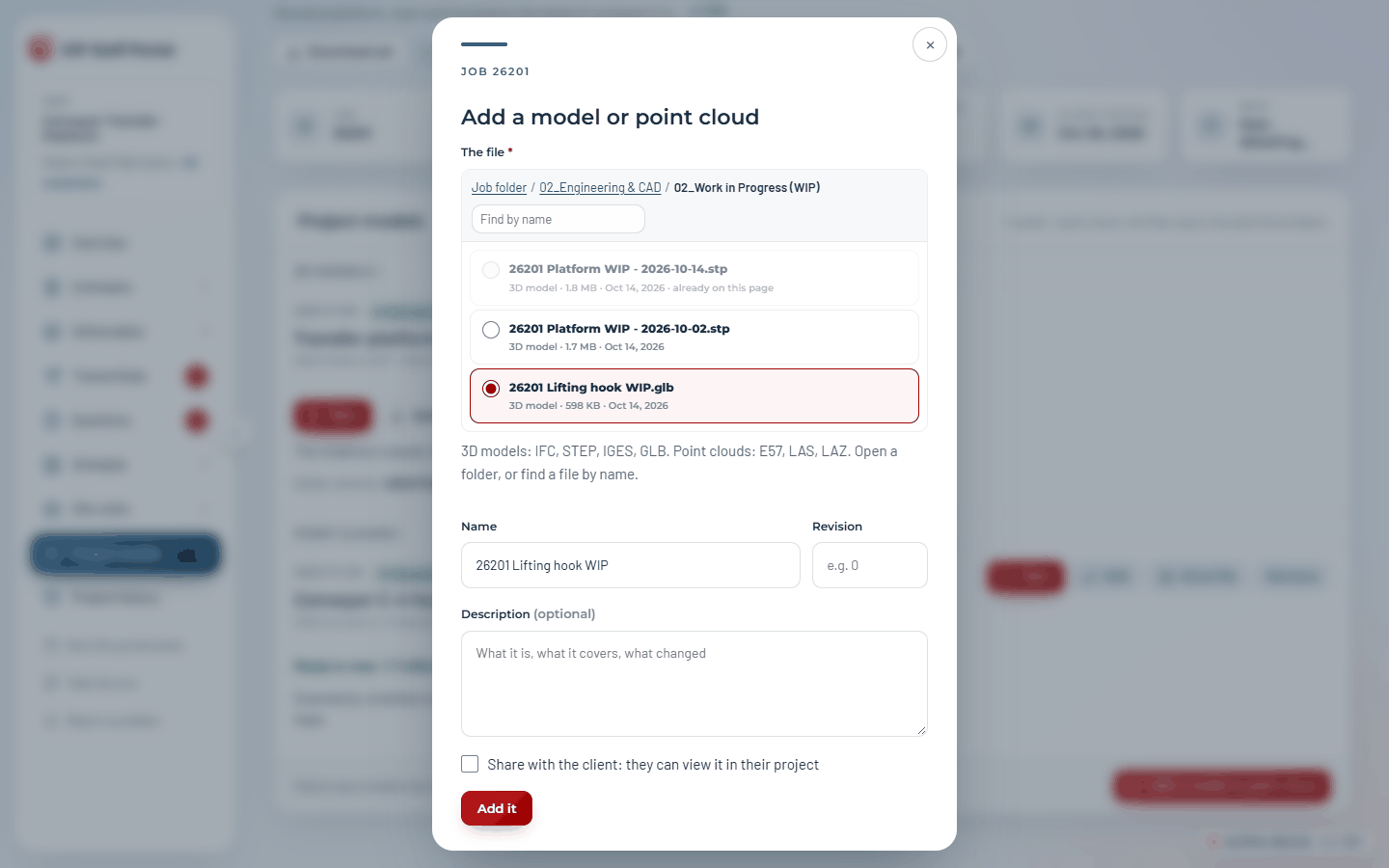
- Add a model or point cloud opens the job's Drive folders. Open folders to find the file (the path along the top goes back up), or type part of its name in Find by name and press Enter. Only models and scans are listed.
- Choose the file, give it a name (for example Platform model, current or Concrete pit, as found), a Revision for a model (0, 1, A, B: whatever GIP calls it; it shows by the name, for the client too) and a description if it helps, and tick Share with the client if they should see it.
- A model is ready at once: View opens it in the 3D viewer, which prepares it the first time as it does any model. A scan takes Add and prepare it: GIP's model server turns it into a file the viewer can stream, about ten minutes for every 5 GB; the page says Being prepared and checks every 30 seconds, and you can leave it. A scan of more than 250 million points is thinned to every second or third point for the browser; the scan in Drive is untouched.
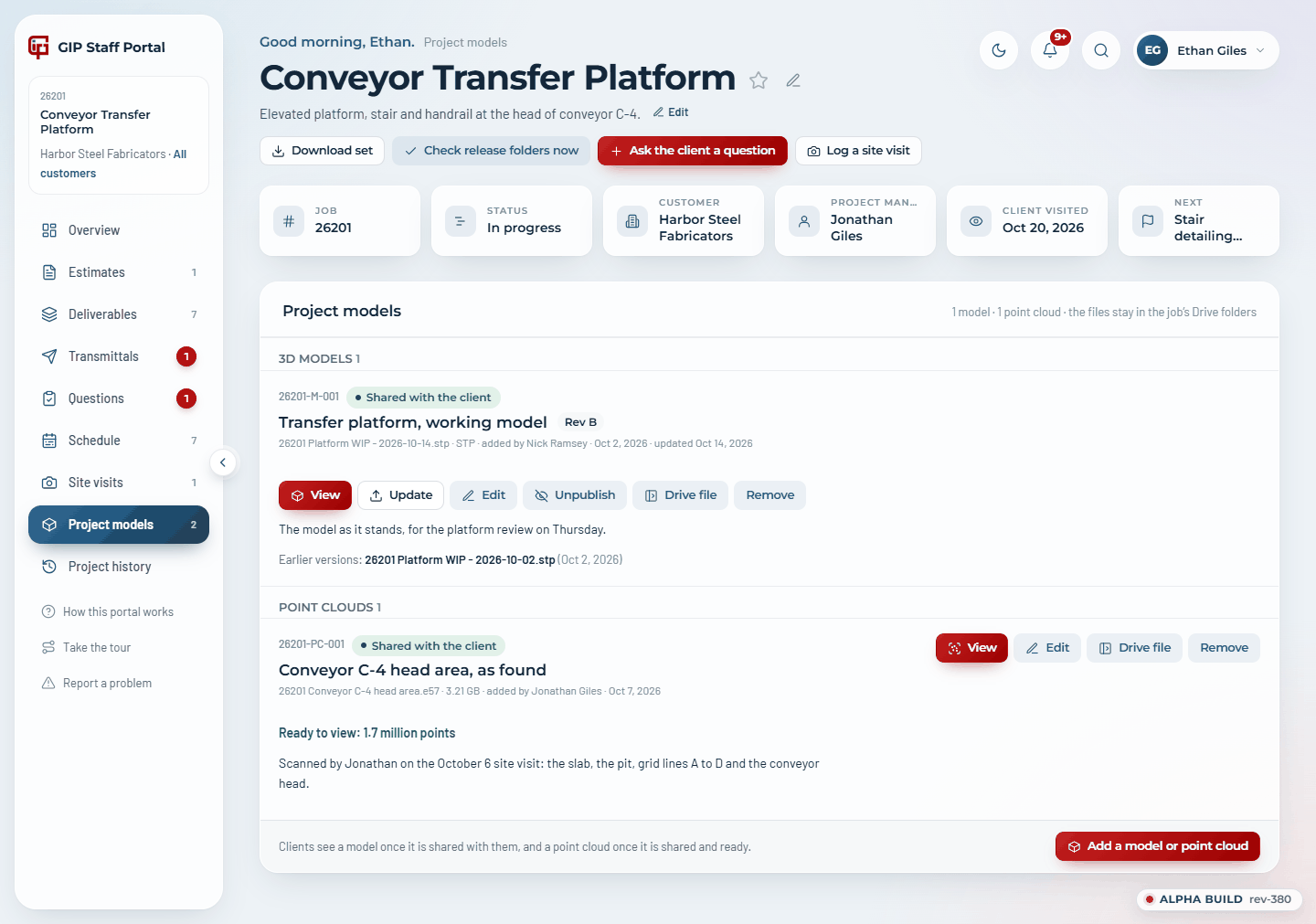
- Keeping a model current. Saved over in Drive (the same file), the model is prepared again the next time someone opens it: nothing to do. When the newer model is a new file, Update picks it from the folders; the file it replaces is kept and listed under Earlier versions for GIP, and everyone opening the model gets the new one.
- The job's shared models also appear in the 3D viewer's Models list beside its released models, to switch on together.
- Edit changes the name, the revision, the description and whether the client sees it.
- Unpublish (on a shared model) stops the client seeing it; it stays on the page for GIP, marked GIP only, and Share with the client puts it back. Remove takes it off the page altogether.
- Lining a scan up with the model (once per scan, by GIP staff): open a model of the job in the 3D viewer, tick the scan under Point clouds in Models, then Align to the model. Click a point on the scan (a column corner, a beam end, a pier), then the same point on the model (the scan goes see-through so the model shows); do a second pair far from the first, and the scan turns and moves onto the model. The panel says how closely the pairs agree. Fine-tune nudges X, Y, Z and the turn (1/8" and 0.1°, 1" and 0.5°, or 1' and 2° a click), and Save the alignment keeps it for everyone, the customer included. A scan not aligned yet and far from the model (survey coordinates) is set down over the model to start from; As scanned puts it back where its own coordinates say. All the job’s models use Tekla’s coordinates, so one alignment serves them all.
- Couldn’t be prepared says why; Try again starts it again. If it fails twice, Report a problem with the scan's name.
- Remove (whoever added it, or an admin) takes it off the project. The file stays in Drive.
- A changed scan (the same file replaced in Drive) is prepared again the next time someone opens it.
- Models and point clouds only go on projects that are on the portal. A scan for a job that isn't yet needs the job added first (Add to portal, section 5).
Publish to GIP Portal, from Tekla
Tekla Structures 2025 has a Publish to GIP Portal macro (the file and install steps are in tools/tekla). With the model open, run it from Applications & components > Applications:
- It finds the job folder the model is in on the shared drive and asks you to confirm the job, the model and where the IFC goes: 03_Engineering/Models/GIP Portal on a 2026-layout job, 02_Engineering & CAD/04_CAD Software Files/05_Exports/GIP Portal on a classic one.
- It exports the whole model there the way File > Export > IFC does with the Steel fabrication view: bolts, welds, assemblies, and every part's marks, profile and Tekla properties (the 3D viewer labels and finds parts by their marks, as B101 / p12), as <job> - <model>.ifc, then opens the job's Project models page in your browser.
- The page waits for Drive for desktop to upload the file, usually a minute or two. The first time, give it a name, a revision and a description, tick Share with the client if they should see it, and Add it. After that, publishing saves over the same file: the page says which model now shows the new save (its updated date changes by itself), with its name, revision, description and sharing there to change. For a new revision, change the revision and Save.
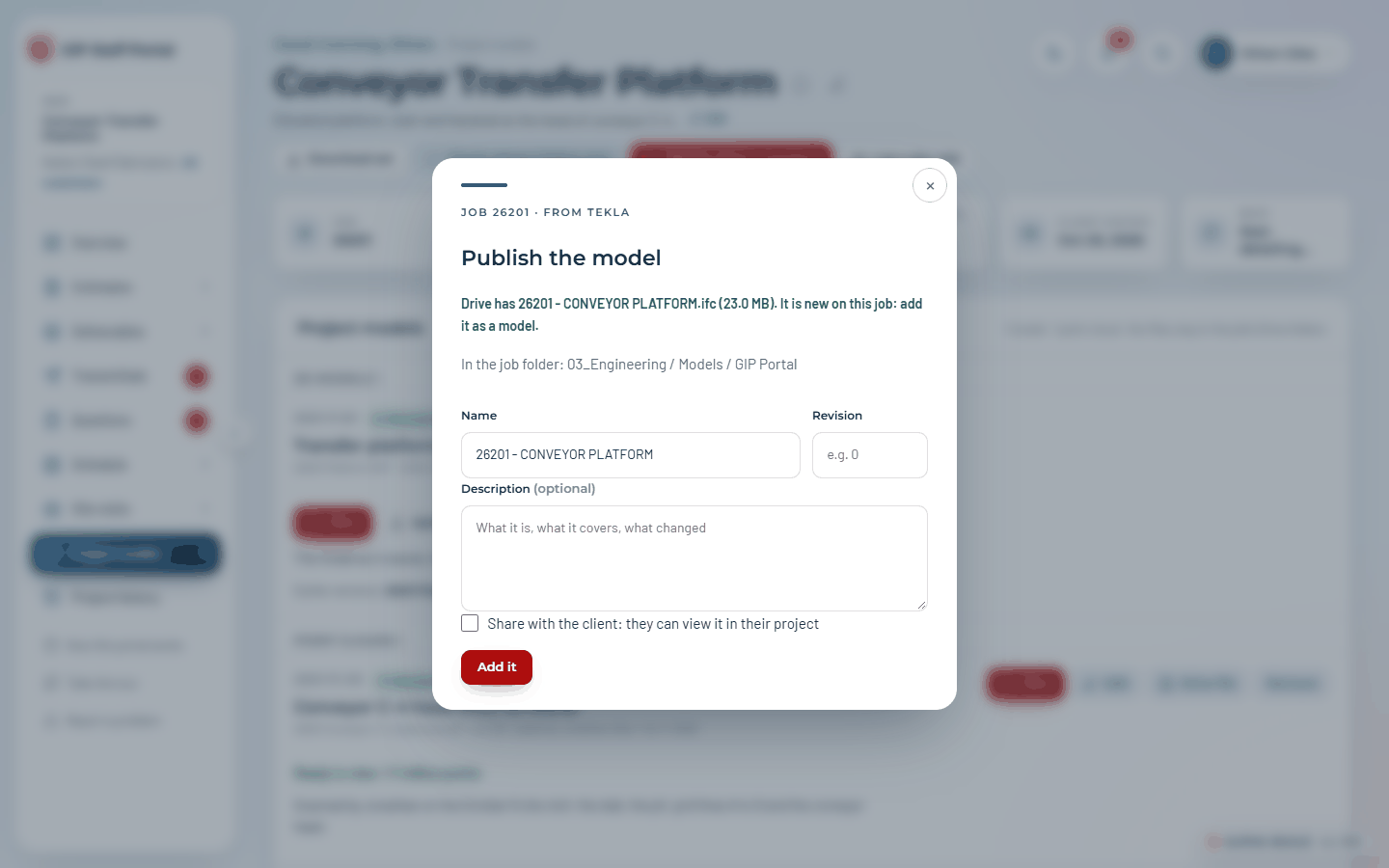
Sign in to the Staff Portal in your browser first. If Tekla can't export by itself, it gives you the path (on the clipboard): export the IFC there by hand and press OK. If the page keeps waiting, Drive for desktop isn't uploading: check its icon by the clock.
14. Reminders, nudges and the Monday email
Reminders go out on their own; Nudge sends one now. Both respect the person's notification setting and a 24-hour guard (one nudge per item per day).
| Item | Automatic reminder | Stops when |
|---|---|---|
| Estimate awaiting acceptance | Day 5 after issue; 5 days before expiry | Accepted, declined, revised or expired |
| Transmittal unacknowledged | 5 business days after issue, then every 3 business days | Acknowledged |
| Question to the client | On the response date, then every 3 business days | Answered or closed |
| Question to GIP (to the PM and team) | On the response date, then every 3 business days | Answered or closed |
Every Monday at 6 AM Central, each staff member gets the schedule email: the week at a glance, their jobs, then the rest of the firm. Choose Everything, Only my jobs or Off under Settings › What GIP emails you.
15. 3D models and GIP's model server
IFC, STEP, IGES and GLB deliverables open in the 3D viewer (Part 1, section 9). Each model is prepared once, the first time anyone opens it, and kept; replacing the file in Drive prepares the new version the next time it is opened.
| File | Prepared by | First open |
|---|---|---|
| IFC up to 15 MB; STEP or IGES up to 1.5 MB; GLB up to 20 MB | The portal, at once | Seconds |
| IFC 15 – 300 MB; GLB 20 – 120 MB | The portal, in the background | A few minutes |
| STEP or IGES over 1.5 MB; GLB over 120 MB (up to 2 GB) | GIP's model server (Google Cloud), which starts in about 3 minutes | A few minutes; a 380 MB STEP took about 7 |
A GLB must be a single file without mesh compression (Draco or meshopt); a compressed one, or a .gltf with separate files, is refused with that reason.
16. Staff, roles, issues and project folders
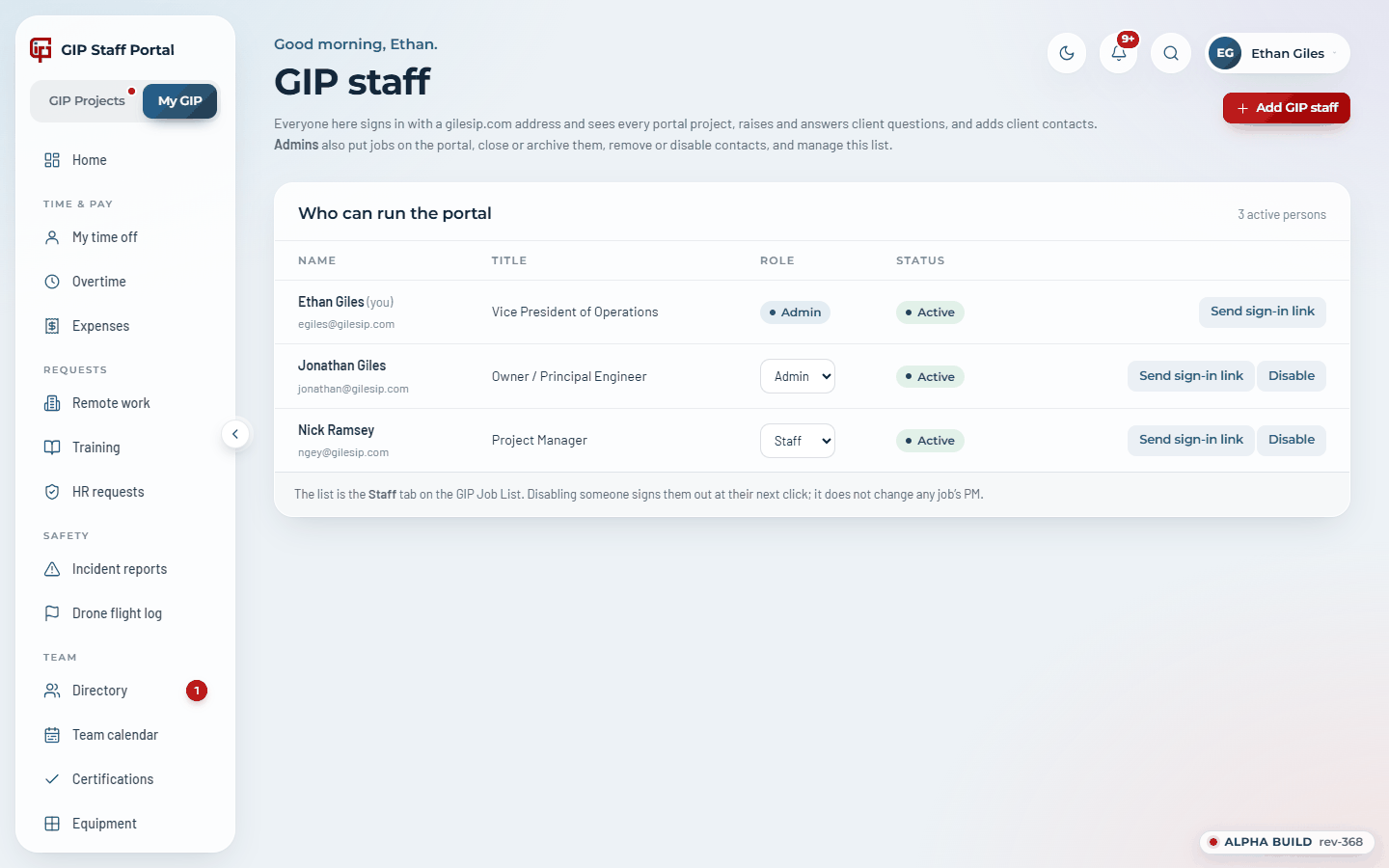
Staff & roles (My GIP › Admin) lists everyone who can sign in on the staff side. Add GIP staff (admins) takes a name, a gilesip.com address, a title and a role, and emails the person a sign-in link. The role dropdown changes Staff ↔ Admin; Disable locks someone out at their next click; Send sign-in link is the fix when someone can't get in.
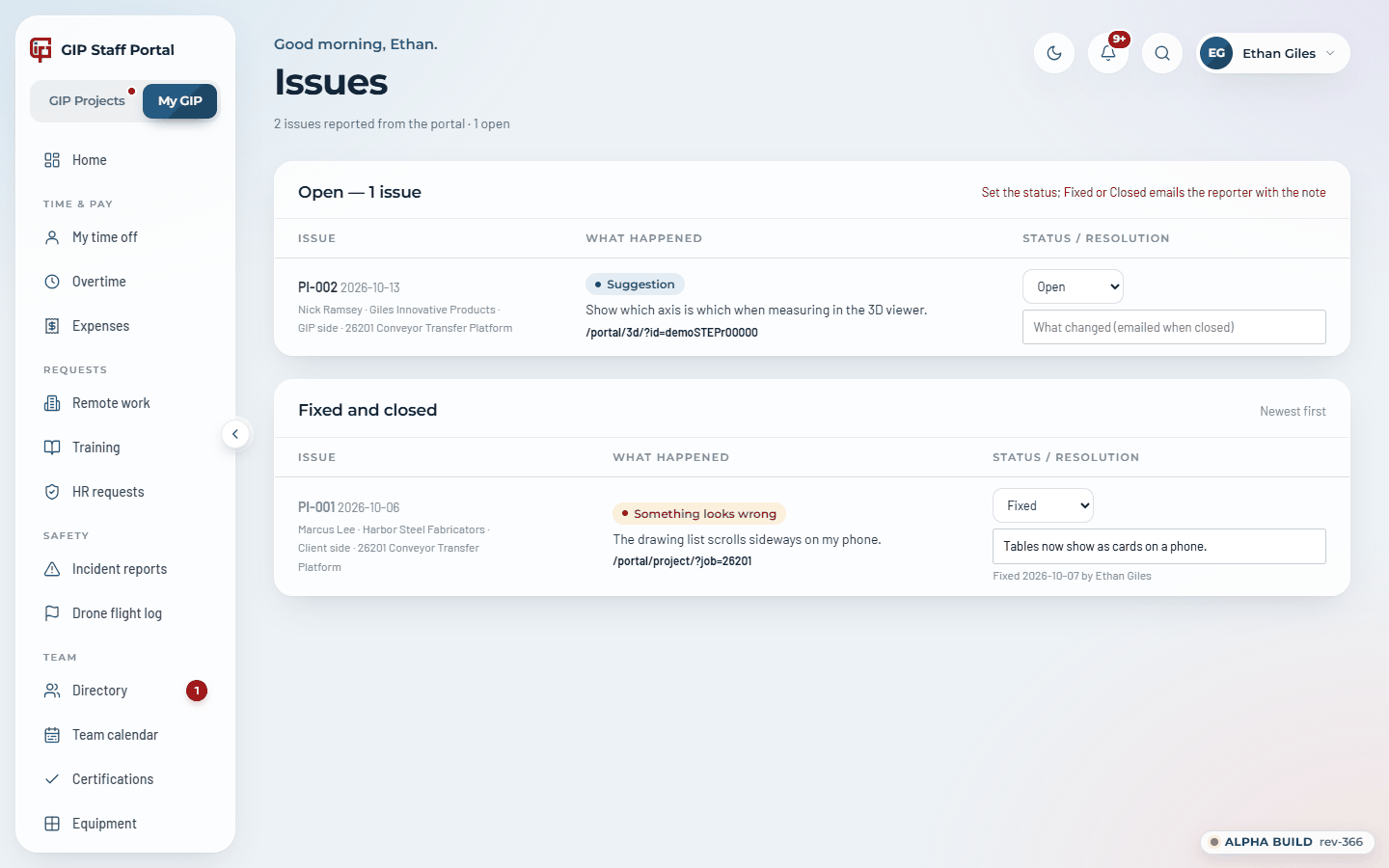
Portal issues (My GIP › Admin) lists every problem reported with Report a problem: who, which side, which job, the page, a screenshot link and the description. Set the status (Open, In progress, Fixed, Closed) and type a resolution; moving it to Fixed or Closed emails the reporter your note. Admins are emailed every new report.
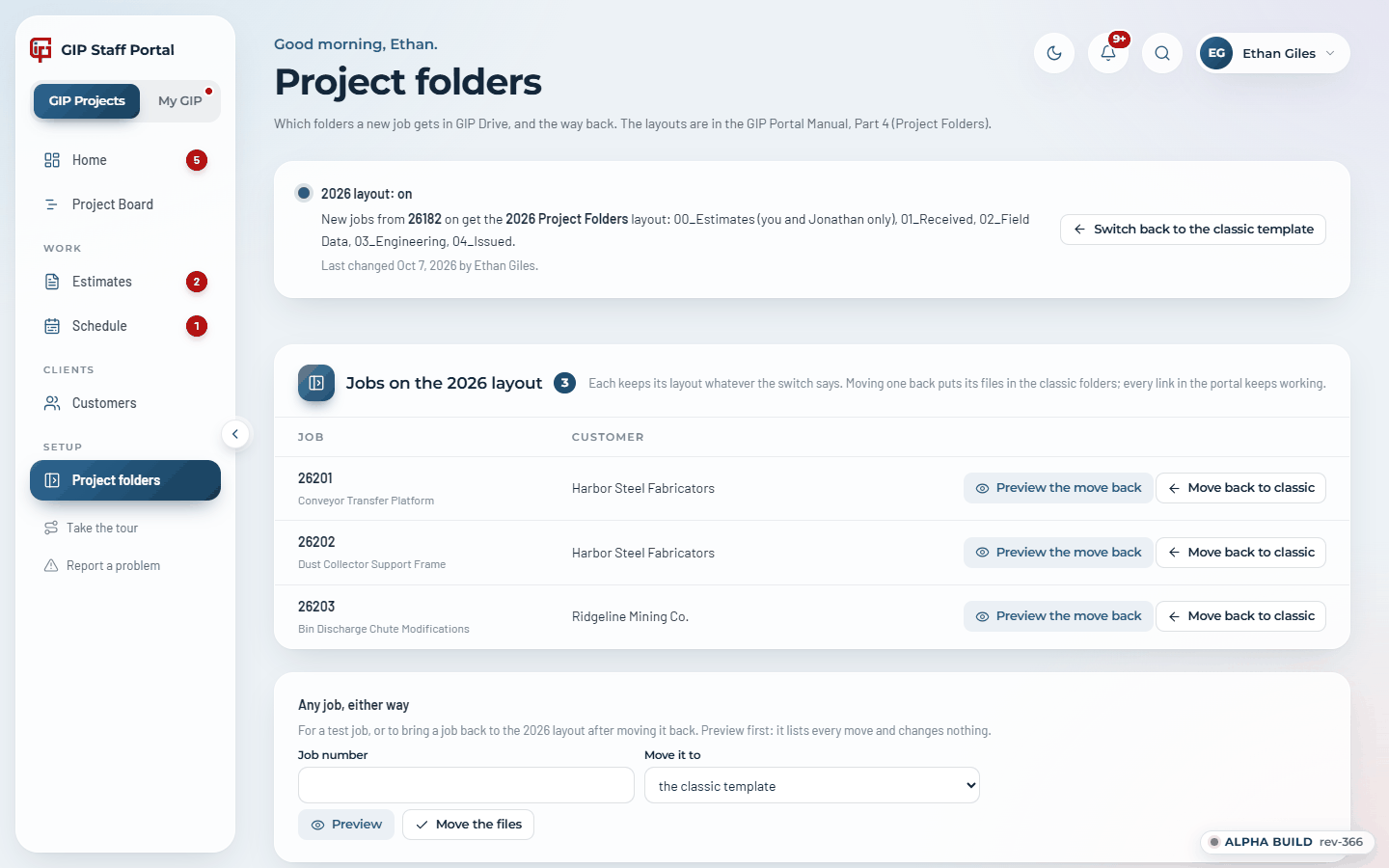
Project folders (admins) is the switch for the Drive folder layout new jobs get, the list of jobs on the 2026 layout, and a way to move any job between layouts (preview first). The layouts are set out in Part 4 — Project folders, a separate document for GIP staff.
Privacy requests
A client who uses Delete my account in Settings is signed out at once and their Portal Users row is set to Disabled, with the date on Deletion Requested. GIP (info@ and the PMs of their jobs) gets an email. Within 30 days, as the privacy policy promises, delete their Portal Users row and any copies of their details outside project records (contacts, mailing lists); their entries in estimates, transmittals and RFIs stay. Requests by email (access, a copy, correction, deletion) are answered within 30 days too. Clients agree to the Terms of Use and Privacy Policy at first sign-in; the version and time are on Portal Users, Terms Accepted. Review-request emails carry an Unsubscribe link, which marks the person Declined on the Reviews tab.
17. My GIP
My GIP is the staff's own workspace: your time off and balances, overtime and expenses; remote work, training and HR requests; incident reports and the drone flight log; the directory, team calendar, certifications and equipment; and the company's policies, benefits, Terms & Conditions and this Portal manual. Admins also see approvals, reviews, onboarding and leaving checklists, Staff & roles, Portal issues, and records and backups. Its records are kept in the portal's own database, not on the Job List.
18. Troubleshooting
| They say | Do this |
|---|---|
| "I never got the sign-in email" | Open the project › Client contacts › check the address is exactly what they typed › Sign-in link. Ask them to check junk. Links expire in 20 minutes. |
| "The link says expired" | It was already used or is older than 20 minutes. Send a fresh one, or they can ask for one on the portal page. |
| "I can't see the Accept / Acknowledge button" | They aren't the job's main contact; a colleague is. Add them with Send to them, or tell them who the contact is (the portal names them). |
| "I can't see the project at all" | Is the job on the portal (Manage, not Add to portal)? Is the person a contact on it, or company-wide? Is the job Archived? |
| "The drawing I dropped isn't there" | It may be waiting in the Release Queue for the PM, or it was rejected (look in the folder's Not Released subfolder). Otherwise: the ten-minute settle, a HOLD file, or the wrong purpose folder. Withdrawn on the Drawing Log means the file went missing from Drive. |
| "I pressed Release but nothing went" | If the page said NOT SENT YET, press it again. |
| "The client didn't get the transmittal email" | Transmittals go to contacts set to Send to them. If there are none, the PM gets a copy instead. Add a contact and use Nudge. |
| "The 3D model won't open" | A big STEP can take several minutes the first time; let it run. If it says it couldn't be shown, read the reason in small print, press Try again, and close other 3D tabs or restart the browser. |
| "Which revision do they have?" | Client engagement and Activity on the project: downloads are logged per file per day; the ledger shows what is current. |
| Something in the portal itself is wrong | Report a problem (bottom of any menu). It reaches the admins and Portal issues. |
Part 3 — Reference
1. Every email the portal sends
All portal email comes from GIP Client Portal <portal@gilesip.com> with the job's PM as reply-to, so a client's reply lands with the right person. The footer of every client email links to their notification settings.
| To the client | When |
|---|---|
| Welcome / project added | A contact is added to a job (only when their access changes) |
| Sign-in link | They ask for one, or staff resend |
| Estimate issued | An estimate is released |
| Estimate accepted, with the signed copy | They accept, or GIP accepts for them against their PO |
| Estimate reminder / expiring / expired | Day 5; 5 days before expiry; at expiry |
| New project request received | They use Request a new estimate |
| Transmittal issued, with the PDF | The PM releases a set |
| Receipt recorded, with the Acknowledgement PDF | They acknowledge |
| Review recorded | They review a set |
| Transmittal reminder | 5 business days after issue, then every 3 |
| Question from GIP, with the RFI PDF | Staff issue an RFI |
| Question logged / answered / commented on | They ask; GIP answers or comments |
| Question reminder | Due date, then every 3 business days |
| Nudge | Staff press Nudge (once per item per day) |
| Portal issue logged / fixed | They report; staff resolve |
| To GIP | When |
|---|---|
| Waiting for your release | Files settle in a release folder (to the PM, or the admins) |
| Not released | The PM rejects a file (to whoever put it there, with the reason) |
| Estimate viewed / accepted / declined / revision requested / PO added | The client acts (to the PM) |
| Accepted for the customer | An admin accepts against a PO with no contact picked (to the PM) |
| New project request | A customer uses Request a new estimate |
| Transmittal acknowledged / reviewed | The client acknowledges or reviews (to the PM and team) |
| Files from the client | The client uses Share files with GIP (to the PM and team) |
| Question from the client / answered / commented on | To the PM, copied to the team |
| RFI assigned to you | Someone assigns you a client question |
| Overdue question / revised estimate still due / withdrawn file | Daily run |
| Monday schedule email | Every Monday at 6 AM Central, per your setting |
| New portal issue | Anyone reports one (to every admin and the job's PM) |
| Staff access / sign-in link | Added to GIP staff, or resent |
2. Where the data lives
Project records are on the GIP Job List Google Sheet; the portal reads and writes it, and so can you. Edits made directly on the sheet show in the portal within a minute.
| Tab | Holds |
|---|---|
| Jobs | Every job: Portal = Y puts it on the portal; PM; status; phase, priority and who is on it (the Board); folder layout; description; CC emails |
| Phase Log | Every phase change: job, from, to, when, by, why |
| Customers | The customer list New Project offers |
| Portal Users | Client contacts: jobs, how they are emailed, status, company-wide customer, last seen, reminder setting |
| Staff | GIP people who can sign in: title, status, role (Admin / Staff) |
| Project Team | Who from GIP is on which job, and as what |
| Drawing Log / Drawing Register | Every released revision (status, transmittal); the planned drawing list with titles and packages |
| Transmittal Log | Every transmittal: files, PDF, acknowledgement and receipt, review, holds, reminders |
| Release Queue | Files waiting for the PM, and what became of each (released, rejected) |
| Estimate Log | Every estimate: dates, status, first viewed, response, PO, value, terms, terms accepted, signed copy, holds, reminders |
| Estimate Requests | Requests for pricing from clients |
| RFI Log | Every question: direction, dates, answer, PDF, assigned to, internal due |
| Milestones | The schedule per job: start, target, done, waits on, order |
| Client Uploads | Files clients sent with Share files with GIP |
| Project Models | Every working model on a project: the file in Drive and the ones it replaced, its title and notes, who added it, and whether the client sees it |
| Point Clouds | Every point cloud on a project: the scan in Drive, its title and notes, who added it, and whether the client sees it |
| Site Visits | Every site visit: date, title, who went, what was done, the photos, the Drive folder, and whether the client sees it |
| Downloads | Read receipts: who downloaded which file, when |
| Portal Issues | Problems reported from the portal and their resolution |
My GIP's records are in the portal's own database. Prepared 3D models and drawings, saved 3D views, notification state and photos are kept by the portal itself; deleting one only means it is prepared again.
Files stay in Drive under each job. The folder layouts (the 2026 layout and the classic one) are set out in Part 4 — Project folders, a separate document for GIP staff.
3. File naming and file types
[Job] - [Type] - [Number] - [Subtype, optional] - Rev [N].[ext]
| Example | Becomes |
|---|---|
| 26201 - GA - 1000 - 1 - Rev 0.pdf | Drawing 26201-GA-1000-1 Rev 0 (type GA) |
| 26201 - B100 - BEAM ASSEMBLY - Rev 0.pdf | Drawing 26201-B100-BEAM ASSEMBLY Rev 0 (an assembly) |
| 26201 - PL500 - Rev 0.pdf | Drawing 26201-PL500 Rev 0 (a part) |
| 26201 - GIP Material list - Rev 0.pdf | A report (material list) |
| 26201 - REPORTS - Scan01 - Rev 0.pdf | A report |
| 26201 - Unit 2 - Rev 1.pdf (in the estimates folder) | Estimate 26201-2 Rev 1 (no unit = estimate 26201) |
- No Rev in the name means Rev 0. A document's title comes from the Drawing Register if its number is listed there.
- Type: GA, assemblies (the name says ASSEMBLY or WELDMENT), and parts. A document counts as a report if its type is REPORTS, SCAN, SURVEY, SITE, FIELD, NOTES, PHOTOS, CALCS, FEA, BOM or MTO, or its name says material list, bill of materials, cut list, takeoff, report, calculations, FEA, analysis, scan or survey; any spreadsheet or Word file is a report too. A GA never is.
- Format comes from the file extension. PDFs open in the markup viewer; DWG and DXF in the CAD viewer; IFC, STP/STEP, IGS/IGES and GLB in the 3D viewer.
- Job numbers are the year and a sequence (26201). Client uploads are numbered <job>-R-001; transmittals <job>-T-001; questions <job>-RFI-001.
- The download's drawing ledger is named <job>_Drawing_Ledger_Rev<n>.xlsx.